
Privacy Settings Windows 10: What to Change
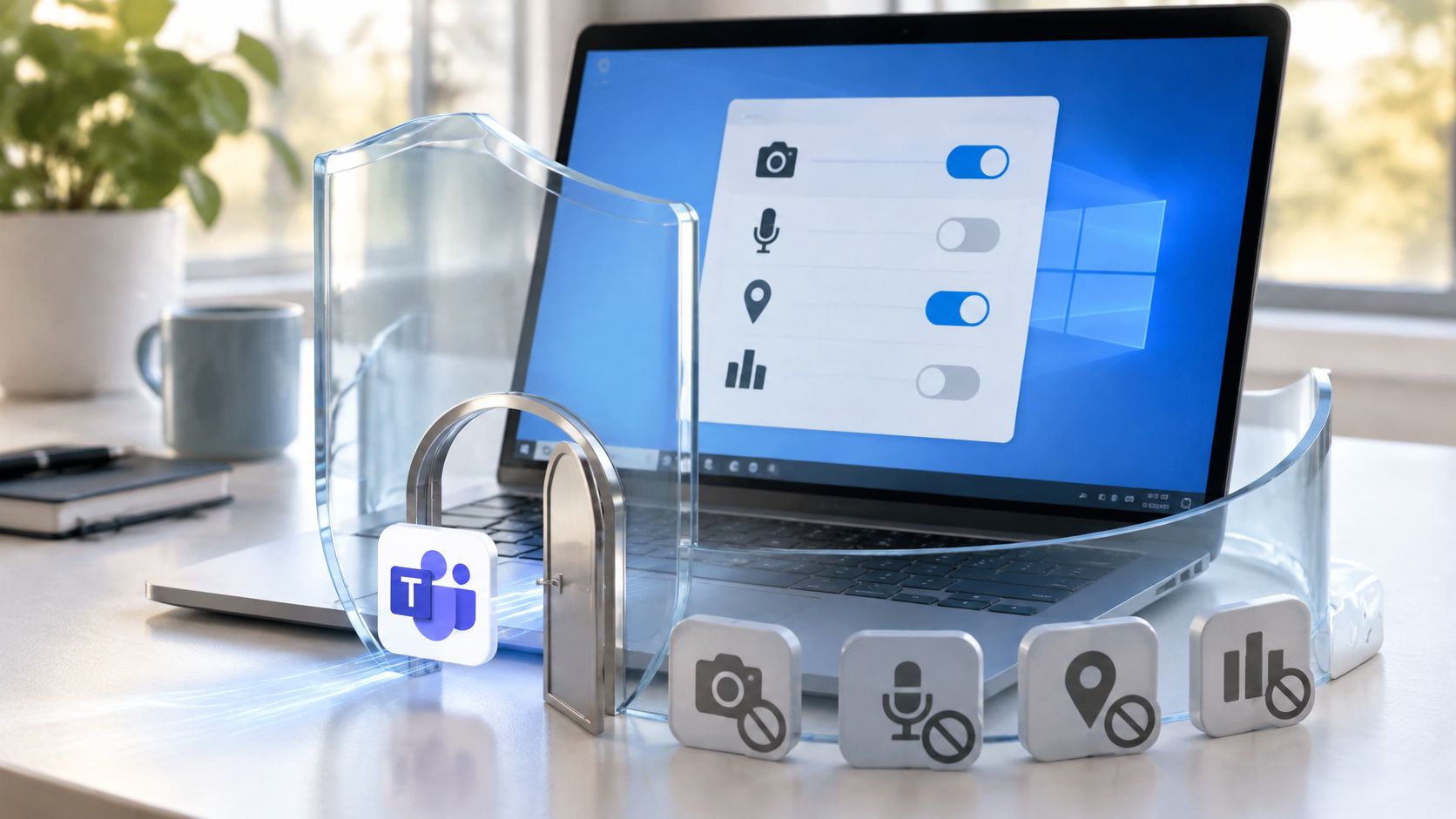
Many people review privacy settings on apps and platforms at some point, usually after a prompt, a news story, or a nagging feeling that an account knows too much. On a Windows 10 PC, that instinct is useful, but it can create a false finish line.
A privacy toggle limits what the PC shares. A security update closes holes that let attackers in. Those are different jobs, and since Windows 10 support ended on 14 October 2025, the second job no longer happens automatically. Switching off advertising ID or optional diagnostic data can reduce data collection, but it cannot replace a missing patch.
Use this guide in that order. Set the privacy switches first because they are quick and visible, then decide how you will handle the unsupported system underneath: upgrade, replace, isolate, or accept the risk with eyes open.
Privacy Settings Windows 10 Worth Changing First
Windows 10 has no master privacy switch. Open Settings > Privacy and you get a column of separate pages, each one a light switch for a different kind of data. Eight of those switches do most of the work, and they're worth setting before anything else on the machine.
| Control | Where | Set it to | What you give up |
|---|---|---|---|
| Diagnostic data | Settings > Privacy > Diagnostics & feedback | Required, Optional off | Thinner crash and performance reports for Microsoft support |
| Feedback frequency | Settings > Privacy > Diagnostics & feedback | Never | Occasional surveys stop; updates still install |
| Advertising ID | Settings > Privacy > General | Off | Less personalized advertising in some Microsoft apps; ads do not vanish |
| Location | Settings > Privacy > Location | Off, then allow named apps | Weather, maps and location-based reminders stop until an app is allowed |
| Camera | Settings > Privacy > Camera | Off, then allow named apps | Video calls fail until the calling app is allowed |
| Microphone | Settings > Privacy > Microphone | Off, then allow named apps | Calls and dictation fail until that app is allowed |
| Activity history | Settings > Privacy > Activity history | Off, then clear history | Timeline and resume-across-devices get weaker |
| Tailored experiences and speech | Diagnostics & feedback, and Speech | Off if Cortana and dictation are unused | Cortana and typing personalization become less useful |
Read the right-hand column before you flip a row, because the prices aren't equal. A weather app that can't see your location still works if you type a city, while a video call that can't reach the camera fails outright until you grant it. Turning off the advertising ID doesn't remove ads, it just makes them less relevant to you. And the diagnostic switch at the top of the list buys you the smallest privacy gain with the largest practical cost: when something breaks, Microsoft has less to work with.
What These Switches Reach and What They Don't
These controls govern Windows components and the apps that honor Windows permissions, which covers most Store apps and a fair number of desktop programs. They don't touch your browser's own tracking protection, your Microsoft account profile, Office, or any cloud service you signed into separately. A tidy Privacy page and a chatty browser can coexist quite happily.
Practical rule: leave a category off, then add back one named app at a time. The blanket "allow all apps" switch is the one people regret six months later.
The order you work in matters less than the direction you travel: fewer categories open, more apps named individually. If you're configuring a machine you just unboxed, this new laptop setup walkthrough covers the account and update steps that come before you ever reach the Privacy pages.
What Required Diagnostic Data Still Sends
A car's dashboard doesn't record your route. It reports speed, fuel level and warning lights, which is roughly the deal Windows offers with Required diagnostic data. The system tells Microsoft what hardware it's running on and whether Windows is working properly, and it leaves out the running commentary on how you use it.
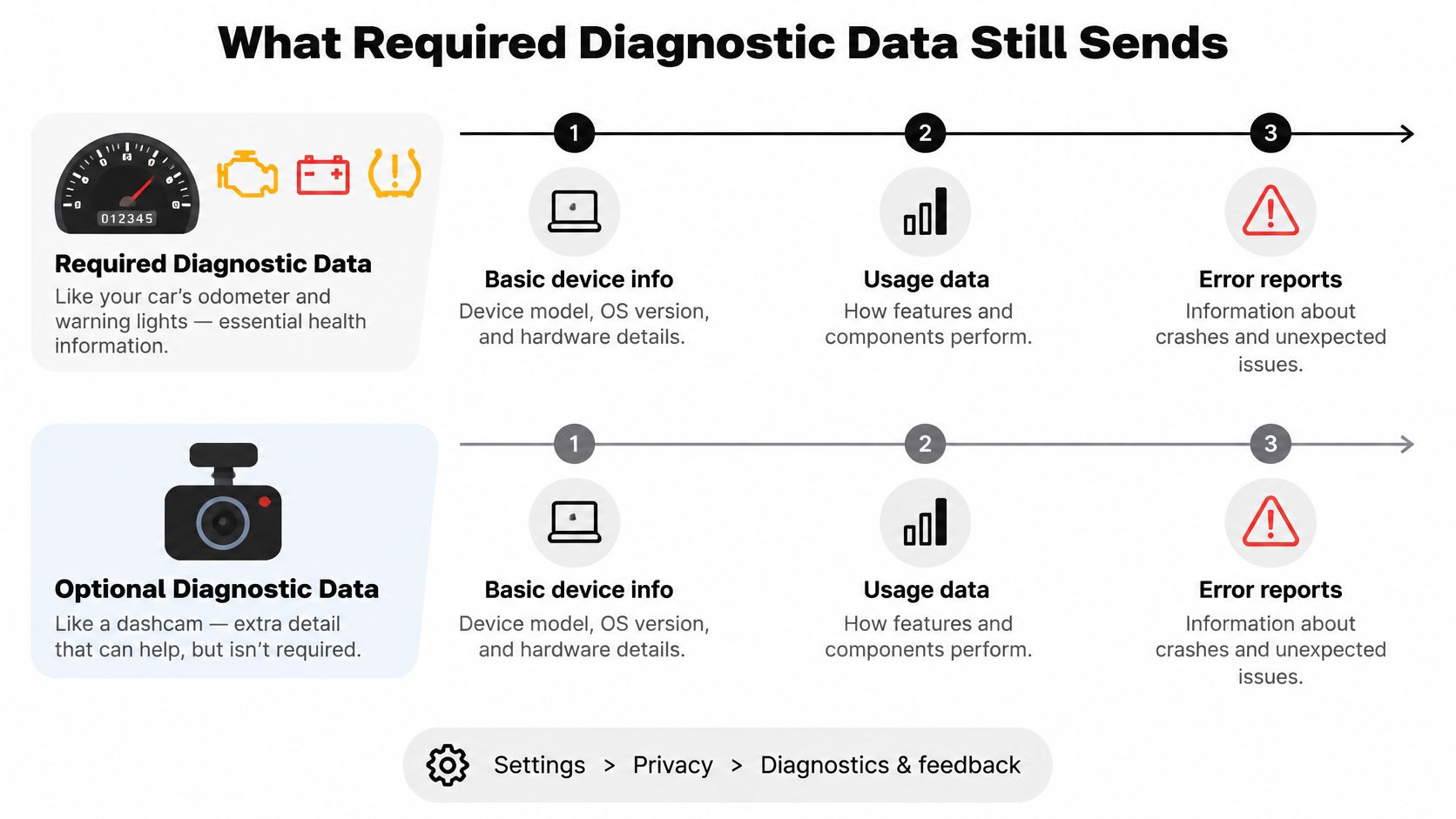
Microsoft's Windows privacy compliance documentation treats Settings > Privacy > Diagnostics & feedback as a volume control rather than an off switch. Required data covers device configuration, capabilities and whether Windows is operating correctly. Optional data adds more detailed information about device health, settings and performance. Crash-dump files aren't collected without additional permission, such as turning on Optional diagnostic data.
Why the Lowest Setting Still Sends Something
Windows still reaches Microsoft for updates, activation checks and Defender definitions. That traffic is part of keeping the machine serviced, not a side effect you can toggle away. The same Microsoft documentation is candid that choosing the minimum reduces the information available for troubleshooting and product improvement, and that it doesn't make Windows entirely offline or stop every service connection.
If your worry is broader than the operating system, AccountShare's data sharing opt out page is a sensible companion read, because it deals with opting out of data shared with third parties rather than with telemetry from Windows itself.
Where the Labels Came From
The wording has changed twice, which is why older guides read differently from current Settings pages. When Windows 10 launched in July 2015 it shipped four tiers, documented as Security, Basic, Enhanced and Full in Microsoft's original telemetry guidance, and the Security tier was limited to Enterprise, Education and IoT Core editions.
In April 2017, Microsoft published the detailed diagnostic categories behind the setting and said it had cut the volume collected at the Basic level by about 50 percent. Today's Required tier covers the ground that Security and Basic used to cover, and Optional covers what Enhanced and Full did. The principle underneath is unchanged: some data is treated as necessary for security, updates and reliability, and the rest supports product improvement.
On a work machine: an administrator can lock the setting through Group Policy at Computer Configuration > Administrative Templates > Windows Components > Data Collection and Preview Builds > Allow Telemetry. On Windows 10 version 1809 and earlier, the same policy appears under the older "Allow Telemetry" name.
Your own privacy protection routine should treat this as one layer among several. The next one is app permissions, which answer a completely different question.
How to Limit Camera Microphone and Location
Think of a front desk with a sign-in sheet. The category switch decides whether anyone may ask for access at all, and the per-app list decides who is on the guest list. Both live under Settings > Privacy, and Microsoft's guidance on diagnostics, feedback and privacy in Windows describes the result as an access-control system rather than one master switch.
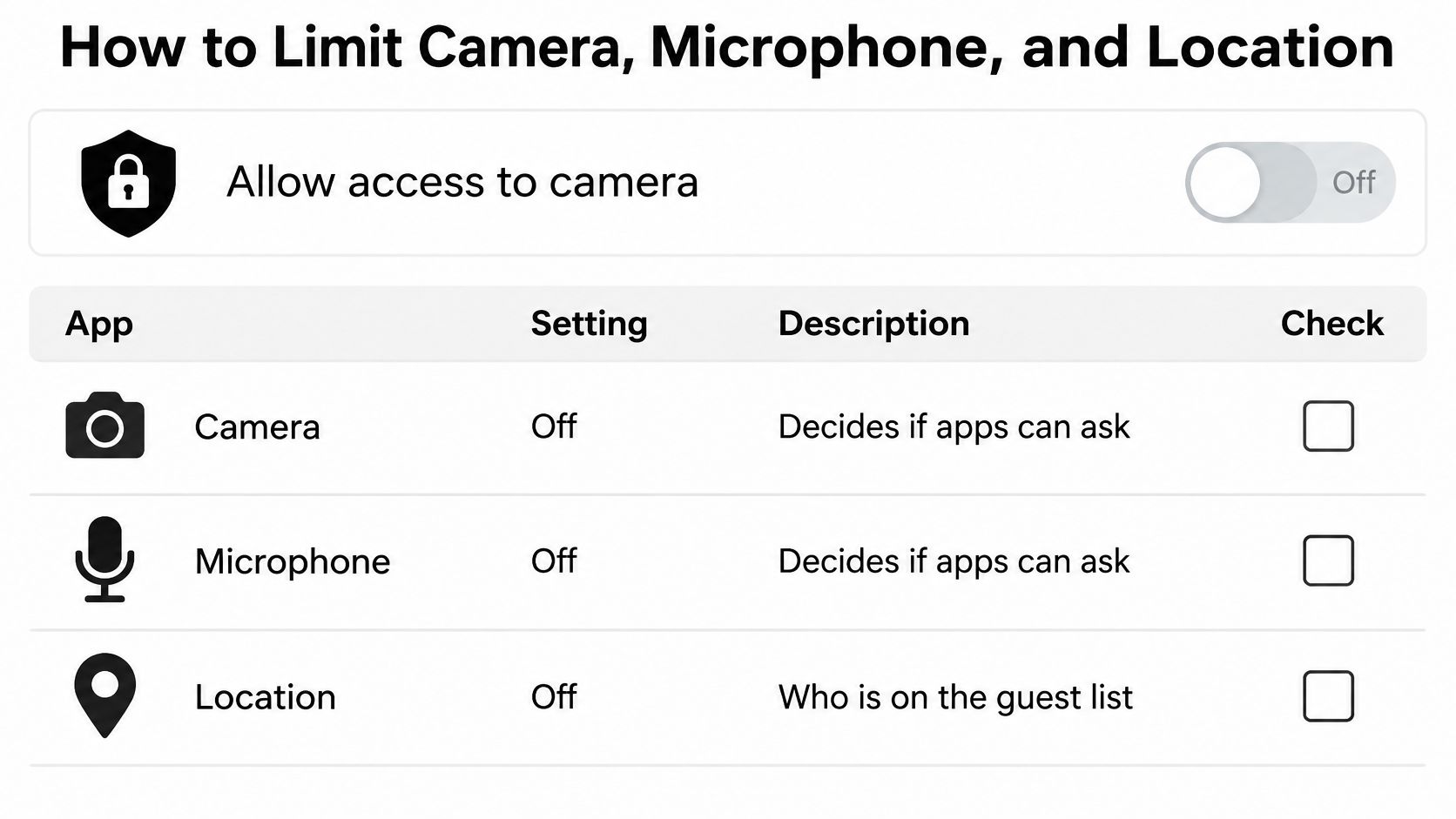
The categories worth working through on a home PC are location, camera, microphone, account information, contacts, calendar, notifications and app diagnostics. The routine is the same for each:
- Open Settings, then Privacy.
- Switch the category off for the whole device.
- Scroll the app list underneath and leave access off for anything that doesn't need it.
- Turn the category back on only for a trusted app, such as a browser or calling app for camera and microphone, or Maps for location.
- Recheck the list after installing new software, because one individual grant can change the effective result even while the global switch reads off.
Three Apps, Three Decisions
A school laptop keeps the camera off except during a named video app, so a stray game can't switch it on during a lesson. A desktop tied to a phone account denies contacts and calendar to everything, because a game has no business reading a family's schedule. A weather tile stays blocked permanently for the reader who types a postcode instead of sharing GPS.
The pattern holds across all of them. Permission controls govern whether installed apps can request specific user or device data, while diagnostic telemetry concerns Windows' own operational data. Neither replaces the other, and a machine with perfect diagnostics and open camera access is still an open camera.
One catch worth knowing: a website in your browser needs the browser's own permission prompt as well as the Windows camera switch. If a call fails, check both before assuming something is broken, and work through this laptop camera troubleshooting guide for Zoom if the hardware looks fine but the picture stays black.
Turning off the location category also stops Windows and apps from requesting coordinates, and this guide to disabling location services walks through the per-app side of that decision. The rule to finish on is simple: leave access off globally, then add exceptions by name.
Advertising ID Activity History and Cortana
An advertising ID works like a locker number rather than a name tag. Apps can hand that number to an ad network to recognize this PC across sessions without ever needing your Microsoft account email, and the number travels with you between apps that use it. Turn it off under Settings > Privacy > General and apps can no longer use it for personalization. Resetting the ID, where your build still offers that button, starts a fresh number but doesn't erase anything an advertiser already stored.
The same General page holds two quieter choices:
- Language list access: lets websites show locally relevant content by reading your language list. Turn it off and you'll type a country into more forms.
- App launch tracking: lets Windows record which apps you start in order to tune Start and search results. Off means slightly less personalized suggestions.
Activity History and the Shared PC Problem
Activity history stores what you did on this device and, with a Microsoft account signed in, feeds Timeline and resume-across-devices. On a personal machine that's convenience. On a shared desktop or a second-hand laptop it's a log of somebody else's evening. Switch off storing and clear the existing history, not just the future one.
The Speech page and the personalization section of Diagnostics & feedback form the Cortana and dictation door. Both build a local profile of how you speak and type. If you never use voice or handwriting suggestions, turning them off costs you little beyond slightly blunter autocorrect and a more generic assistant.
State the limit plainly: off on the PC does not opt you out of every ad network in Chrome, an Edge extension or Office. Those products hold their own settings and their own account data.
For the account side, sign in to the Microsoft privacy dashboard in a browser with the same account and review browsing, search and location history there. That's the only place some of it can be cleared, and it's also where you'll find the account-level ad preferences. Readers weighing how much of this data feeds profiling will find the wider picture in this look at AI privacy concerns.
Three Privacy Setups and Their Tradeoffs
The eight switches aren't a single recipe. What you leave on depends on who uses the machine, so here are three households and the choices each one lives with.
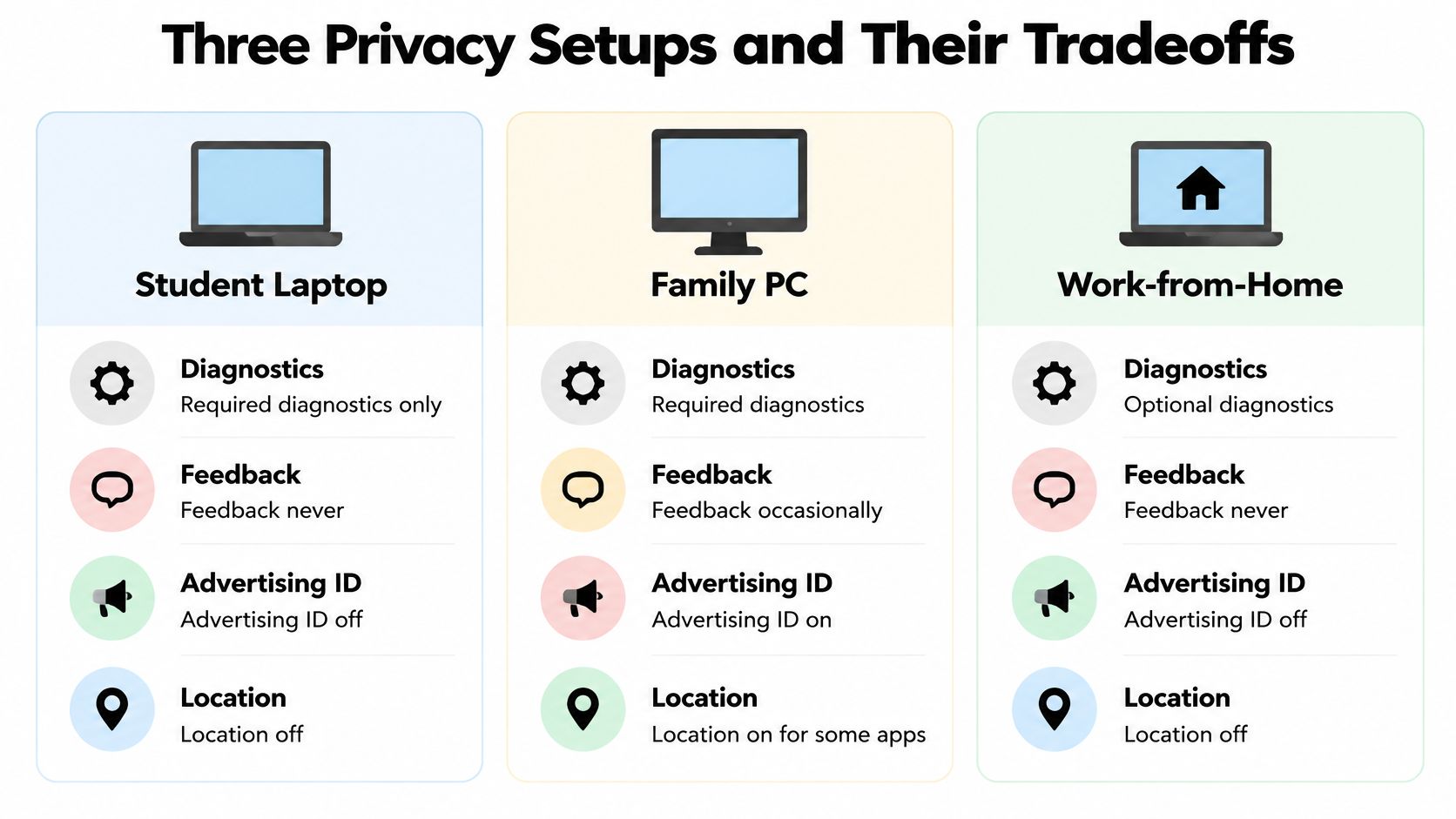
| Control | Student laptop | Shared family PC | Work-from-home laptop |
|---|---|---|---|
| Diagnostic data | Required only | Required only | Required only unless support asks |
| Advertising ID | Off | Off | Off |
| Location | Off | Maps only | Off |
| Camera | Calling app only during class | Household video app only | Off until a meeting |
| Microphone | Same calling app only | Household video app only | Meeting app and dictation on |
| Activity history | Off and cleared | Off and cleared | Off |
| Speech and typing | Off | Off | On for daily dictation |
The student column is the strict one, and its costs show up as friction rather than failure. Weather gets typed, Timeline disappears, and a support call starts with fewer diagnostic details on hand. The family desktop relaxes exactly two things, camera and microphone for the household video app plus Maps for location, and keeps activity history off precisely because several people share the login.
The work-from-home machine is the only one where speech personalization stays on. If dictation is a daily tool, a generic language profile is a tax paid every morning, and that's a poor trade. Its camera stays off until a meeting starts, and Optional diagnostics are switched on only when a company help desk asks for a reproduction, then switched off again.
Edge Cases That Break the Pattern
A child account shouldn't inherit a parent's camera exception. Permissions belong to the account in use, and a shared exception made for one person applies to whoever signs in next.
A second-hand PC should have its activity history cleared before the new owner signs in, ideally before the old owner hands over the machine at all.
A desktop with no webcam can skip the camera row entirely. There's no sensor to protect and no feature to lose.
How to choose: start from the strict column and add back only the cells that restore something you use every week.
That habit scales better than copying anyone's list, including this one. And it's worth applying once more if you manage a phone alongside the PC, using this iPhone app tracking walkthrough for the settings that live outside Windows.
Choose Your Windows 10 Path Now
Turning tracking off does not make an unpatched Windows 10 PC safe. Microsoft states that Windows 10 support ended on October 14, 2025, after which PCs no longer receive security updates, fixes or technical support. Privacy toggles close the curtains. Patches repair the lock. Closed curtains do nothing against a browser exploit, a malicious document, an outdated driver or a compromised app.
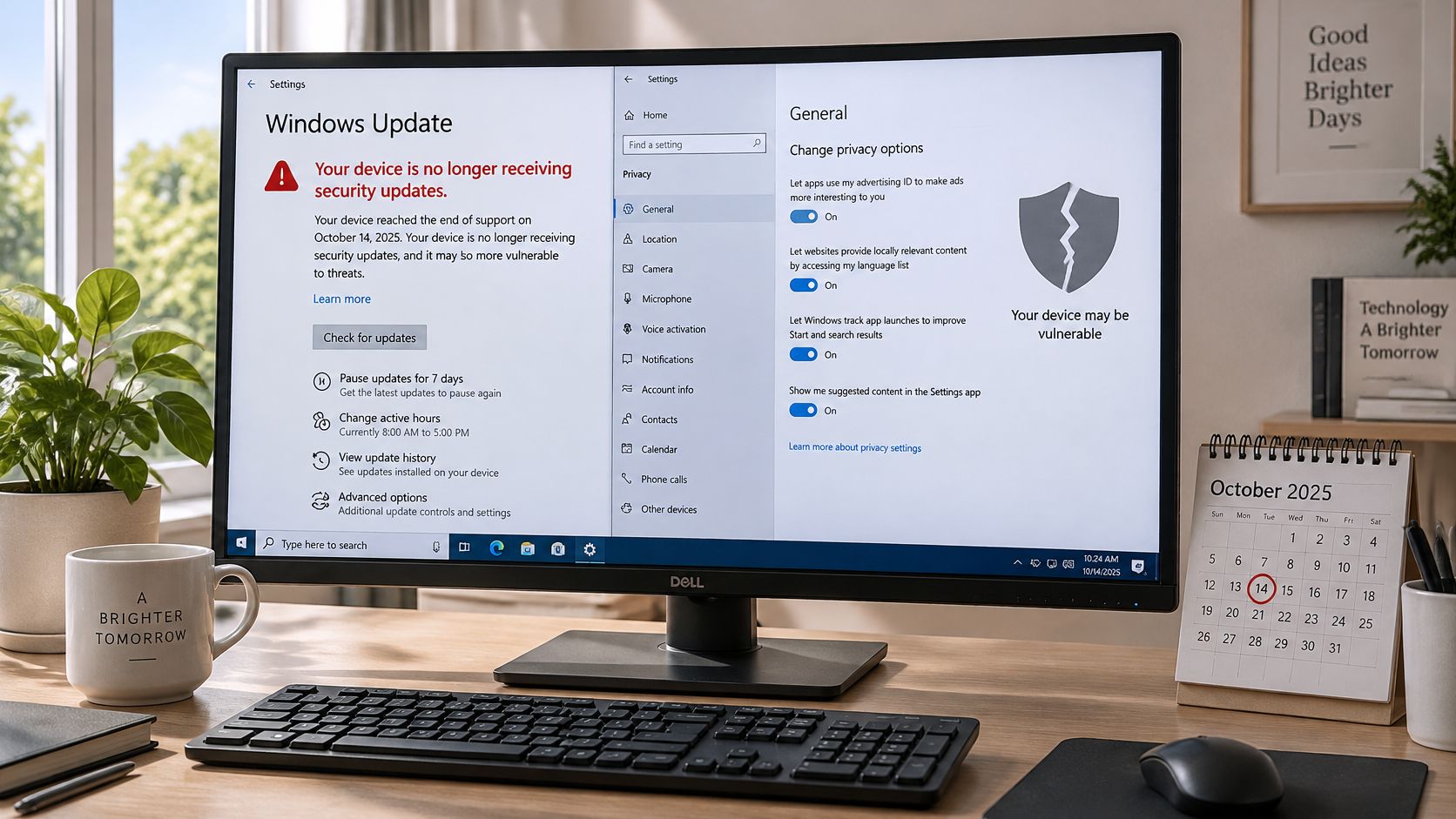
Antivirus helps, but it works at the edges. It catches known threats and blocks some downloads, while it cannot rebuild the parts of the operating system Microsoft no longer repairs. So the practical question is what this machine is still allowed to do, because tidy settings alone do not answer that.
Step One, Find Out What You Have
Open Settings > System > About and check the Windows edition and version. That single line decides whether the least disruptive option is even open to you. If the machine is already past its supported build, the upgrade conversation comes first.
Path One, Enroll in Extended Security Updates
Microsoft says eligible Windows 10 22H2 devices can enroll in Extended Security Updates, which keeps security fixes arriving for a limited period beyond the end of support. For a household that cannot replace hardware this year, that is the difference between a patched machine and an unpatched one, and it is the only route that keeps the operating system receiving fixes. Be clear about what it is not. ESU does not restore full feature support, and it does not reset any of the diagnostic, advertising or account choices covered earlier. Your privacy settings travel with the machine exactly as you left them.
Path Two, Move Daily Work Elsewhere
If a Windows 11 device or a Mac is already in the house, move banking, email, shopping and document work to it. Keep the old PC for offline tasks, a printer or a media drive. This split is the cheapest path for many families, and it is honest about the trade: the old machine stays useful without being trusted with anything sensitive.
Path Three, Lock Down While You Wait
Sometimes enrollment is not possible and replacement is months away. In that window, stop banking and stop opening sensitive files on the machine. Keep a browser that still receives its own security updates, avoid opening unexpected attachments, and skip driver downloads from unfamiliar pages. These habits lower the odds of the most common attacks succeeding, though none of them substitutes for patches.
Before you settle on any path, clear activity history on shared or second-hand machines, and if a support case requires Optional diagnostics, turn them on for the case and off again afterwards. Older PCs remain common in households, schools and lower-income markets, so this decision gets made millions of times over, often on hardware nobody can afford to replace this year.
The honest version: a quiet diagnostics setting on an unpatched PC is a smaller data trail, not a safer computer.
Write down which of the three paths this machine is on, and when you will revisit it. A note with a date on it beats an intention, and it is the one privacy step that also happens to be a security step.
Tech Today exists for exactly this kind of decision, explaining privacy settings and support deadlines in plain language instead of jargon, so you can act on them in an afternoon. If this walkthrough helped, browse our other guides on device setup, browser privacy and account cleanup at Simply Tech Today.
Member discussion