
What Is the Difference Between Hardware and Software?
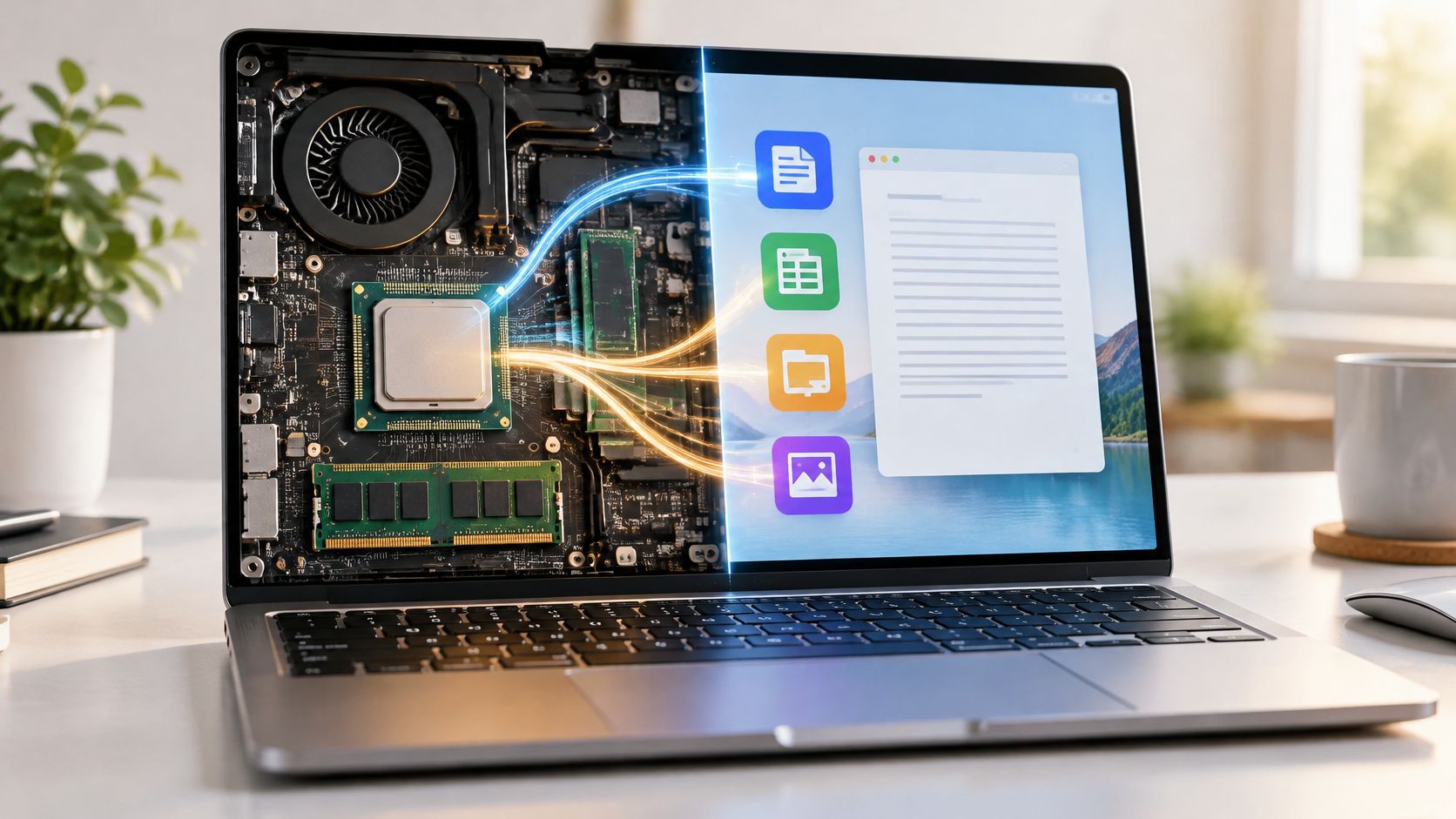
Hardware is the physical parts you can touch, and software is the set of instructions that tells that hardware what to do. You're probably reading this because of a moment like this. Your phone updates overnight and the camera stops opening, or the printer goes offline right before you need it. Is the device broken, or did a program change?
That question is why the distinction matters in daily life. Once you know which side you're dealing with, you know whether to restart, update, reinstall, or book a repair.
Hardware and Software at a Glance
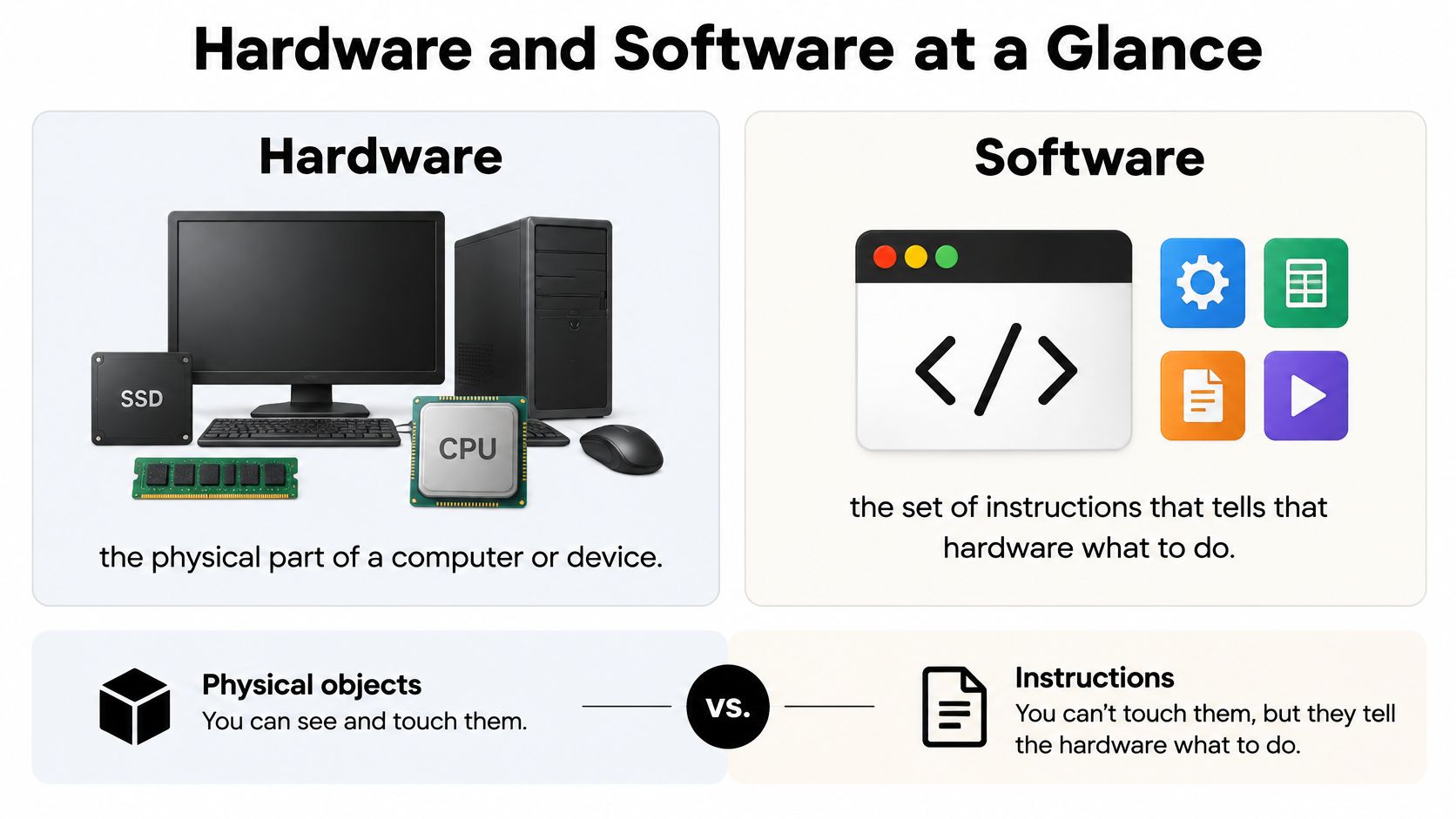
Hardware is the physical part of a computer or device. Software is the set of instructions that tells that hardware what to do. The Australian Computer Society heritage chapter gives the same split, listing processors, memory chips, storage drives, keyboards, and screens as hardware, while software organizes those parts into actions such as launching an application or editing a document.
| Aspect | Hardware | Software |
|---|---|---|
| What it is | Physical parts you can touch | Instructions and data that tell hardware what to do |
| Examples | Processors, memory chips, storage drives, keyboards, screens | Operating systems, web browsers, word processors, games |
| How it changes | Replaced or upgraded by installing new physical parts | Updated, installed or removed without touching any components |
| How it fails | Faults tend to repeat across apps and operating systems | Faults may disappear after reinstalling or changing settings |
| Where it runs | Acts as the execution platform | Needs compatible hardware to run |
| How it is sold | One-time purchase of a physical device | Licence, subscription or free download |
A quick test you can use anywhere
Take a laptop. The laptop itself is hardware. Windows or macOS and the word processor running on it are software. The laptop does nothing useful without instructions, and those instructions can't run without a machine to run on.
Practical rule: If you can drop it on your foot, it's hardware. If it only exists as instructions stored on something else, it's software.
Apply that test to any part or program you're unsure about. Can you touch it, or is it instructions that run on something else? Most everyday items sort themselves in seconds once you ask it that way.
Simple Analogies and Why the Split Mattered
Think about a kitchen. The stove, oven, and knives are the hardware. The recipe is the software. Change the recipe and the same kitchen produces a completely different meal, but the best recipe in the world won't cook anything on a broken stove.

A piano works the same way. The piano is hardware, and the sheet music is software. One piano can play thousands of songs, and swapping the sheet music doesn't require a new instrument. Computers follow that pattern exactly, which is why asking what is the difference between hardware and software is really asking where the machine ends and the instructions begin.
Two moments that separated them
IBM's System/360, announced in April 1964, was built as a family of compatible machines, so software kept working when a business upgraded its physical equipment. Then, according to the Cambridge University Press chapter on tech dominance, IBM announced on June 23, 1969 that it would make seventeen applications independently available for lease, and began separate pricing in 1970.
Before that, software usually came bundled with the machine at no separate charge. Separate pricing made software a product in its own right, something other companies could develop, license, and sell for hardware they didn't make.
That's the model you live with now. It's why the same word processor runs on different laptops, why connected devices such as those covered in this guide to what the Internet of Things means depend on apps made by separate firms, and why an update can change how your device behaves overnight without anyone touching its parts.
Where Firmware and Drivers Fit In
The split gets blurry in two places, and that's where most readers get stuck. Firmware is software stored inside a device itself, such as the control memory in a router or printer. Drivers are software layers that let an operating system communicate with specific hardware, such as a webcam, a Wi-Fi adapter, or a printer.
A useful teaching outline from a University of Wisconsin course handout on hardware versus software frames the same problem. A device can appear to have a hardware fault when the cause is outdated or incompatible software sitting between the part and the system.
Your device as a five layer stack
- Physical hardware: The chips, screen, battery, and camera in your phone or laptop.
- Firmware: Instructions built into those chips, such as the code that starts your laptop before Windows loads, including the kind covered in a guide to UEFI boot settings for Windows 11 from Steel City IT.
- Drivers: Translators that connect each part, such as the driver that lets your operating system use the Wi-Fi chip.
- Operating system: Windows, macOS, Android, or iOS, managing the whole device and deciding which app gets what.
- Apps: The browser, email client, and games you open and use every day.
Each layer depends on the one below it. A video call needs the camera hardware, its firmware, its driver, the operating system granting permission, and the calling app on top. Break any layer and the call fails, even though four layers are fine.
An update can fix or break something you thought was hardware because it changes a lower layer, not the part itself.
That's also why knowing how to update firmware matters as much as updating apps. Before you assume a part is dead, ask which layer is most likely responsible for the symptom. That single habit turns panic into a short, orderly check.
Hardware or Software
Start with one diagnostic test. Hardware faults usually repeat across apps and operating systems. Software faults may vanish after you change the program, its settings, or the operating system environment. If the problem follows you everywhere, suspect the part. If it stays in one app, suspect the app.
| Symptom | Likely cause | First check |
|---|---|---|
| Laptop overheats and shuts down under heavy load | Hardware, such as a clogged fan or failing cooling | Clear the vents, listen for fan noise and run the manufacturer's hardware test |
| One app crashes, other apps work | Software | Update or reinstall that app and clear its cache |
| Printer goes offline after an operating system update | Driver or firmware | Reinstall or roll back the printer driver and check for printer firmware |
| Wi-Fi drops on every device | Hardware or router firmware | Restart the router and install any pending router firmware update |
| Keys stop working in every application | Hardware, such as a connector or keyboard fault | Test the keyboard on another computer or in the BIOS screen |
| Touchscreen stops responding after an update | Driver | Roll back the touchscreen driver to the previous version |
The testing order that saves money
- Restart the device. This clears temporary software states and costs you nothing.
- Try a second app or user account. If the problem disappears, the first app or profile is the cause.
- Update or roll back the driver. A timing match with a recent update is a strong driver clue.
- Check for firmware updates. Routers and printers especially often need these after system changes.
- Run the manufacturer's hardware test. Only now should repair or replacement enter the conversation.
For deeper fault-finding steps, myhalo's guide to hardware troubleshooting from myhalo walks through systematic part-by-part checks. Display problems deserve the same patience, since many video card problems and symptoms trace back to drivers rather than the card itself.
Performance complaints fit this logic too. ACM research on memory-intensive workloads reports that cache misses cause stalled processor cycles and that average memory-access time rises when requests miss in L2 and L3 cache. So a slow app on a fast machine may be poorly organized software, not weak hardware.
Software can usually be patched or reinstalled without touching components, while hardware fixes require installing a part or replacing the system. Replacing a device before these checks often wastes money on a problem a driver update would have solved in ten minutes.
How Updates and Support Periods Change Your Choices
A phone can feel perfectly healthy on the day its maker stops patching it. The screen still lights up, apps still open, yet every new security flaw goes unfixed from that day on. That gap is why a device's real lifespan depends less on the hardware wearing out and more on how long the software on top of it stays supported.
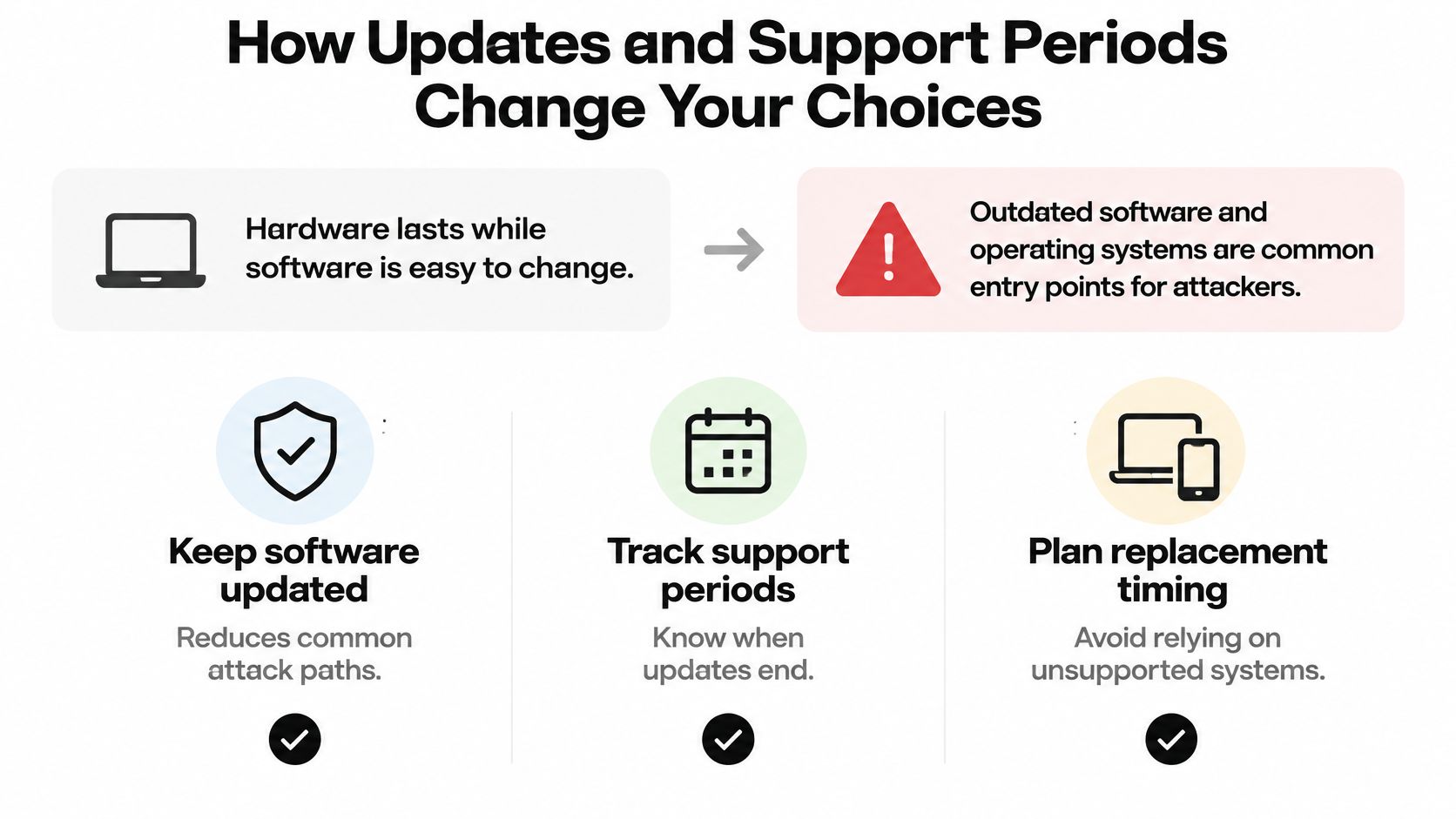
The CISA guidance on updating government software describes outdated software and operating systems as common entry points for attackers and recommends replacing hardware or software that no longer receives patches. Newer hardware may also include security features that older hardware cannot support, so updates alone can't always close the gap.
Rules are catching up with this reality. Some governments are beginning to require manufacturers to publish how long security updates will be provided, so support duration is becoming a printed specification, like storage size. When you read that date, apply it to the whole stack: firmware that boots the device, drivers that talk to its parts, the operating system, and the apps on top. A long support promise on the operating system means little if the maker abandons firmware updates early, so treat each layer as its own clock.
The buy, update, or replace checklist
- Find the support end date first. Check the published period before buying any connected device, and learn how to update phone software so patches reach the device.
- Look at recent update history. A maker who shipped patches through the past year is more credible than one making promises.
- Confirm the security features. Make sure the hardware supports what your banking, work, and login apps require.
- Update when support continues. If the hardware is compatible and still supported, updating is the right move.
- Replace when patches stop. If security fixes or required features are unavailable, plan a replacement rather than pushing on.
An inexpensive device with dependable updates can be safer and more useful than a faster device that loses support quickly.
The reverse holds too. A well-supported app can't compensate for hardware that's missing required security capabilities. Judge every device as a pair, the physical machine plus the support commitment behind its software.
Check Support Dates Before Your Next Purchase
When something goes wrong, ask two questions in this order. They turn the layer stack into a decision you can make in minutes.
First, does the problem disappear after a restart, a reinstall, or a driver change? If it does, the cause is software or a driver, so update or reinstall before spending anything. If it persists through those checks, run the manufacturer's hardware test or arrange a repair for the layer that keeps failing.
Second, is the device still receiving security updates? If the answer is no, or the device lacks the security features your apps need, plan a replacement instead of another repair.
Keep a short note as you go. Write down the symptom and each step you tried, with dates. A repair technician or support team can act far faster with that list than with a vague description, and it stops you repeating checks you've already done.
Do one thing today. Find the support end date for the device you use most, whether that's your phone, laptop, or a best budget tablet you're considering for the family. Then decide, calmly and in advance, whether it needs an update, a repair, or a replacement plan.
Tech Today's device setup and troubleshooting guides walk through these checks step by step for specific phones, tablets, and laptops, in plain language without the jargon. Visit Simply Tech Today before your next update or purchase, check the support dates that matter, and buy your next device with confidence instead of guesswork.
Member discussion