
9 Account Management Best Practices for Everyday Users
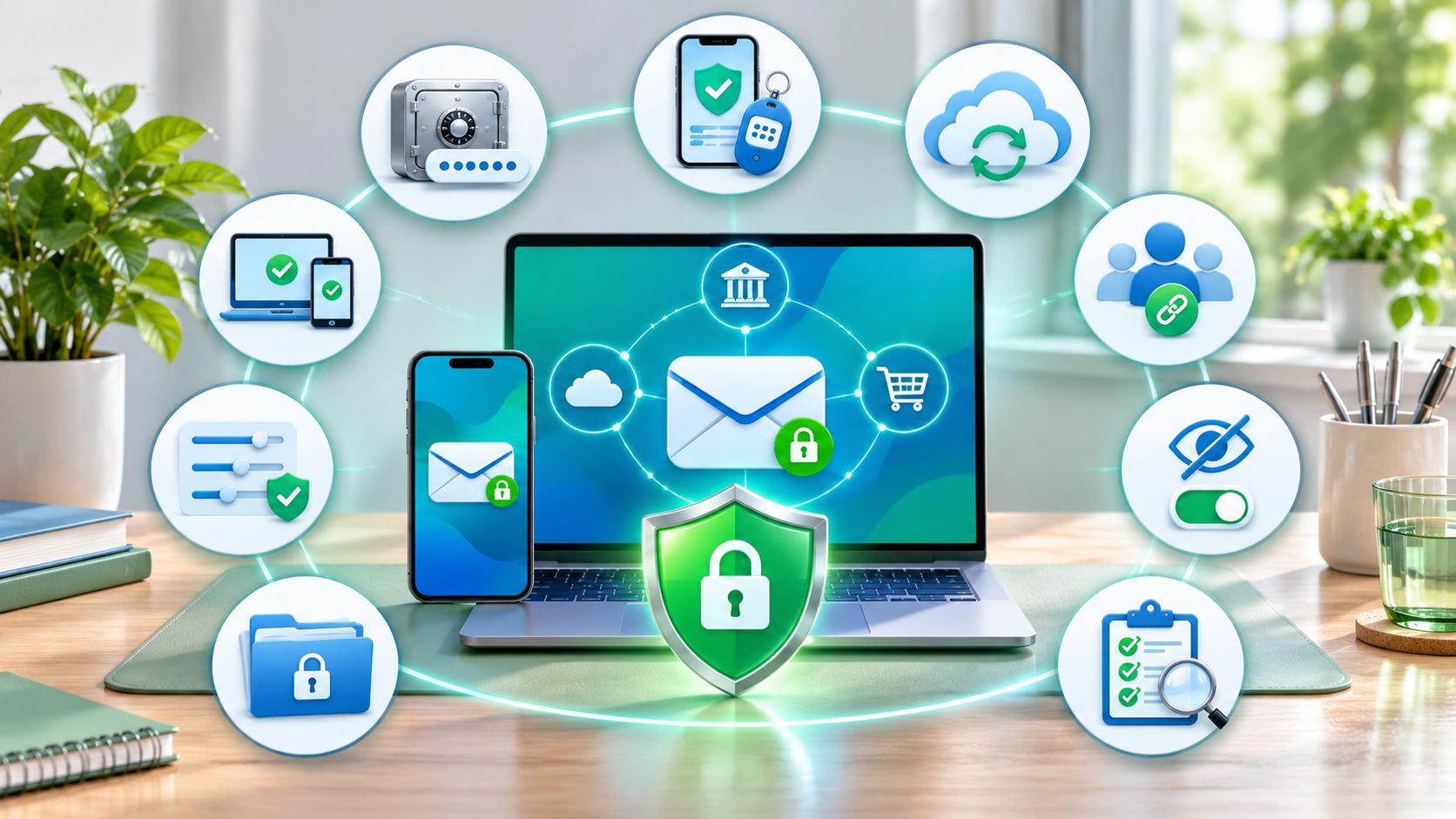
You open your email over breakfast, but your password no longer works. Then a banking alert appears on your phone. Say someone found a reused password from an old shopping account, used it to enter your inbox, and started requesting password resets elsewhere. Your email account hasn't just disappeared from your morning routine. Someone else may now control the messages you need to get it back.
That's a scenario, not an inevitable outcome. A bank may require additional verification, and a protected inbox can stop the attempted takeover. But it explains why account security needs more than a password you can remember.
Good account management means controlling how an account starts, who can use it, how you recover it, and when you close it. The practical work happens during ordinary moments: installing an app, replacing a phone, sharing a subscription, or clearing out an old profile.
Start with the account that can reset your other accounts. For most people, that's their primary email.
These account management best practices follow a useful working order. Secure your important logins first, establish a recovery route, then remove access you no longer need. You don't need to finish every account this week. You need to finish the accounts whose loss would interrupt your money, communications, photos, or daily life.
1. Use a Password Manager and Unique Passwords
Give every account its own password. If a shopping site exposes your credentials, that password shouldn't also open your email, banking app, or cloud storage.
A password manager generates and stores those credentials in a protected vault. Google Password Manager and Apple's Passwords app are convenient starting points within their ecosystems. Bitwarden and 1Password are options to compare if you regularly move between platforms.
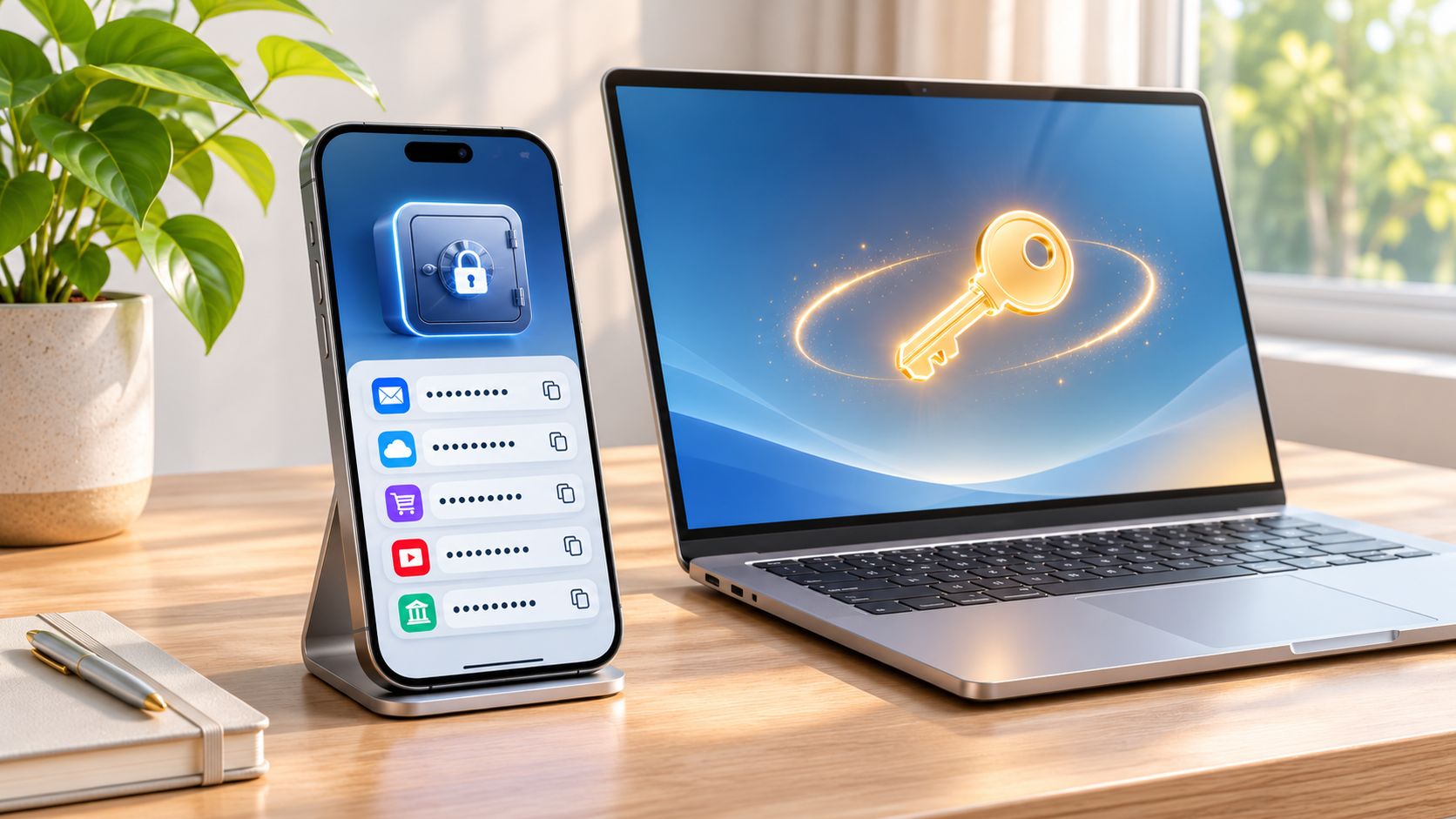
In a 2024 survey of 1,000 U.S. adults, only 36% used a password manager, according to Security.org's password-manager annual report. Installing one is only the beginning. You also need to replace the reused passwords already sitting in your accounts.
Start with the accounts that matter most
- Secure your email first. Generate a fresh password and save the correct sign-in address with it.
- Work through financial and cloud accounts. Replace reused credentials before polishing less important logins.
- Protect the vault. Use a unique master passphrase where required, enable available multifactor protection, and keep recovery instructions physically secure.
- Check your progress. Use the manager's reused-password report rather than relying on memory.
Our password manager comparison can help you choose around your devices and sharing needs. The best fit is one you can reliably open, recover, and use everywhere you sign in.
Keep the boundaries clear, too. If you use cryptocurrency wallets, wallet approval and signing hygiene requires separate attention. A password manager doesn't make a harmful transaction approval safe.
2. Turn On Two-Factor Authentication (2FA)
A stolen password shouldn't be enough to enter your inbox. Two-factor authentication adds another proof of identity, such as an authenticator code or a security key, alongside your password.
For example, when you sign into email on a replacement laptop, the service might request a code from your authenticator app. Someone who knows only your password would still need that additional proof. However, a scammer can trick you into sharing a code, so not every method offers the same protection.
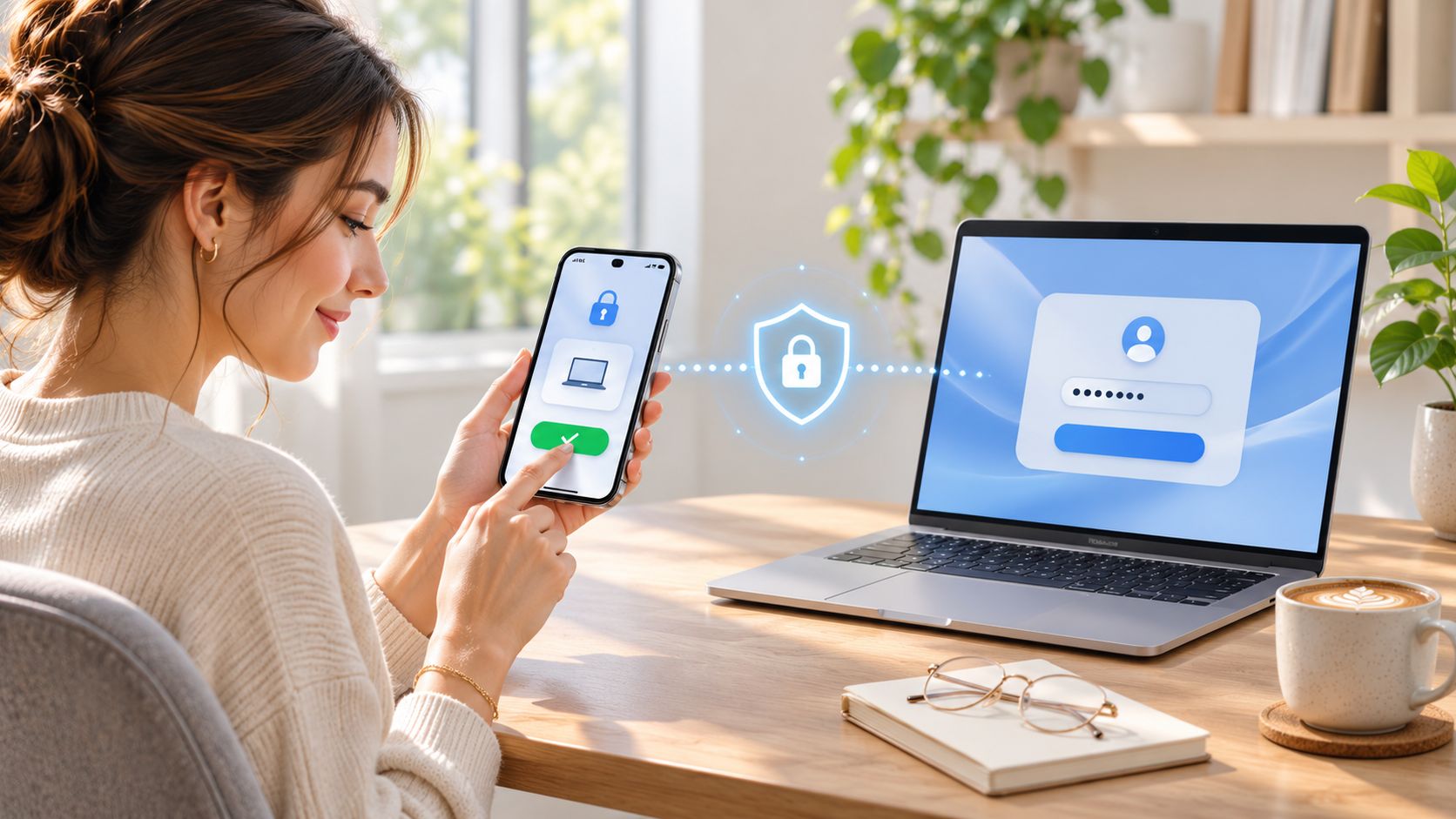
Prefer a security key or authenticator app over SMS when those options work for you. SMS is still useful when it's the only additional protection available, but your phone number shouldn't be your entire recovery plan.
Finish enrollment before signing out
Open the account's security settings, add your chosen method, and complete the verification step. Then save the recovery codes somewhere you can reach without that account or phone.
- Keep a fallback. Register another supported authenticator or store backup codes securely.
- Reject unexpected prompts. Don't approve a login request you didn't initiate.
- Test deliberately. Try signing in through another browser while your existing session remains open.
Follow our guide to using two-factor authentication for the setup workflow. If you're securing a crypto exchange account, The Coin Course's 2FA walkthrough provides a related account-specific reference.
Never send someone your authentication code, even if they claim they're helping recover your account.
3. Switch to Passkeys Where Available
When a service offers a passkey during sign-in, don't dismiss it as another password to remember. A passkey uses cryptographic credentials, usually accessed through your device's fingerprint reader, face recognition, or screen-lock PIN.
Unlike a password, it isn't a reusable secret you type into a website. Passkeys are bound to the intended service, which helps resist lookalike sign-in pages. Your biometric verification stays part of the device's authentication process rather than becoming a password you hand to the website.
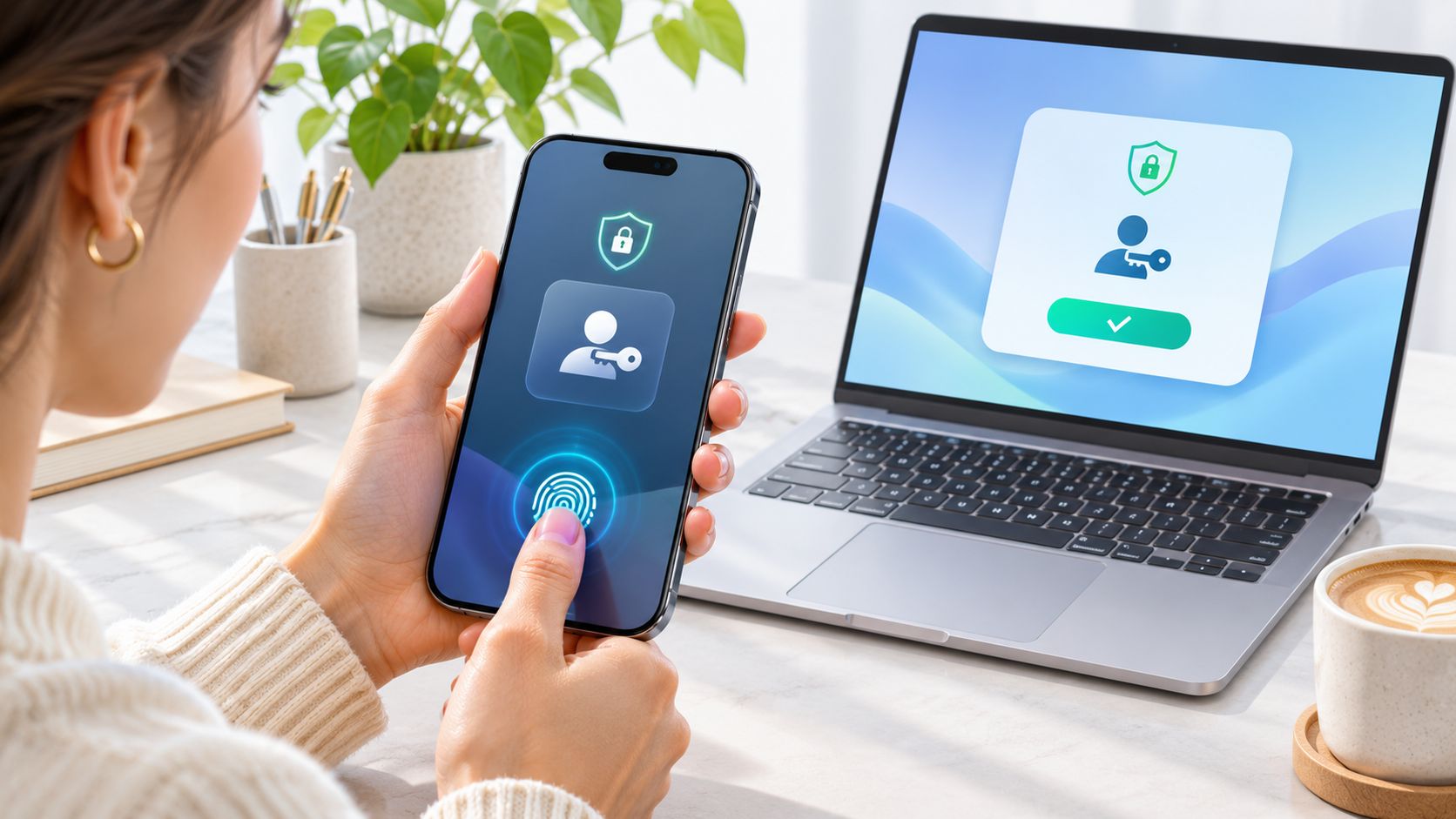
69% of surveyed consumers had enabled a passkey on at least one account, according to the FIDO Alliance's World Passkey Day announcement. Adoption alone doesn't tell you whether you can recover access after losing a device.
Know where your passkey lives
Say you create a shopping-account passkey on your phone. Before relying on it, check whether it's stored in Apple's Passwords app, Google Password Manager, another credential manager, or a device-bound security key.
- Check synchronization. Understand which account controls access to synced passkeys.
- Protect the device. Use a strong screen lock and keep the operating system updated.
- Try another device. Confirm your normal laptop can complete the supported sign-in flow.
- Review fallbacks. Keep recovery available without leaving an unnecessarily weak route into the account.
Synced passkeys can make device replacement easier. Device-bound keys offer different control but require more deliberate backup planning. Choose based on how you'll recover, not just how quickly you can enroll.
4. Keep Recovery Information Current
Losing your phone is inconvenient. Losing your phone when it holds your authenticator, email session, and only recovery route can stop you accessing everything else.
Build recovery that doesn't depend entirely on the device you might lose. A backup email is useful only if you can enter it independently. Recovery codes stored inside a locked account won't help you regain access to that same account.
The FIDO Alliance's account-security guidance highlights the importance of planning for device loss alongside passkey use. Passwordless sign-in doesn't remove the need to protect the recovery pathway.
Recovery test: If your phone vanished while you were away from home, what could you use to get back in?
Say you're changing phone numbers after moving. Update recovery settings while you still control the old number, rather than waiting for a verification message you can no longer receive.
Check the whole recovery chain
- Verify the backup email. Sign into it and confirm it has its own strong authentication.
- Replace obsolete numbers. Remove numbers you no longer control after verifying their replacements.
- Save recovery codes safely. Keep a protected copy outside the device or account they recover.
- Review trusted contacts. Where supported, choose someone appropriate and explain their role.
There's a trade-off between convenience and independence. Keeping codes in your password manager is convenient, but the manager itself needs a separate recovery plan. A sealed paper copy in a secure location can provide that independence without creating another online account to maintain.
5. Run Regular Account Security Audits
Open your main account's security page and look at devices, active sessions, and recent activity. An old tablet may still be signed in long after you've stopped using it.
Google's Security Checkup and Microsoft's account security dashboard are useful places to begin. Use the account's own controls rather than granting a random scanner access to your inbox.
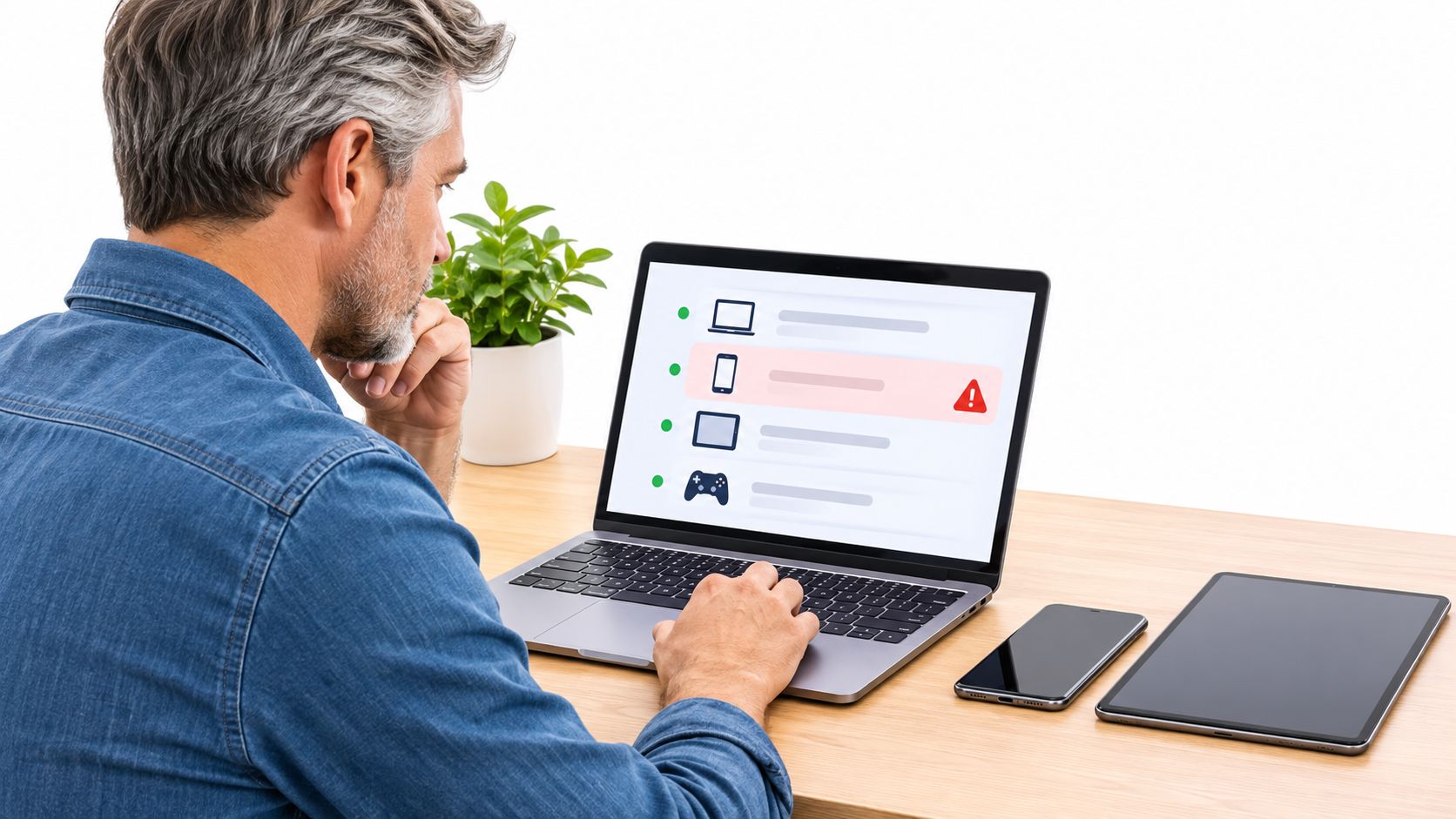
Suppose a device list shows a laptop you returned to a former employer. Sign that session out and remove the device where supported. Don't assume returning or wiping hardware automatically updated every online account.
Investigate before dismissing an alert
- Check context. Compare device type, browser, and activity time with your own use. Location estimates alone can be misleading.
- Remove stale access. End sessions on devices you no longer own or trust.
- Respond to unfamiliar activity. From a trusted device, change the password, revoke sessions, and inspect recovery settings.
- Check email rules. Look for unfamiliar forwarding addresses and filters if someone may have entered your inbox.
Our identity theft prevention guide helps place these checks within broader personal-information protection. The SMS Activate account management guide offers another account-maintenance reference, but temporary numbers shouldn't become recovery dependencies for important accounts.
Set a recurring calendar reminder at a cadence you'll keep. Also audit after a device sale, suspicious alert, or household change, rather than waiting for the reminder.
6. Review and Limit Third-Party App Access
Deleting an app from your phone doesn't necessarily remove its access to your online account. A calendar tool, photo editor, or study app may retain an authorized connection until you revoke it.
Connected-app permissions and passwords are different controls. Changing your password isn't a reliable substitute for reviewing which services can access your data.
Say you tried a scheduling app for a university project. The project ended, but the app may still have permission to read your calendar. Keeping that connection offers little benefit if you no longer use the service.
Separate sign-in from data access
A “Sign in with Google” or “Sign in with Apple” button can simplify account creation. It doesn't automatically mean the app needs your email contents, files, contacts, or calendar.
- Read the permission request. Compare the requested access with the task you want the app to perform.
- Remove abandoned connections. Revoke access for tools you no longer recognize or need.
- Question broad permissions. A simple document converter shouldn't receive unrelated account access without a clear reason.
- Check dependencies first. If a connected identity is your only login method, establish another supported method before unlinking it.
For example, disconnecting a note-taking service could stop calendar imports you still depend on. Record what will break before making the change.
Revoking permission also isn't the same as deleting information already copied into the other service. If you want that account closed, use its deletion controls separately. Treat authorization, stored data, and account closure as related but distinct jobs.
7. Use Family or Shared Account Features Wisely
Sharing a streaming subscription shouldn't require sharing your primary email password. Use separate personal accounts with supported family or household features wherever possible.
Apple Family Sharing, Google family groups, and Microsoft Family Safety offer different ways to manage household services. Check the specific sharing controls rather than assuming every family feature exposes the same information.
For example, parents might want shared storage and purchase approval without sharing private messages or personal photo libraries. A roommate may need access to a smart speaker but not the household's payment settings.
Share the service people need, not the identity that controls everything behind it.
The key decision is who owns the household setup. Choose an organizer who can manage billing and recovery reliably, then give other members only the access they need.
Plan for people leaving
- Use invitations. Add people through supported member controls instead of sending the organizer's password.
- Inspect privacy settings. Check location sharing, purchase visibility, shared albums, and activity reporting individually.
- Use child-specific controls. Configure purchase approval and suitable permissions where available.
- Remove former members. Review household access after a move, separation, or change in caregiving.
Separate accounts create more initial setup, but they make later changes easier. You can remove a departing roommate without rebuilding everyone else's login.
For smart-home equipment, distinguish device administration from everyday operation. Someone who needs to turn lights on doesn't necessarily need permission to add users, inspect cameras, or change account recovery. Household convenience shouldn't erase personal boundaries.
8. Back Up and Transfer Account Data Before Changing Devices
Keep the old device until the new one proves it works. A successful home-screen transfer doesn't confirm that your authenticator, passkeys, banking apps, and recovery routes are ready.
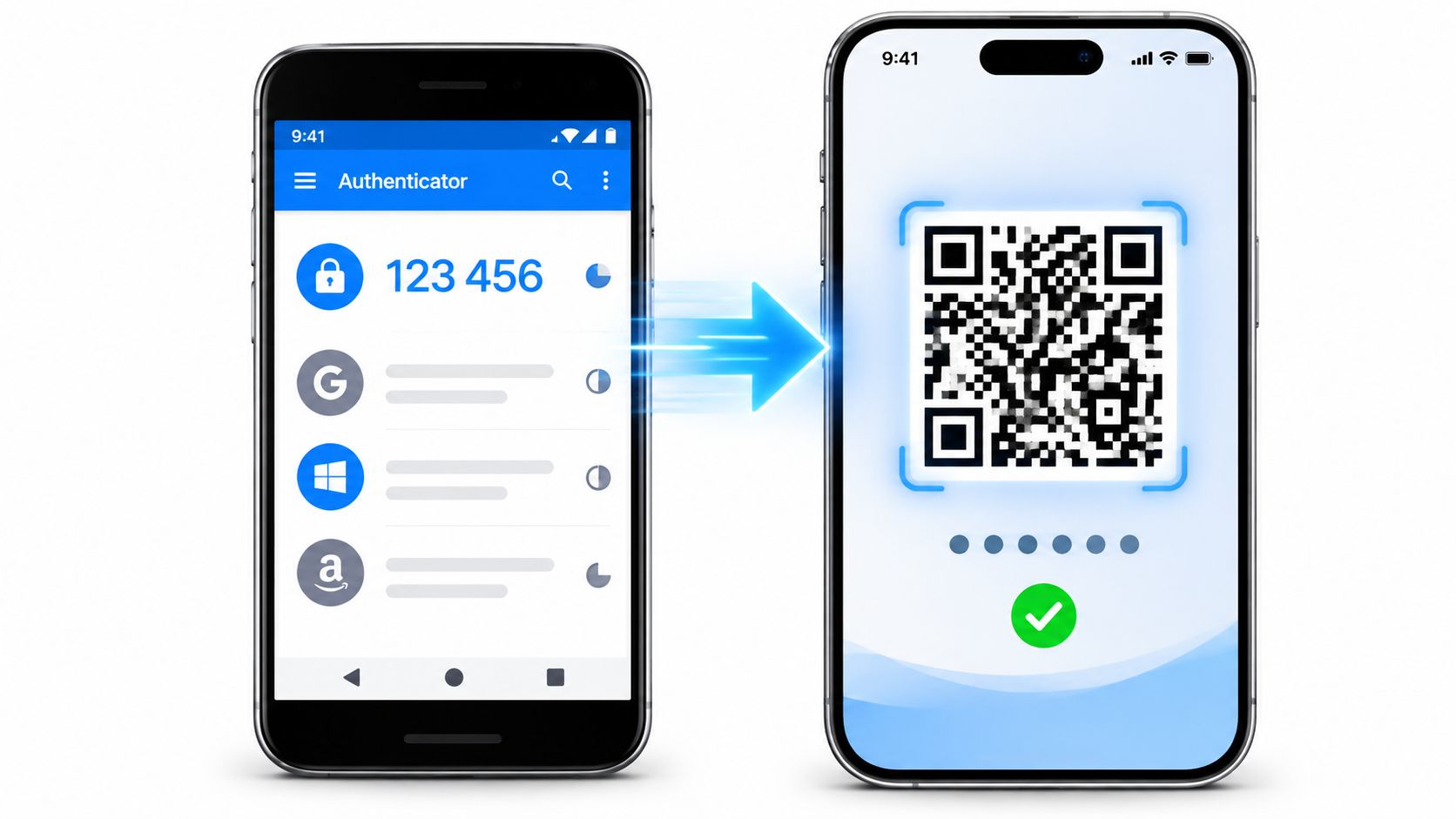
Say you're switching from Android to iPhone. Your photos and contacts may arrive through the migration process, while an authenticator app needs a separate transfer or fresh enrollment. Check the accounts themselves instead of judging success by whether the app icons appear.
Apple's Quick Start and Android's device-transfer tools can help move supported content. Google Takeout can provide a separate export of selected account data. None replaces checking the files and sign-ins you need.
Use this transfer order
- Verify the backup. Check its completion status and make sure important content is included.
- Transfer authentication. Follow each authenticator or credential manager's supported process.
- Test important accounts. Sign into email, cloud storage, financial services, and your password manager.
- Inspect actual data. Open photos, documents, and contacts rather than assuming they transferred.
- Retire the old device. Follow the platform's sign-out, device-removal, and factory-reset sequence before handing it over.
Our phone data backup guide explains the preparation work in more detail. Pay particular attention to app data that isn't included in your normal backup.
Convenience favors wiping the old phone immediately for trade-in. Resilience favors keeping it available until you've tested access. Don't surrender a working recovery device before its replacement is ready.
9. Close Unused Accounts and Minimize Data Footprint
An account you haven't opened in years can still hold your address, purchase history, saved payment details, and personal files. Stop maintaining accounts that no longer serve a purpose.
Start with your password manager's saved logins and old welcome emails. The JustDeleteMe directory can help locate account-closure instructions, but complete deletion through the service's own website or app.
Account closure fits the broader lifecycle approach described by NIST's identity and access management guidance. Managing access includes ending it when there's no longer a reason to keep it.
Close accounts without losing something important
- Check subscriptions. Cancel recurring services and confirm the billing status.
- Export useful records. Save receipts, documents, photos, and other information you may need.
- Inspect linked logins. Make sure you aren't deleting an identity used to enter another service.
- Remove unnecessary details. Clear saved cards and optional profile information where possible.
- Complete the closure process. Keep any confirmation until you're satisfied the request is finished.
Say you're closing an old fitness app. Export the activity history you want, stop its subscription, and disconnect its health-platform access before deleting the account.
Our subscription cancellation guide can help with the billing step. Uninstalling the app isn't a cancellation request.
Deactivation and deletion aren't interchangeable. Deactivation may leave the account available to restore, while deletion may be irreversible and can still involve retention exceptions. At Tech Today, users can request deletion of their personal data, although we may retain information where a legal obligation or lawful basis requires it.
How the nine account management practices compare at a glance
| Item | Main Benefit | Main Trade-off | Common Tools |
|---|---|---|---|
| Use a Password Manager and Unique Passwords | Prevents password reuse and simplifies secure logins | Requires a strong master password | Google Password Manager, Apple Passwords, Bitwarden, 1Password |
| Turn On Two-Factor Authentication (2FA) | Protects accounts even if passwords are exposed | Adds sign-in friction and requires access to a second factor | Authenticator apps, security keys, Google, Microsoft, Apple |
| Switch to Passkeys Where Available | Enables fast, phishing-resistant sign-ins without passwords | Not supported everywhere; recovery can be difficult if devices are lost | Apple, Google, Microsoft, 1Password, Bitwarden |
| Keep Recovery Information Current | Helps restore access and avoid account lockouts | Weak or outdated recovery options can create security risks | Recovery email, trusted phone numbers, backup codes, recovery contacts |
| Run Regular Account Security Audits | Helps detect unauthorized access and remove old devices | Easy to forget; activity logs can be confusing | Google Security Checkup, Microsoft Security Dashboard, account activity tools |
| Review and Limit Third-Party App Access | Reduces exposure from connected apps and services | Revoking permissions may disrupt app features | Google account access settings, Apple linked apps, Facebook app settings |
| Use Family or Shared Account Features Wisely | Enables sharing without sharing passwords | Sharing settings can expose personal data or be confusing | Apple Family Sharing, Google Family Group, Microsoft Family Safety |
| Back Up and Transfer Account Data Before Changing Devices | Prevents data loss and simplifies device migration | Backups may need paid storage and can take time | Apple Quick Start, Google Takeout, Android device transfer |
| Close Unused Accounts and Minimize Data Footprint | Reduces the number of places personal data can be exposed | Deletion may be irreversible or cause loss of stored content | JustDeleteMe, Google Data and Privacy tools, account deletion settings |
Build a Routine You Will Actually Keep
Start this week with a password manager and two-factor authentication on your primary email account. Replace its reused password, save its recovery information, and confirm you can sign in through your chosen additional method. Finish that account before opening settings across all your other services.
Then reserve a short calendar appointment for recovery details, active sessions, and connected apps. A manageable review you repeat is more useful than an ambitious cleanup you abandon halfway through. Keep a simple record of what's finished and what still needs attention.
Match the effort to the consequences
Your accounts don't all deserve identical settings. An account holding financial records, private photos, or smart-home controls needs more careful recovery and sharing decisions than a disposable shopping profile.
- Protect reset authority. Prioritize email and any identity used to sign into other services.
- Protect valuable content. Give cloud photos, documents, and financial accounts dependable recovery.
- Limit shared control. Separate household membership from administrator privileges.
- Remove unnecessary exposure. Close abandoned profiles and revoke connections you don't use.
Don't judge your progress by how many security switches you've enabled. Ask whether you can explain how each important account is protected, how you'd recover it, and who else can enter it. If those answers are unclear, that account belongs near the top of your list.
Use life changes as reminders
A new phone, changed number, move, or departing roommate should trigger an account review. Those moments change who has access and which recovery methods still work. Update the relevant settings while you still control the old device, address, or number.
Account settings are also where you manage the information you leave behind. On our site, you can update, amend, or delete your information at any time by signing in and visiting account settings. Other services may separate profile editing, data deletion, and account closure, so inspect the available controls rather than assuming they're equivalent.
The most useful account management best practices reduce both unauthorized access and avoidable lockouts. Strong authentication without recovery can leave you stranded; convenient sharing without boundaries can expose private information. Make the next practical change now: secure your inbox, record a working fallback, and put your account review on the calendar.
Tech Today offers clear, practical guides to device setup, privacy settings, backups, and everyday technology. Visit Simply Tech Today for straightforward how-tos that help you put these account-management habits into practice without getting buried in jargon.




Member discussion