
How to Set Up Authenticator App on New Phone: Step by Step
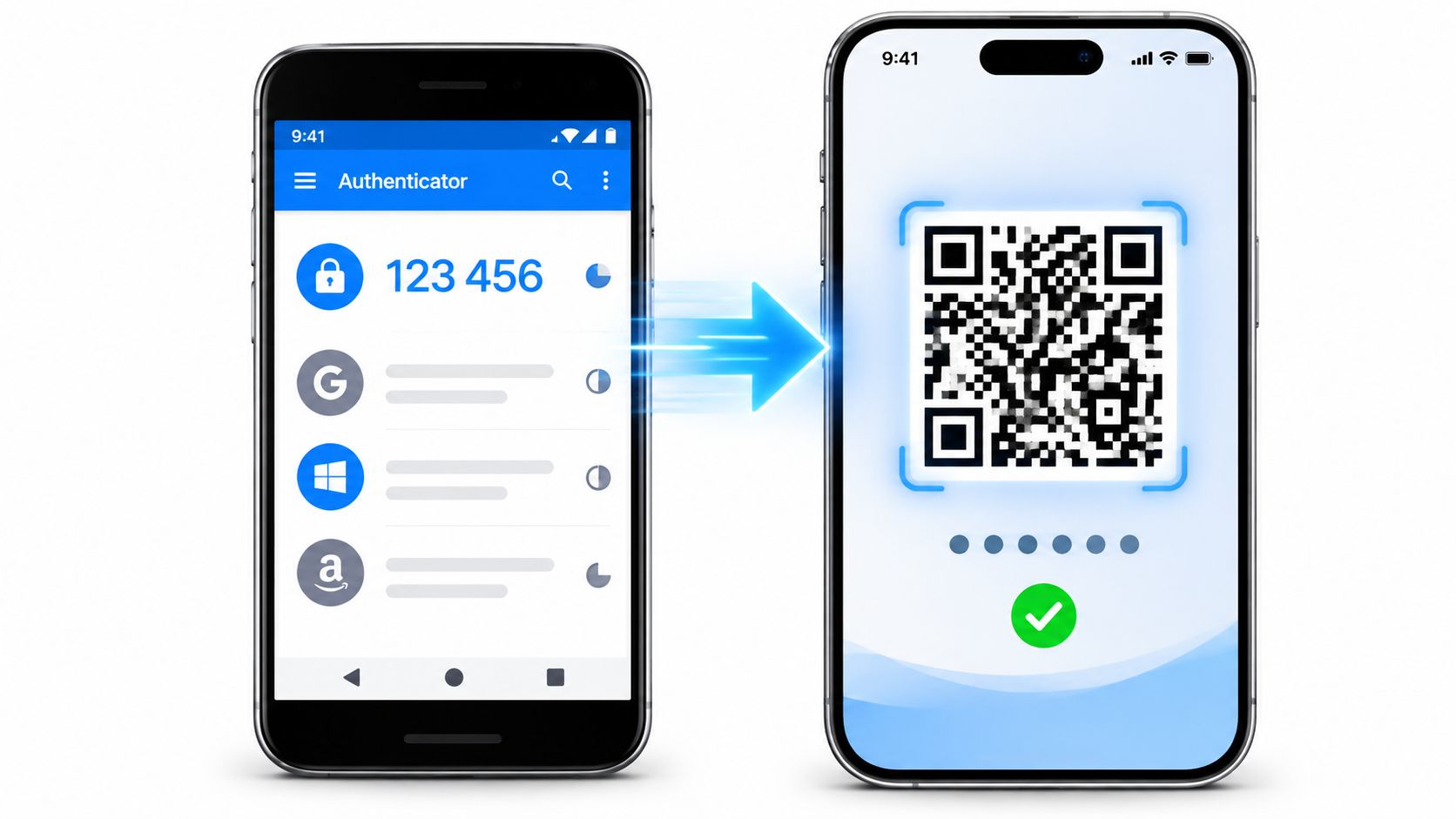
The new phone is out of the box, the home screen is restored, and then your laptop asks for a six-digit code that lives on the old handset in a drawer across the room. An authenticator app isn't like a chat app you reinstall and forget. Every entry is a shared secret tied to one device, and if you wipe the old phone before that secret exists somewhere else, the account behind it drops back into the provider's recovery queue.
Reinstalling the app takes two minutes. Keeping access to every account is the part that goes wrong, and it goes wrong because of order: which phone you touch first, which setting you turn on, and when you finally erase the old device. Getting how to set up an authenticator app on a new phone right is mostly a sequencing problem, not a technical one.
Find Your Starting Point Before You Move Anything
A working old phone gives you a safety net. A lost, broken, or already-traded-in phone changes the recovery path, so identify your situation before changing any authenticator settings.
| Your Situation | What You Need | First Move |
|---|---|---|
| Old phone works and the app is signed in to a cloud account | Account password and the old phone unlocked | Turn on sync or backup on the old phone first |
| Old phone works but has no cloud sync | Both phones within reach | Use the app's device-to-device QR transfer |
| Old phone lost, recovery codes saved | Saved recovery codes for each service | Sign in with a recovery code, then register the authenticator on the new phone |
| Old phone lost, no codes and no backup | Each provider's account recovery route | Start the provider's identity check from a device you can still sign in on |
If the old phone still works, keep it available until the new phone can generate codes and those codes successfully sign you in. If the old phone is gone, use each service's recovery route rather than relying on an authenticator you can no longer open.
Set up the new authenticator before removing the old one. Deleting the old entry first can leave you without a working sign-in method. Keep the recovery codes for each service until you have tested access from the new phone.
Google's Authenticator migration instructions describe its app's sync and transfer options. Keep the old phone until you have checked that the accounts you need are available on the new one. If you are still configuring the handset itself, follow this guide to set up a new phone before starting the account transfers.
Before changing settings, list every account that uses a sign-in code. Note whether each one uses an authenticator app, text messages, or a security key. That inventory gives you a way to check each account's recovery route as you move through the transfer.
How to Transfer Google Authenticator Codes
Google's app gives you two routes, and the one you get depends on a setting you probably turned on years ago and forgot about. Here's the sequence in order, with the reason behind each step.
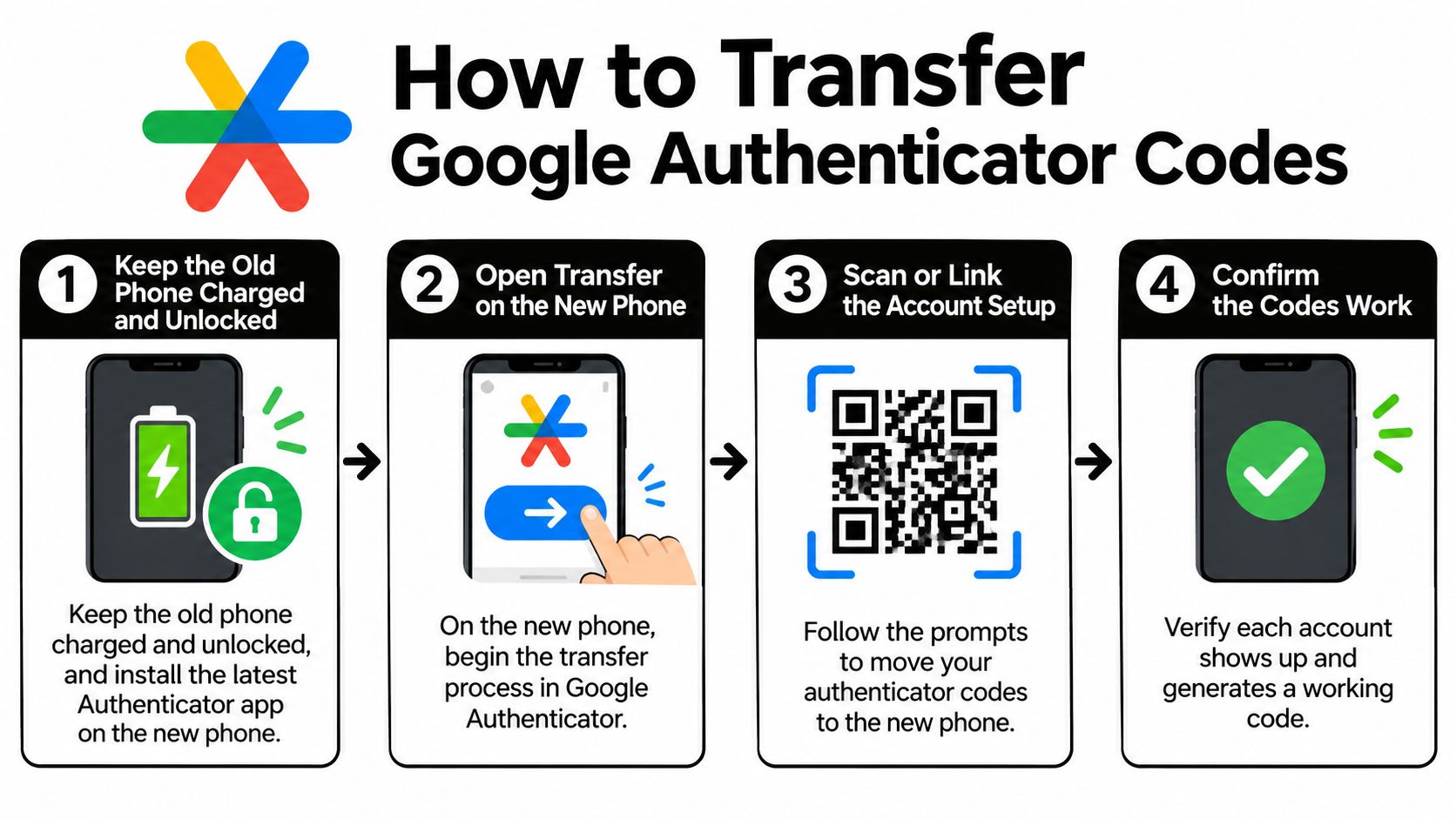
Update the app on both phones and keep the old handset charged. An outdated app is a common reason an export fails, so install the current build on the new phone before you start. A phone that dies mid-transfer leaves you with half a set of accounts and no clean way to tell which half.
Try the sync route first. On the new phone, tap Get Started and sign in to the same Google Account the old phone uses. If cloud synchronization is enabled, Google states that codes then sync automatically, with no QR scanning involved.
If nothing appears, export from the old phone. Open Authenticator on the old device and choose Menu, then Transfer codes, then Export codes. Keep both handsets on the same desk, because you'll be reading one screen with the other.
Access the device and select the accounts. The app requires your PIN, pattern, or biometric before it reveals anything, which is the point: a phone in a stranger's hand should not provide your second factor without permission. Choose the accounts to move. With more than a handful, the export splits them across several QR codes.
Import on the new phone. Choose Transfer codes, then Import codes, and scan each code in turn. Skipping the second or third code is exactly how one account ends up stranded on a phone you're about to sell.
When the scan finishes, check every entry against the label and issuer you expected. An entry reading just "Microsoft" with no account name attached is hard to match six months from now, and duplicate entries with similar names cause more failed sign-ins than people expect. Leave the old app installed and signed in until every account has passed a real login test on the new phone.
If you're moving photos, messages, and app data across in the same session, our walkthrough on how to transfer data to a new Android phone covers the handset side of the job.
How to Restore Microsoft Authenticator From a Backup
The sequencing rule: restore first, sign in second. Microsoft's restore option lives on the first screen of a fresh install and vanishes the moment you sign in normally.
Start on the old phone, while you still have it. Turn on cloud backup inside Authenticator and identify the exact recovery account, not the one you think you used. On iOS, Microsoft's guidance on moving Authenticator to a new phone requires iCloud Drive, iCloud Keychain, iCloud Backup, and Authenticator's own iCloud setting to all be enabled. Four switches, and the last one is easy to miss.
On the new phone, install Authenticator and choose Restore from backup or Begin recovery before doing anything else, then sign in with that same recovery account. Stay on the same platform. An iOS backup restores on iOS, an Android backup on Android, and a cross-platform move means registering every account by hand.
What restoration does not cover
Cloud backup moves personal account secrets. It doesn't move everything attached to them.
- Work or school accounts can still demand reauthentication or an administrator's intervention after a restore, because those credentials are wrapped in device-specific encryption.
- Passwordless sign-ins often have to be created again on the new device, even when the account itself restored cleanly.
- Approval prompts need a live test. A restored entry that never receives a push notification is not restored in any useful sense.
Run that test on each entry before you wipe the old phone, watching for a rotating code and a working approval prompt. If the old device is gone and there's no backup or recovery method, an organization's administrator may need to reset MFA and require re-registration. For anything else on the phone, including an iCloud restore, this guide on how to download a backup from iCloud covers the account side.
Authy and similar apps vary here. Open the app's own settings and look for multi-device or backup sync before the old phone leaves your hands, and expect to re-verify your phone number on the new device.
Recovery Codes and Passkeys When Your Old Phone Is Gone
A transfer moves one kind of credential. Your accounts probably hold three or four, and each one behaves differently on a new handset.
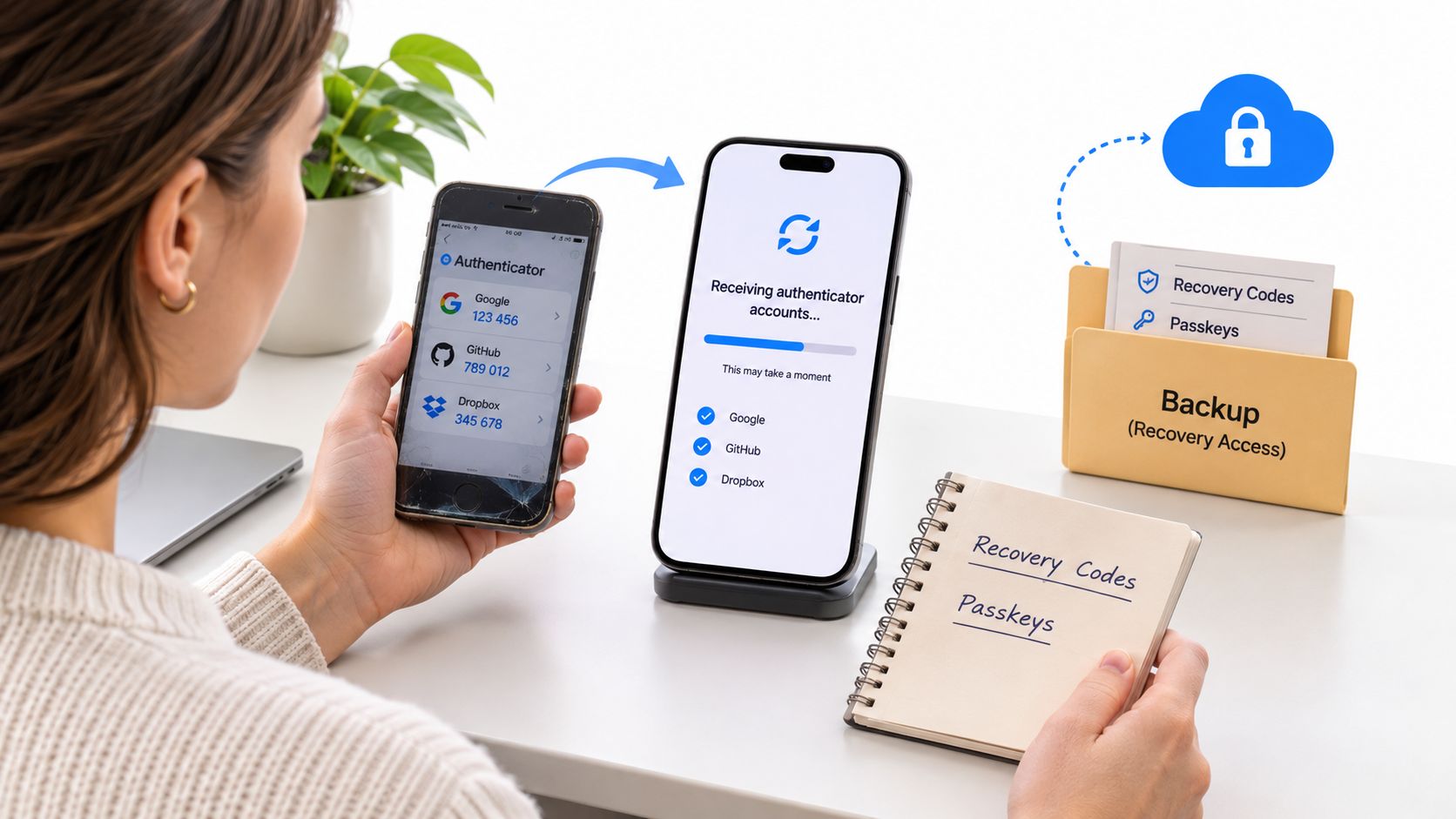
Eligibility is not adoption
The FIDO Alliance's Passkey Index reported in 2025 that an average 93% of accounts across measured services were technically eligible for passkeys, while 26% of successful sign-ins used them. Eligibility and use are two different problems, and your setup sits somewhere in that gap.
| Credential | Moves to New Phone? | What to Do |
|---|---|---|
| Authenticator app codes | Only when cloud backup or transfer was done | Transfer or restore before wiping the old phone |
| Synced passkeys | Yes, when the platform account is signed in | Confirm the sync account is reachable from the new phone |
| Device-bound passkeys | No, tied to the old device | Register a new passkey on the new phone |
| Backup or recovery codes | Yes, stored outside the phone | Keep a copy in a password manager or printed in a safe place |
| Hardware security key | Yes, it is a separate device | Keep it safe; add a second key where the service allows it |
Register at least two independent recovery methods per important account, meaning routes that don't fail together. Recovery codes in a password manager plus a hardware key is a strong pair. Recovery codes stored in the same cloud account you'd be locked out of is not.
The FIDO figures also carry a warning: recovery metrics often exclude account-recovery events, so strong passkey sign-in numbers don't prove anyone can recover after losing a phone. Ask one question of each account on your list. If the cloud account itself were unreachable today, which route would get me back in? If you don't have an answer, that account needs another method before the old phone goes. The basics of how to use two-factor authentication cover the setup side if you're adding a method for the first time.
Test Every Login and Protect Your Recovery Path
Keep the old phone intact until every account works on the new one. Codes that look correct can still fail at sign-in, and erasing the old device first removes your fallback.
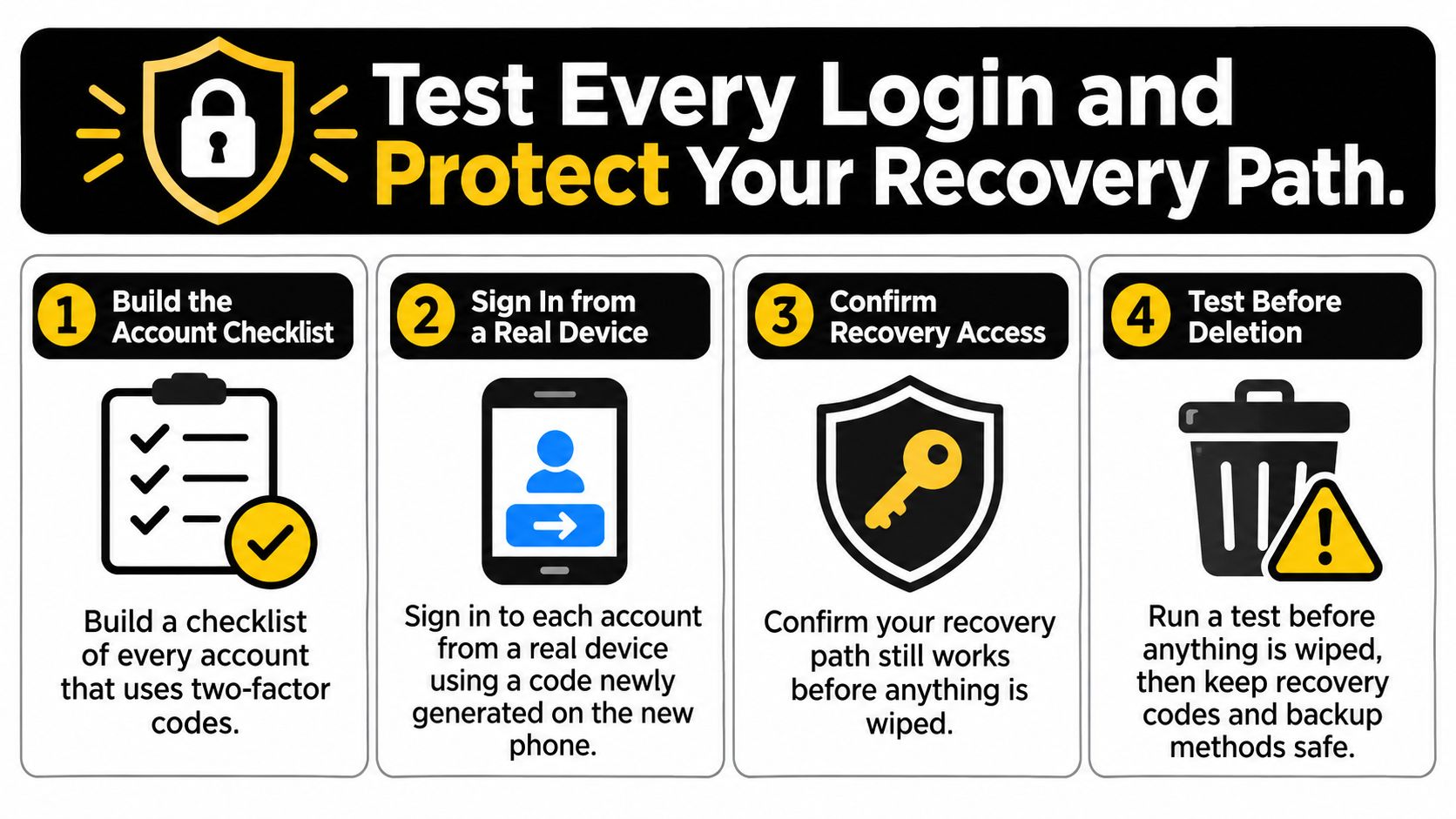
Use your account list to test each service from a real sign-in screen. Enter a fresh code from the new phone, then confirm the account label and issuer identify the right service. For accounts that use approval prompts, check that the prompt reaches the new phone too.
The mistakes that lock people out
- Deleting the old app first. Removing it can erase codes that were never transferred.
- Skipping a sign-in test. A visible code does not prove the service will accept it.
- Losing access to the sync account. A backup tied to an inaccessible Google or Microsoft account cannot help with restoration.
- Missing an account during transfer. Check every entry against your account list, especially when an export contains several codes.
Finish the move only after every account passes a sign-in from the new phone. Keep the old phone available until then, and store recovery codes somewhere you can reach without it. A password manager can keep those codes separate from the phone's photo library; compare options in this password manager comparison.
Two-factor adoption remains uneven. In 2025, 29% of respondents said they had not enabled MFA on personal email accounts, according to Yubico's Global State of Authentication survey. Email often handles password resets for other accounts, so check that your main address has a second factor before wiping the old phone. A survey of 2,333 adults found that 81% of U.S. adults reported using some form of multifactor authentication in 2025.
Set a reminder to check that your saved recovery codes still work. If a service replaces its codes, update your stored copy; an expired set cannot get you back into an account. Tech Today publishes practical guides, including how to set up a new iPhone from Android and how to update an LG Smart TV.
Once every account has passed its sign-in test, wipe or trade in the old phone. Keep recovery codes somewhere you can access without either device.



Member discussion