
How to Change Privacy Settings on TikTok: A Simple Guide
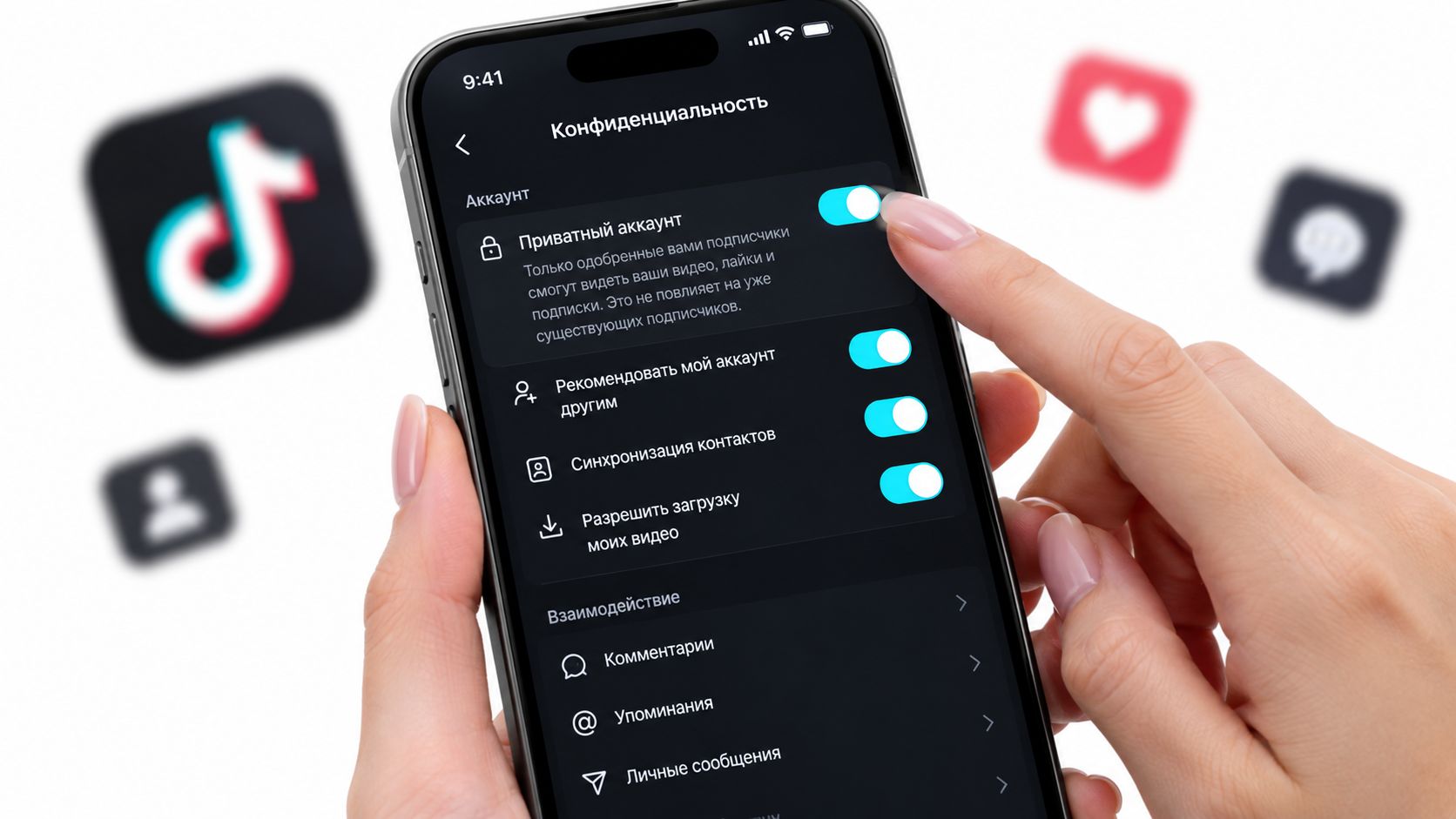
You've just noticed that your TikTok profile reveals more than you intended. Your liked videos are visible, strangers can discover your account through contacts, and making one video private won't stop the app from recommending your profile. If you searched for how to change privacy settings on TikTok, you need more than one toggle.
TikTok privacy has two separate jobs. Visibility settings control who can find, follow, watch, comment on, or reuse your content. Data controls limit what TikTok can access from your phone and how it uses activity signals. Treat them separately, and you'll close gaps that quick tutorials miss.
Why Most TikTok Privacy Guides Stop Too Early
Most guides tell you to turn on Private account and stop there. That's useful, but it only controls who can follow you and view your content after you approve them. It doesn't automatically hide your Following list, conceal liked videos, disable account recommendations, or prevent TikTok from using activity and device signals.
Consider the typical situation. You switch your account to private because an unfamiliar person viewed your profile. Your approved followers may still see lists you meant to keep personal, and TikTok may still suggest your account through contact-based discovery if those settings remain enabled. You solved the most visible problem while leaving the quieter ones untouched.
Practical rule: Privacy on TikTok means controlling both audience access and information access.
The first layer is on-platform visibility. It includes your account status, follower approval, comments, Duet, Stitch, downloads, and discoverability. The second layer is data collection, which involves contact syncing, ad personalization, permissions, and location access. A private account doesn't automatically switch off that second layer.
That distinction also applies across social apps. If you're reviewing your broader profile exposure, this guide to Facebook privacy settings is a useful companion, but TikTok needs its own checklist because its recommendation and remix features work differently.
TikTok's own privacy controls documentation treats account privacy and public or private settings as dedicated controls. That matters because these aren't forgotten legacy options. TikTok maintains them as active parts of account management, so check the labels in your current app rather than relying on an old screenshot.
Finding the Privacy Menu on Your Phone
TikTok puts the important controls in one central area. Open the app and follow this path:
- Tap Profile in the bottom-right corner.
- Tap the menu button in the top-right corner. Depending on your app version, it may appear as three horizontal lines or a gear.
- Select Settings and privacy.
- Tap Privacy.
You should now see account visibility, discoverability, interactions, downloads, and related permissions. If you land in Creator tools, Notifications, or another settings category, back out and return to the main Settings and privacy page. Android versions can use slightly different labels, especially on older builds, but the Privacy area remains the destination.
Before changing anything, scroll through the screen once. TikTok sometimes places a control under a related heading instead of presenting every option at the top. For example, account privacy, discoverability, and interaction permissions may appear as separate rows even though they all affect how other people reach you.
If you want a shorter walkthrough focused specifically on the main account switch, use this guide to make your TikTok account private. Then return to TikTok's Privacy menu and review the controls that a private-account tutorial usually skips.
Menus change, so don't worry if the wording differs slightly from what you see in a guide. Look for the same concepts: account privacy, discoverability, interactions, downloads, and permissions.
Account-Level Controls Worth Flipping First
Start with settings that affect your account broadly, not individual posts. Open Privacy and make these changes in order.
Turn on Private account when approval matters
Switch on Private account if you only want approved followers to view your videos. TikTok's privacy guidance identifies this path as Profile > menu > Settings and privacy > Privacy > Private account. This setting is best for personal accounts, cautious users, and families who don't want every post exposed to strangers.
It doesn't remove followers you already approved. Review your follower list separately and remove accounts you no longer recognize or trust.
Hide activity lists
Find Following list and set it to Only me. Then open Liked videos and use the same visibility option. These lists reveal patterns about your interests and relationships, so leaving them open can expose more than your videos do.
The exact labels may vary by app version, but both controls live under Privacy. Don't assume that Private account automatically changes them. Check each one directly.
Disable account suggestions
Open Suggest your account to others and turn off the available recommendation options. This reduces the ways TikTok can place your profile in front of people who weren't actively searching for it.
Contact syncing deserves separate attention. Consumer Reports' TikTok privacy guidance notes that you can disable contact and Facebook-friend syncing in the relevant Privacy area, and remove contacts that were already synced. Do that if you want to reduce discoverability based on your address book.
A private profile can still be easy to find if recommendation and contact options remain active.
Finally, review location access outside TikTok. The device-level controls described in this guide to disable location services are more powerful than looking only for a switch inside the app.
Comment, Duet, Stitch, and Download Controls
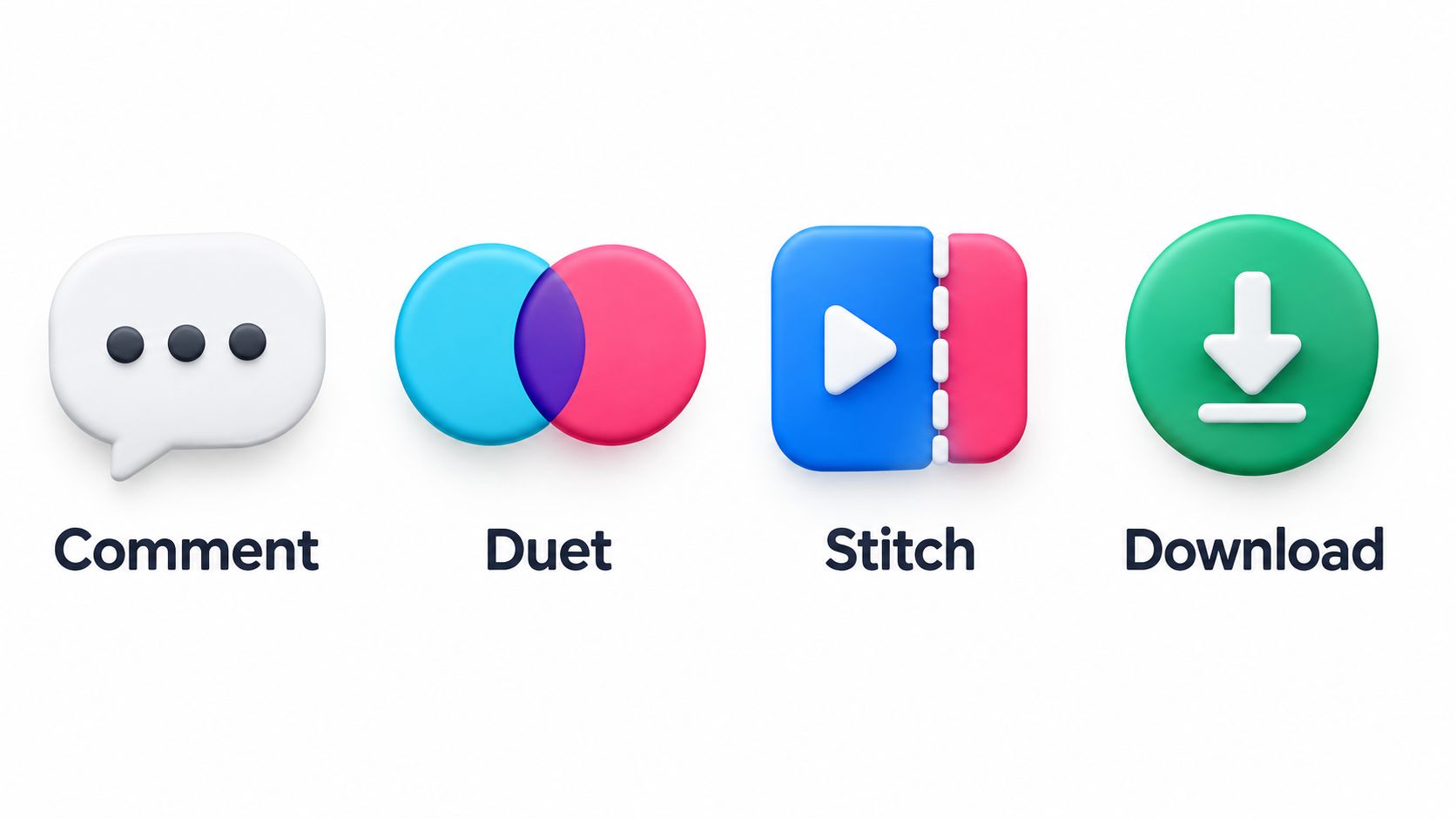
Your account can be private while individual interaction settings remain more open than you expect. Review them under Settings and privacy > Privacy, then inspect the rows for comments, Duet, Stitch, and downloads. Some versions place these options under a related content or safety area, so stay within Settings and privacy if the first screen doesn't show everything.
Reduce unwanted comments
Open Comments and choose the narrowest audience that fits your account. Followers is a sensible starting point for a personal profile, while a custom keyword filter helps block recurring insults, names, or phrases. Turn on comment filtering if TikTok offers it in your version, then review filtered comments occasionally so legitimate replies don't disappear unnoticed.
For a teen's account, avoid Everyone unless there's a clear reason to allow it. TikTok says users aged 13 to 15 can't use Everyone for comments, which shows that age-based rules can override ordinary menu choices. TikTok also says accounts for ages 13 to 15 are private by default, while users aged 16 to 17 have Friends defaults for Duet and Stitch. The available controls therefore depend partly on age, not just preference.
Control remixing
Duet and Stitch let other users reuse parts of your content. Open each setting and choose Friends, Followers, or Only me, depending on what your app provides. For maximum control, disable both by default for new posts, then enable them on individual videos when collaboration makes sense.
You can also adjust these permissions while publishing a video. On the posting screen, open the additional privacy options and review who can comment, whether Duet or Stitch is allowed, and whether downloads are available.
Stop camera-roll downloads
Find Downloads or Save video and turn off Allow download. This won't prevent someone from recording their screen, but it removes TikTok's built-in save option for viewers.
Related-content and recommendation choices can appear near post privacy controls. Review them before publishing if you don't want a video pushed beyond your intended audience. Privacy isn't a single audience button. It's a set of decisions attached to your account and each post.
What a Private Account Still Does Not Block
Private mode controls audience access. It does not mean TikTok stops collecting information about how you use the app, nor does it automatically revoke access to your phone.
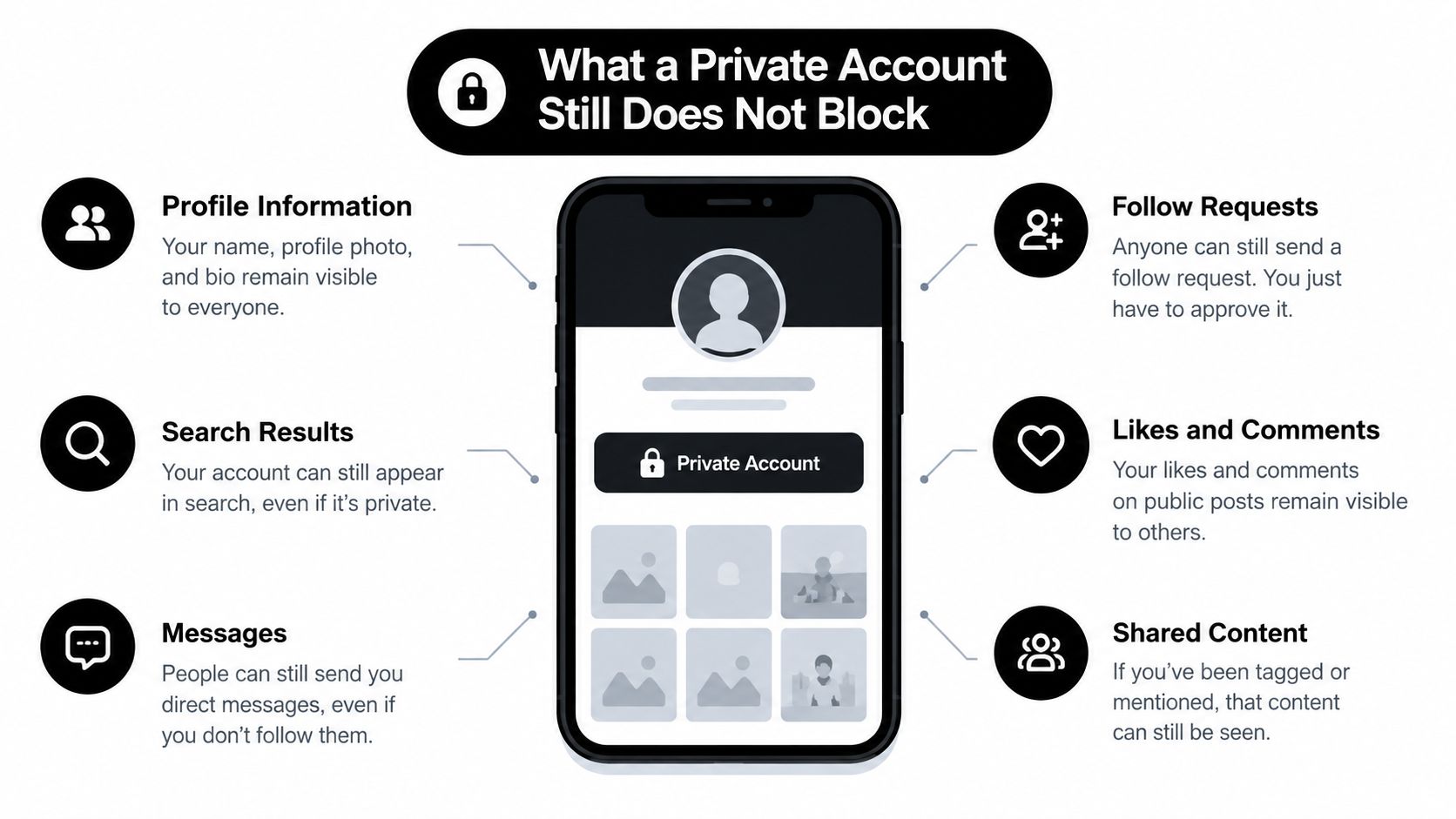
TikTok may still use activity signals for recommendations and advertising. Contact syncing can continue if you previously enabled it, and turning off future syncing doesn't necessarily remove data already uploaded. The practical fix is to disable syncing and look for an option to delete previously synced contacts.
Turn down ad personalization
Look in TikTok's privacy or ads-related settings for Ad personalization. Turn it off if you don't want your activity used to tailor advertising as closely to your interests. The setting affects advertising preferences, not whether TikTok can show you ads at all.
This is separate from making your account private. One controls who can view your profile and content. The other controls how TikTok uses activity signals for advertising.
Review phone permissions
Open your phone's app settings and select TikTok. Review access to:
- Location: Set it to Don't allow unless TikTok needs it for a specific feature.
- Contacts: Revoke access if you don't want address-book matching.
- Microphone: Allow only when recording features require it.
- Photos: Choose limited access where your operating system supports it.
TikTok's privacy-policy coverage notes that precise location can be collected when location services are enabled, and that users may need to disable location services at the device level rather than through a dedicated in-app precise-location switch. That makes your phone's permission screen a necessary part of this process.
For iPhone users, this guide to turn off app tracking covers a separate device-level control that complements TikTok's own ad settings. Also review third-party logins and remove connections you no longer use. Logging out or revoking unused access reduces the number of external accounts that can remain connected to your TikTok activity.
Recommended Settings by User Type
There isn't one perfect TikTok setup. A private personal account, a parent-managed teen account, and a public creator account have different priorities. Use the table as a starting point, then adjust settings when a feature is genuinely necessary.
| Setting | Cautious User | Parent of Teen | Creator |
|---|---|---|---|
| Account visibility | Private account on | Private account on | Public account |
| Comments | Followers or filtered | Followers, filtered, or restricted | Aggressive keyword filtering |
| Duet and Stitch | Off | Off or Friends | Followers only |
| Downloads | Off | Off | Off |
| Account suggestions | Off | Off | Review carefully |
| Contact syncing | Off, remove synced contacts | Off, remove synced contacts | Off unless needed |
| Ad personalization | Off | Off | Off |
| Location | Revoked at device level | Revoked at device level | Revoked unless required |
| Family controls | Not needed | Family Pairing and Restricted Mode | Not needed |
| Security | Two-step verification | Two-step verification | Two-step verification |
For a quiet personal account
Choose Private account, hide Following and Liked videos, filter comments, disable Duet and Stitch, and turn off downloads. Revoke location and contact access at the phone level. This bundle prioritizes control over reach.
For a parent managing a teen
Start with the same visibility restrictions, then review Family Pairing, Restricted Mode, and screen-time tools. TikTok's age-based defaults already restrict some options for younger users, but parents still need to check what the account can change manually. TikTok's youth privacy guidance explains that recommendation and interaction defaults differ between ages 13 to 15 and 16 to 17, so don't assume one teen profile behaves like another.
For a public creator
Keep the account public if discovery drives your work, but don't leave every interaction open. Use strong keyword filters, restrict Duet and Stitch to followers, disable downloads, and turn off contact syncing. Review ways to protect your privacy online for habits that matter even when your profile must remain visible.
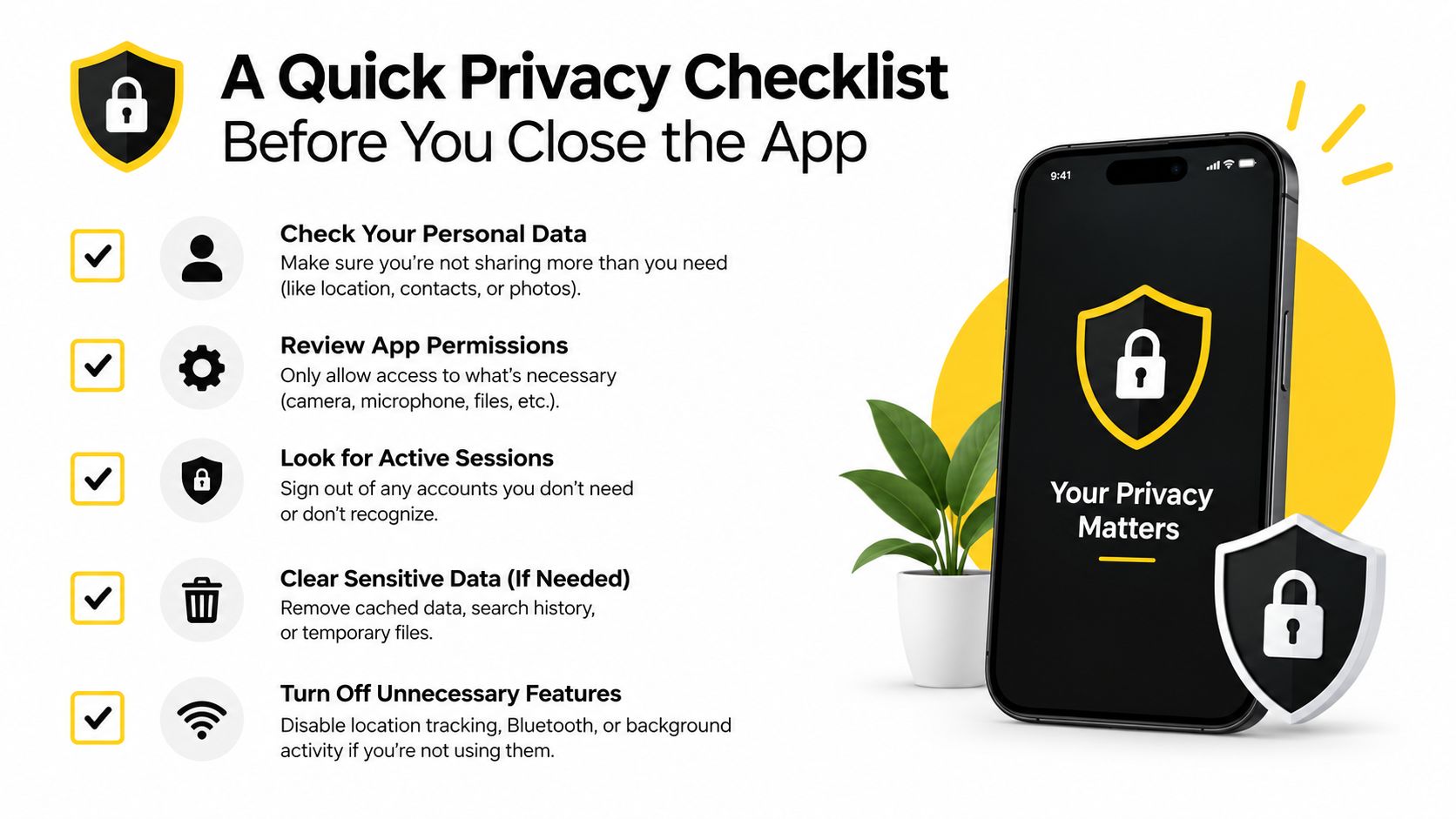
A Quick Privacy Checklist Before You Close the App
Use this order so the highest-impact changes happen first:
- Choose account visibility: Turn on Private account if you want to approve followers before they see your content.
- Reduce discoverability: Turn off Suggest your account to others and disable contact or Facebook-friend syncing.
- Hide activity: Set Following list and Liked videos to Only me.
- Limit interactions: Restrict comments, disable or narrow Duet and Stitch, and turn off Allow download.
- Reduce data access: Turn off Ad personalization, revoke Contacts and Location permissions, and review Microphone and Photos access.
- Secure the login: Enable two-step verification through TikTok's security settings. This two-factor authentication guide can help if you haven't used it before.
Check these settings again after a major TikTok update or whenever you change how you use the app. TikTok changes menus and age-based defaults, so a quick review prevents old permissions from slipping back into your routine.
Open TikTok now, go to Profile > Settings and privacy > Privacy, and make the account, discoverability, interaction, and data-access changes that match your situation.
Tech Today turns complicated technology topics into clear, practical guides, including privacy settings, app controls, gadgets, and everyday troubleshooting. Visit Simply Tech Today for straightforward explanations that help you make better decisions about the technology you use.

Member discussion