
How to Organize Digital Files Without Losing Your Mind
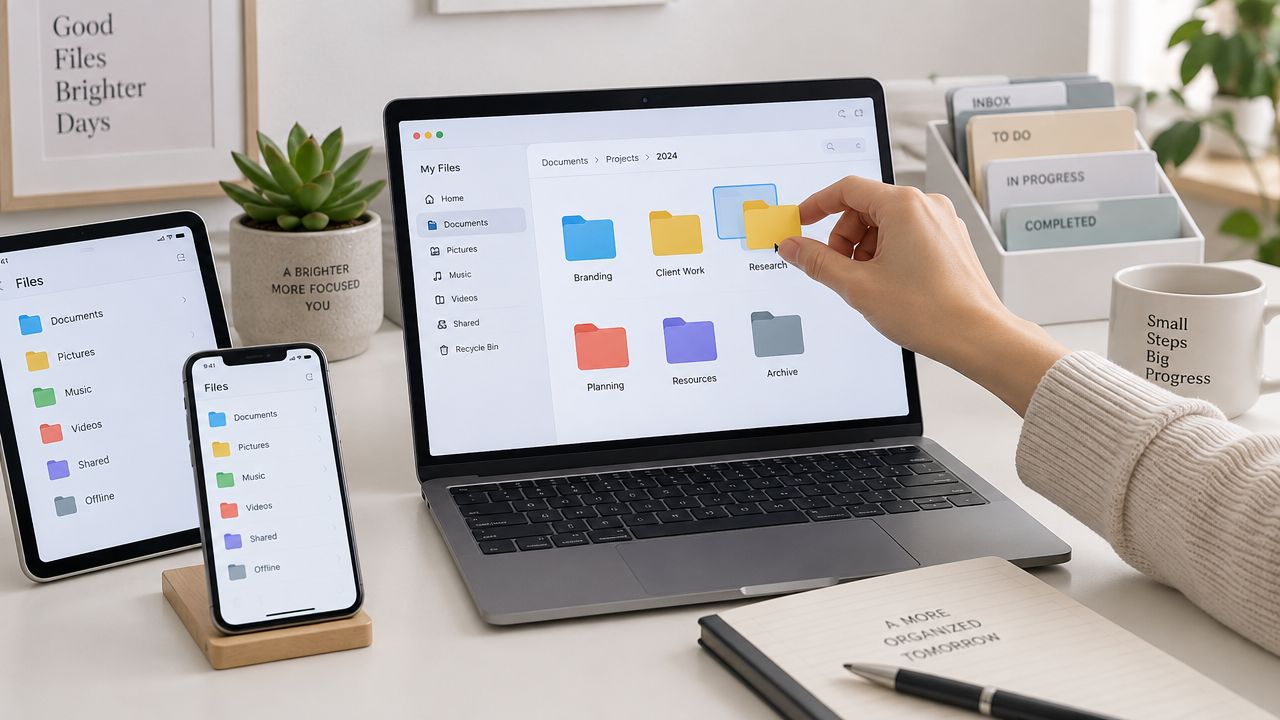
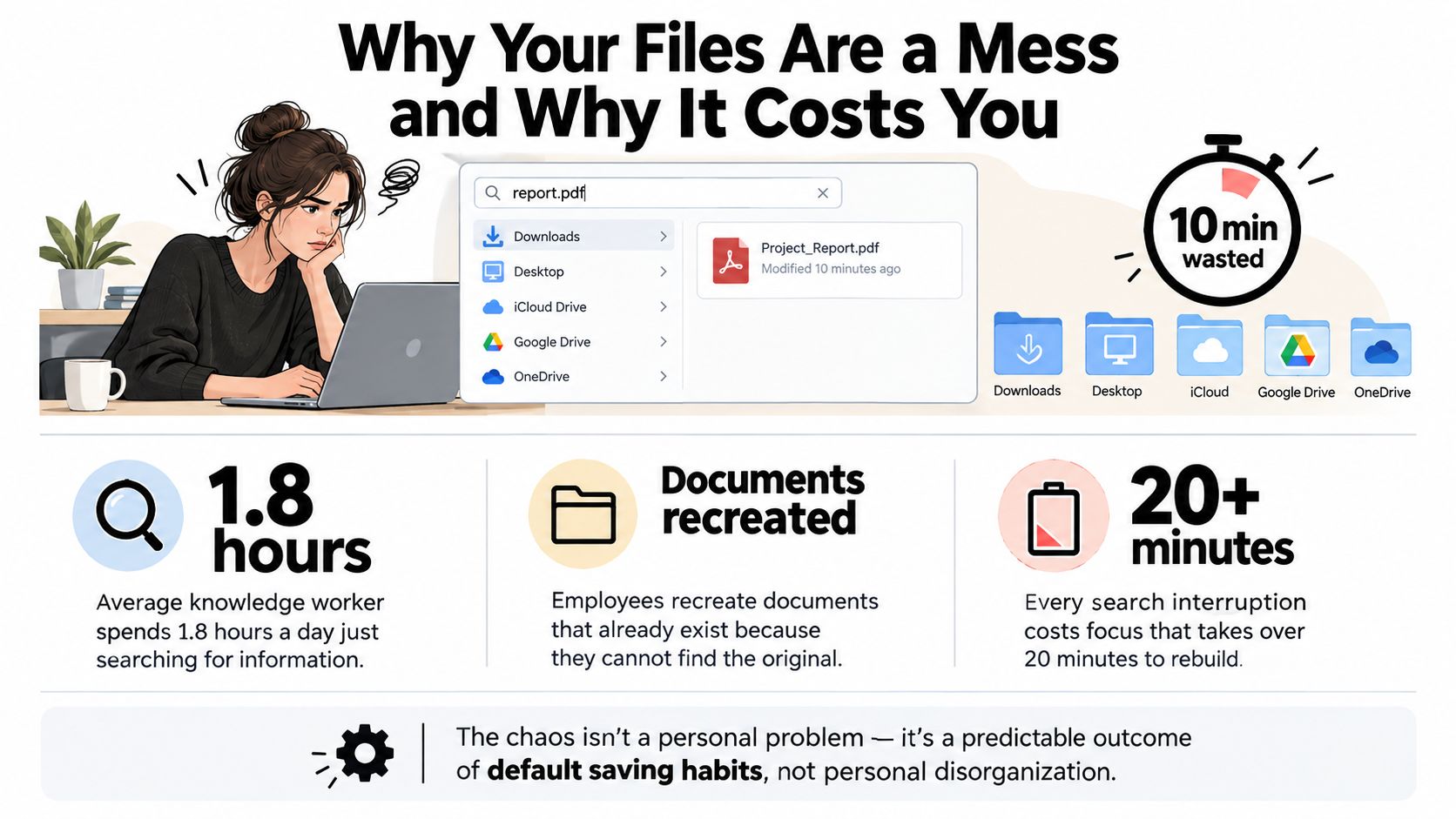
You've just downloaded a PDF, but it's already competing with screenshots, receipts, old assignments, and files named final-final-2. You check Downloads, then Desktop, then three cloud folders. The file was saved ten minutes ago, yet finding it feels like a small investigation.
That chaos usually isn't a personal failure. Operating systems encourage scattered saving, apps create their own folders, and unfinished sorting attempts leave files in temporary locations indefinitely. The practical answer isn't a weekend-long productivity overhaul. It's a small system with predictable folders, searchable names, reliable backups, and enough automation to prevent the mess from returning.
Why Your Files Are a Mess and Why It Costs You
Digital clutter grows through tiny decisions. You save a document to Desktop because you're in a hurry, export a photo to Downloads because the app chooses that location, and leave an attachment in an email because moving it feels unnecessary. Repeat that pattern across work, school, personal admin, and cloud storage, and no single folder remains trustworthy.
The cost is more than an overflowing screen. The U.S. National Archives' electronic records grew from 6,000 files between 1970 and 1988 to more than 200,000 by 1998, a historical example of how quickly digital collections can outgrow ad hoc organization, as summarized in this overview of digital file organization. At an everyday level, the same source reports that workers spend 18 minutes looking for a document, file issues account for over 21% of daily productivity loss, 86% find office files challenging to locate, and 83% have recreated documents they couldn't find.
Practical rule: If finding a file depends on remembering which app created it, where you were working, or what you called it in a moment of panic, the system is too fragile.
A Bynder survey cited in the same overview found that nearly 30% of working adults had 100 or more files on their desktop, while nearly 30% said they never organized their digital files. Those figures explain why people miss attachments, duplicate work, and carry the stress of a screen full of unresolved decisions.
Start by making the next file easy to save correctly. A clear folder structure, useful filenames, and a short weekly reset will do more than an elaborate taxonomy you abandon after a few days. If email is also adding to the pile, pair this approach with a practical guide to managing email overload.
Build a Folder Structure You Will Actually Use
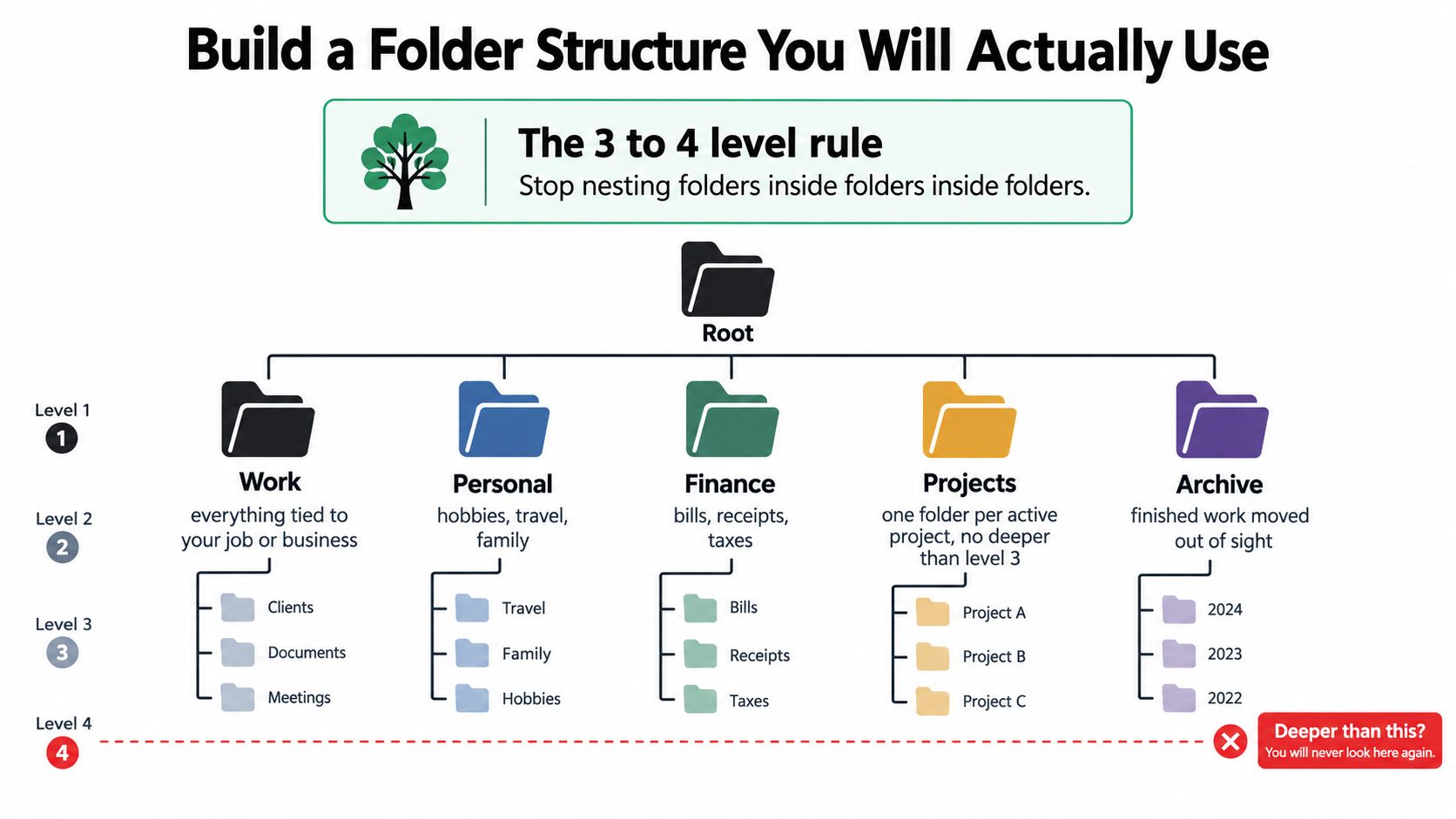
A folder system should answer one question quickly: where would I reasonably look for this later? Keep the hierarchy shallow, usually three or four levels deep, and avoid creating a new branch for every possible distinction. Concordia University recommends limiting folders to three or four levels, keeping fewer than 10 items per folder, and using names that include a project title, date, and version number in its file-naming guidance.
Begin with three to five broad top-level folders. A useful starting set might be:
- Work: clients, meetings, contracts, and current deliverables.
- School: courses, research material, drafts, and submissions.
- Personal: hobbies, travel, family documents, and household projects.
- Finance: bills, receipts, insurance, and tax records.
- Archive: completed or inactive material you rarely need.
The right buckets depend on your life. A remote worker might use Work/Clients/Client-Name/Project, while a student might prefer School/2026-Spring/Course-Code/Assignments. A home user could separate Personal/Photos, Personal/Household, and Personal/Hobbies. These structures differ, but each uses broad categories and content-based names.
Use depth as a warning signal
A folder containing a large pile of unrelated files probably needs a subfolder. Don't treat a threshold as a law, though. A folder with many receipts may benefit from year-based subfolders, while a folder of reference PDFs might remain easier to search as one collection.
Name subfolders for projects, years, categories, or workflow stages. Avoid Misc, Stuff, and Old Things, because they postpone the classification decision instead of solving it. Don't organize primarily by people unless the files clearly belong to that person. Content-based labels travel better when a project changes owners.
A clean project might look like this:
Work/
  Client-A/
    Website-Refresh/
      docs/
      src/
      results/
      raw-data/
By contrast, a cluttered Downloads folder mixes invoice.pdf, essay final.docx, screenshots, installers, and duplicate exports without any indication of what remains active. University research guides recommend separating raw data, documents, source files, and results so originals stay protected and collaborators can understand the project. For more cloud-specific examples, see this guide to using cloud storage effectively.
Naming Conventions That Make Files Findable
Folders tell you where to look. Filenames tell you what you've found. Use one pattern everywhere, such as YYYY-MM-DD_descriptor_version.ext, and adjust the descriptor to the situation.
A date written as 2026-09-27 sorts chronologically in common file managers because the year comes first, followed by the month and day. Stanford and the Smithsonian recommend human-readable, machine-friendly names, avoiding spaces and special characters, and using a consistent date format. The exact pattern matters less than applying it consistently.
Bad versus good filenames
| Scenario | Bad Example | Good Example |
|---|---|---|
| CV | CV final FINAL.docx |
2026-09-27_CV_v2.docx |
| Class essay | essay new one.docx |
2026-09-27_HIST204_Essay_v1.docx |
| Scanned receipt | receipt.pdf |
2026-09-27_Office-Supplies_Receipt.pdf |
| Project draft | final-final-2.pptx |
2026-09-27_Product-Launch_DRAFT_v3.pptx |
| Phone photo | IMG_8451.JPG |
2026-09-27_Family-Dinner.jpg |
Keep the descriptive part short enough to scan. Use underscores or hyphens instead of spaces when files may move between operating systems, scripts, or shared platforms. Include a project, course code, or client label when that context will help you search later.
Version labels are useful only when there are genuinely different iterations. v1, v2, and v3 are clearer than repeatedly adding final, but they become noise if every minor save receives a new number. For status, prefixes such as DRAFT_, WIP_, and DONE_ can help, especially in collaborative folders.
Naming rule: Search before saving a duplicate. If the file already exists, update it, rename the new version clearly, or delete the redundant copy after checking its contents.
Camera filenames deserve attention because phone imports often produce a wall of opaque timestamps. Rename important photos with a date and meaningful event, then use duplicate detection before archiving a large collection. The method can be YYYY-MM-DD_event_subject, YYYYMMDD_event_subject, or another consistent format. Consistency beats a theoretically perfect convention.
Folders, Tags, and AI Search Working Together
Folders, tags, and AI search solve different retrieval problems. Folders provide a stable home, tags add cross-cutting context, and search helps when your memory is incomplete. Treating one method as a replacement for all the others creates unnecessary friction.
| Method | Best For | Limitation | Everyday Example |
|---|---|---|---|
| Folders | Stable categories and project ownership | Deep trees become difficult to browse | Finance/2026/Receipts |
| Tags | Cross-cutting labels and workflow status | Too many tags create maintenance work | urgent, client-A, to-read |
| AI search | Fuzzy descriptions and uncertain locations | Results depend on indexing, permissions, and metadata | “budget spreadsheet from March” |
Use folders for material with a natural home, such as an active client project, a course, or financial records organized by year. Use tags when one file legitimately belongs to several views. A research paper might sit in a course folder while carrying evidence, to-read, and methodology tags.
AI search is most useful when you remember the file's meaning but not its exact name. macOS Spotlight, Windows search tools, Google Drive, and Dropbox can interpret filenames, document text, dates, and sometimes image content. A query such as “whiteboard photo from Jess's birthday” is more forgiving than trying to reconstruct the original camera filename.
A practical hybrid workflow
- Choose a folder first. Put the file where its ownership or project context makes sense.
- Add only useful tags. One or two labels are enough when they support a real retrieval need.
- Let search handle uncertainty. Search by a phrase, date, file type, or visible text before creating another folder.
- Improve metadata where needed. OCR can make scanned documents searchable, and this OCR software guide can help you compare practical options.
The same principle works for research collections. A literature review table template can give students a structured way to capture authors, topics, and evidence without forcing every paper into an extensively nested folder tree.
Don't tag every file. A tag system that requires constant judgment becomes a second filing system, and few will maintain two competing systems for long. Keep the folder structure understandable, use tags for genuine intersections, and treat AI search as a safety net rather than an excuse to save everything anywhere.
Cloud Sync and Backup Without the Headache
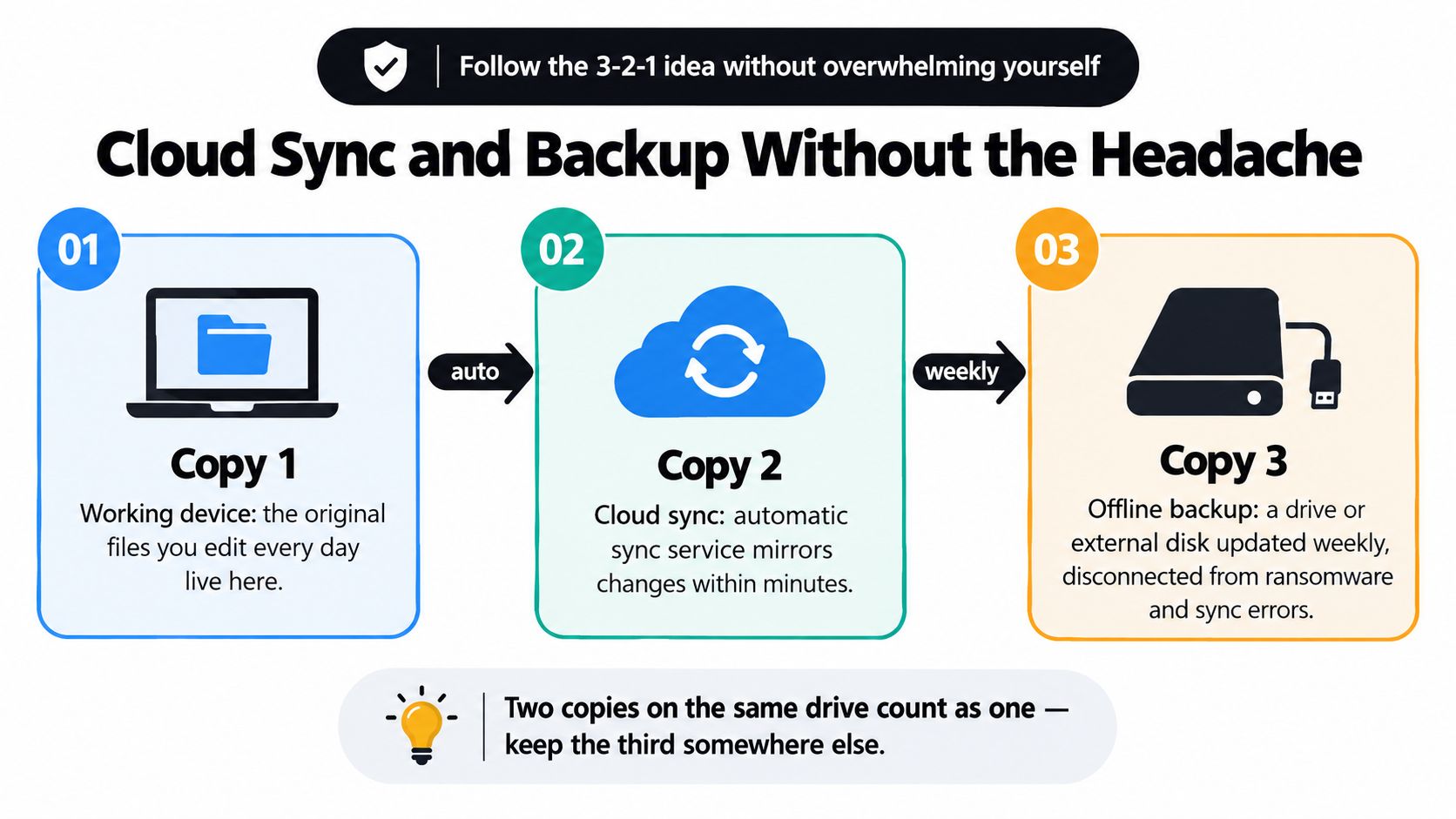
Cloud sync and backup are related, but they aren't interchangeable. Sync keeps a working folder consistent across devices. If you delete or corrupt a synced file, that change may travel to every synchronized location. Backup creates a recoverable copy with a separate history or destination.
The familiar 3-2-1 approach keeps the idea simple: maintain the working original, a cloud copy, and another copy stored separately. For everyday work, Google Drive, OneDrive, or iCloud can serve as the sync layer. An external SSD or a separate backup service such as Backblaze can provide another recovery path.
Match the setup to the files
A student can keep active coursework in one cloud service and copy important folders to an external drive. A household with a growing photo library may prefer a central drive or NAS, wireless imports, duplicate detection, and local indexing. People managing event photos may also find a specialist overview of photo backup services for 2026 events useful when choosing between workflows.
Power users should look for version history, encrypted storage, and snapshots that can't be altered by ordinary sync errors or ransomware. Everyone else should prioritize a system that runs automatically and is easy to verify.
Your backup is only real after a restore test. Pick one file, delete its local copy, and restore it from the backup destination. Confirm that the file opens and that its name, contents, and location are understandable. Mac users can also review this practical guide to backing up a Mac.
Automation and Weekly Maintenance Habits
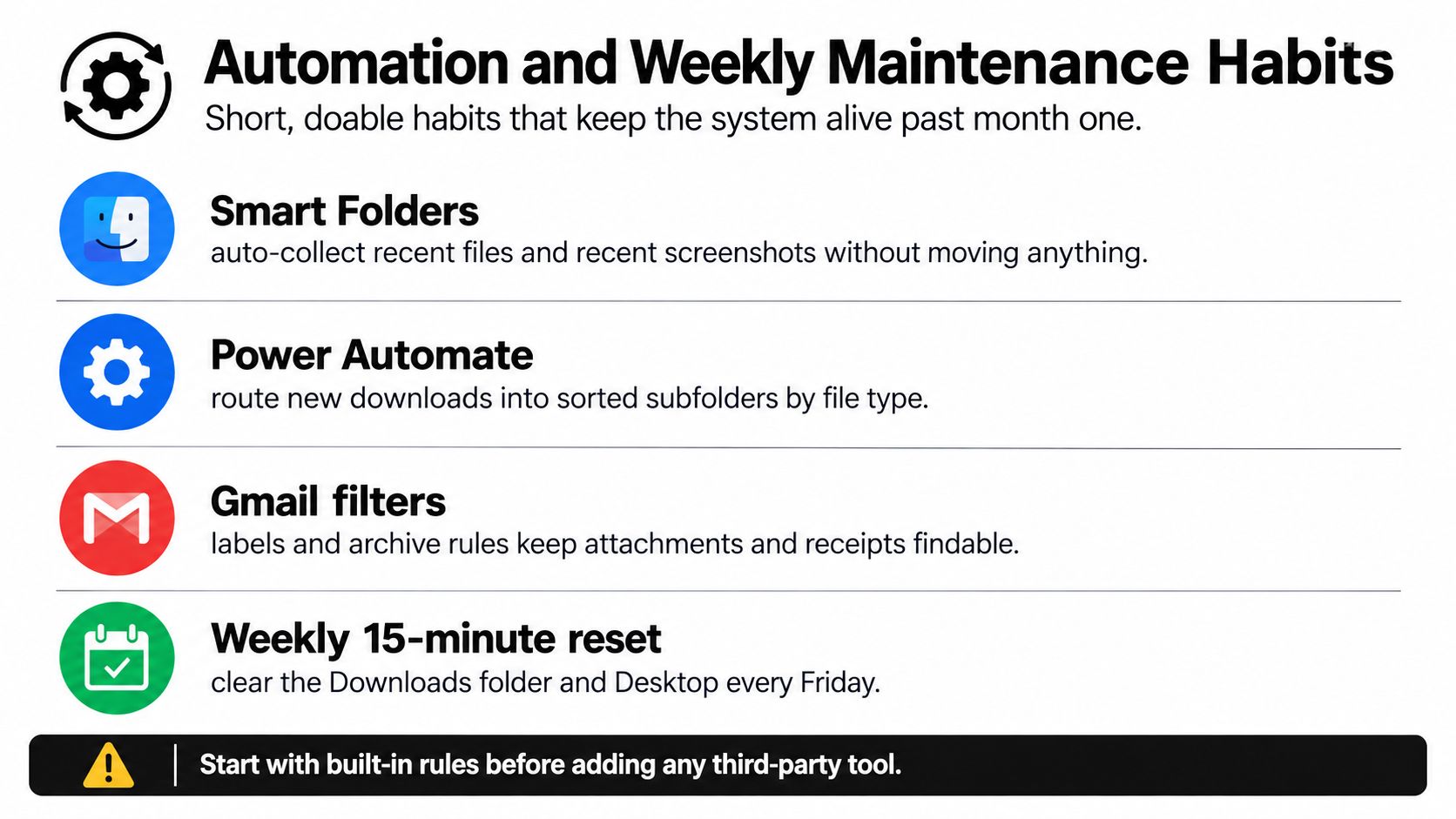
Good organization reduces manual decisions. Start with tools already built into your devices: macOS Smart Folders can collect files by criteria without moving them, Windows Power Automate can route downloads, and Gmail filters can label or archive messages with important attachments. Gmail-to-Drive workflows can also place recurring attachments into a predictable cloud location.
Third-party utilities can help when the rules are stable. Hazel on Mac and File Juggler on Windows can rename files, sort downloads by type, and move screenshots into dated folders. Automation should handle repetitive placement, not interpret ambiguous documents that still require human judgment.
Keep maintenance deliberately small
Set a recurring Friday appointment for a short reset. Empty Downloads, clear Desktop, rename files still called Untitled, and review anything placed in a temporary folder. Don't spend the session redesigning your entire system. Make the next decision and move on.
Once a month, check that the backup completed and restore a representative file. Every quarter, move completed projects into Archive and remove obsolete duplicates after verifying that the retained copy is usable.
Maintenance beats ambition: A modest system reviewed regularly will outlast a sophisticated tree that nobody checks.
A messy system usually failed from neglect, not from an imperfect folder design. If automation starts moving files somewhere surprising, disable the rule, inspect its conditions, and simplify it. For more ideas on reducing repetitive computer work, see this guide to automating repetitive tasks.
Your One-Page File Organization Checklist
You don't need to reorganize every file today. Start with one important folder, establish the rules, and let the system expand through repeated use.
Setup
- Choose top-level folders: Create broad categories such as Work, School, Personal, Finance, and Archive.
- Set a depth limit: Keep the structure shallow, normally no deeper than three or four levels.
- Create project areas: Separate raw data, documents, source files, and results when a project needs reproducible work.
- Write the rule down: Add a README or shared description file so collaborators know where files belong.
- Pick a filename pattern: Use a date prefix, meaningful descriptor, and version only when multiple iterations exist.
Daily habit
- File downloads immediately: Move important files out of Downloads as soon as you understand their purpose.
- Name files for search: Replace
Untitled, camera codes, and vague labels with searchable descriptors. - Search before duplicating: Check existing folders and cloud storage before exporting another copy.
- Use tags selectively: Add labels only when they provide a retrieval view folders can't provide.
Weekly reset
- Clear Desktop and Downloads: Move, rename, archive, or delete each leftover item.
- Review temporary folders: Empty
To Fileonly after assigning every item a permanent home. - Check active projects: Confirm that drafts, source material, and final outputs remain distinct.
Monthly audit
- Test the backup: Restore one file instead of assuming synchronization worked.
- Inspect storage: Look for duplicate media, stale installers, and oversized exports.
- Archive completed work: Move finished projects out of active folders without deleting useful history.
- Review automation: Keep rules that behave predictably and remove those that create confusion.
A five-file start is enough. Pick one folder, rename five files, enable cloud sync for the material you can't replace, and schedule the next Friday reset. An imperfect system you use consistently beats a perfect one abandoned by Wednesday.
Tech Today offers clear, practical technology explanations, including guidance on file organization, cloud storage, automation, and backup habits. Visit Simply Tech Today for straightforward help turning everyday tech tasks into routines you can maintain.


Member discussion