
What Makes a Good WiFi Extender a Practical Guide
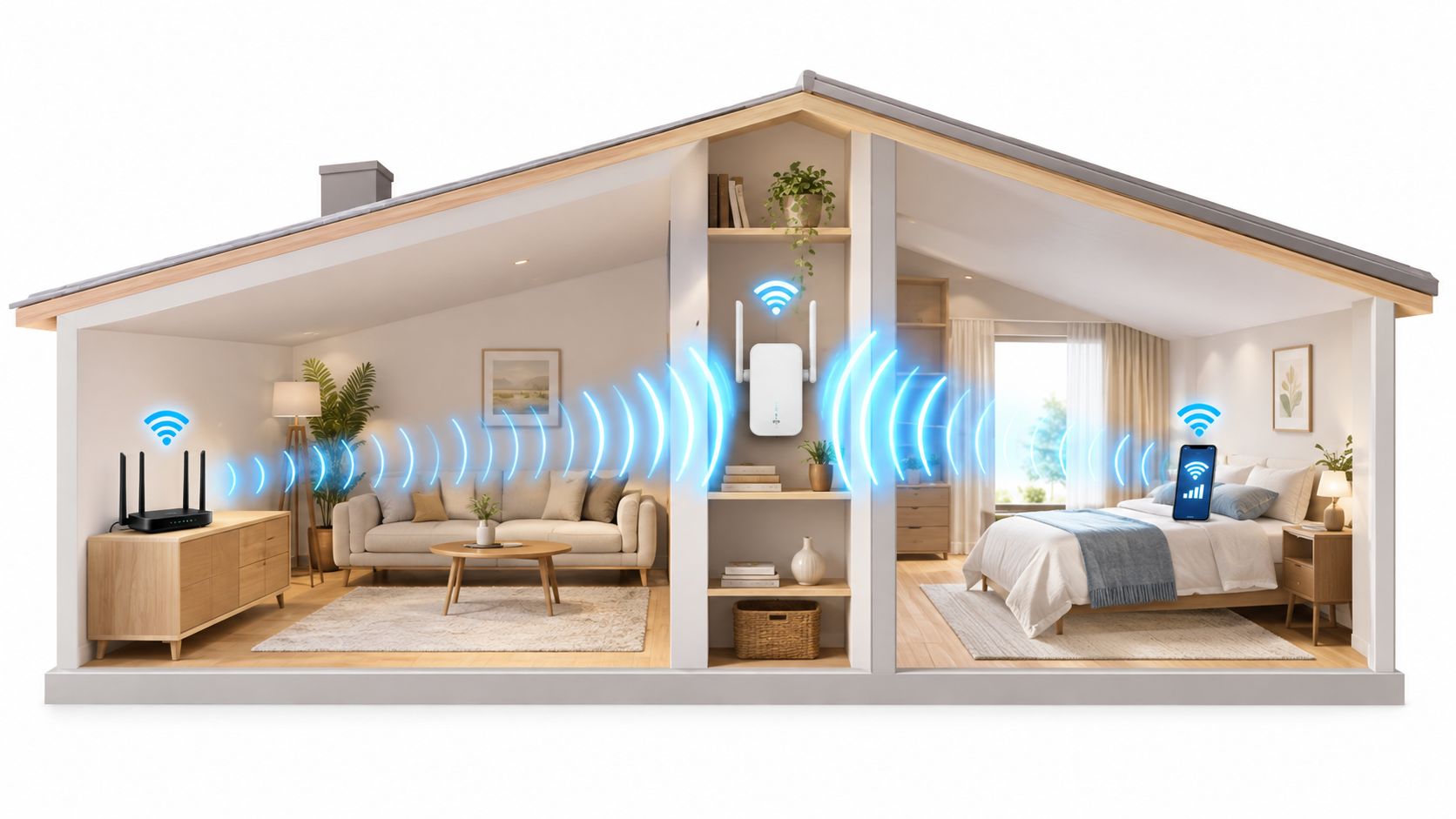
You're halfway through a film when the picture freezes. Your phone still shows Wi-Fi, but the bedroom, office, or upstairs landing has become a dead zone. You move closer to the router, restart the stream, and wonder why a connection that works perfectly in one room becomes unreliable only a few metres away.
That problem is common because home Wi-Fi has become a demanding indoor service, not a simple connection for one computer. One market estimate valued the Wi-Fi range extender category at USD 2.91 billion in 2025 and projects it to reach USD 5.51 billion by 2031, with extenders and repeaters accounting for 53.25% of revenue in 2025 and indoor deployments representing 70.35% of the market (Research and Markets Wi-Fi range extender analysis). The right device can help, but only if you choose it for its backhaul design and placement, not its biggest number on the box.
Why Your Wi-Fi Drops in the First Place
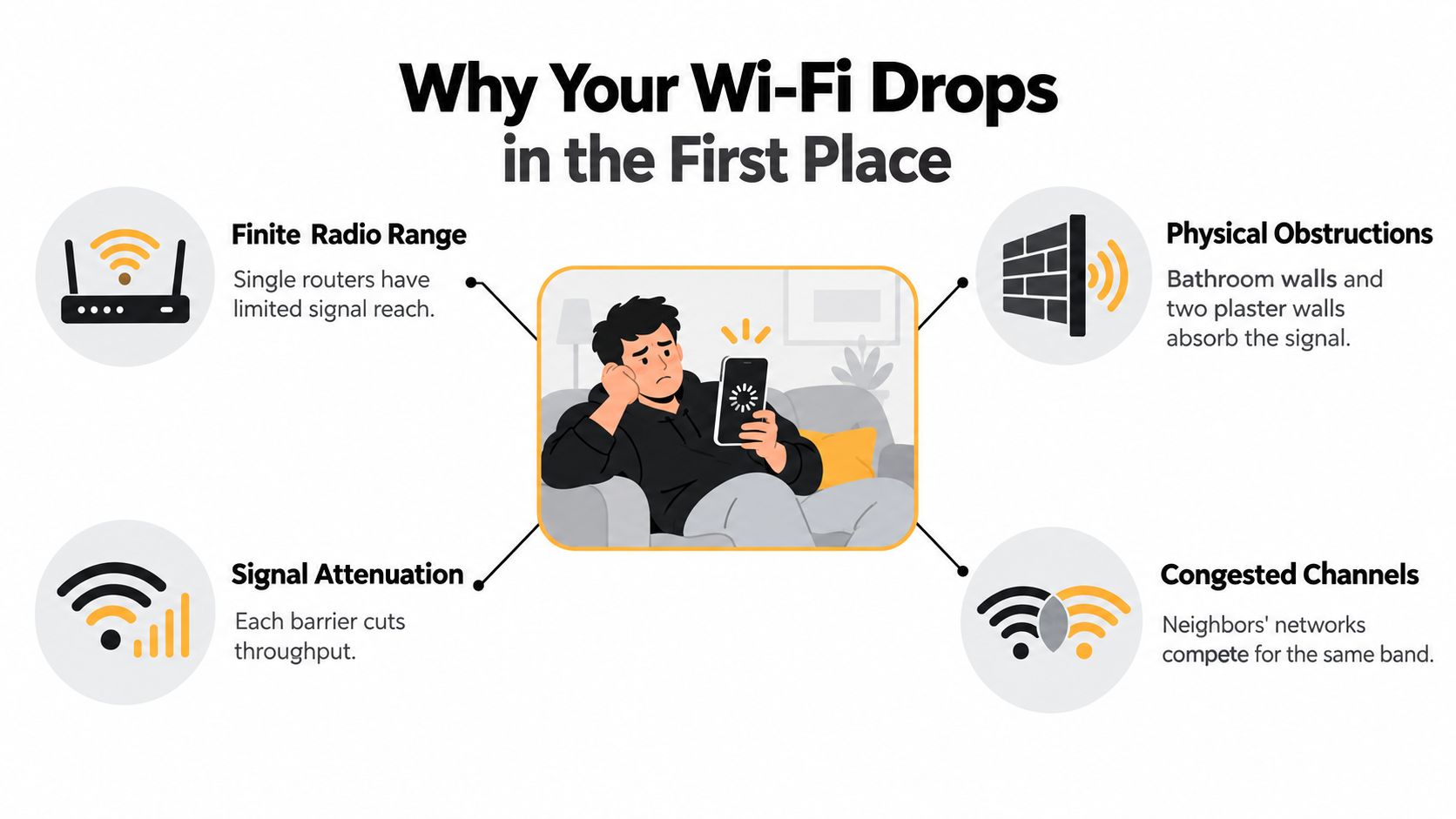
You're on the couch, watching a phone stream that was working fine a moment ago. Then the bedroom door closes, the signal passes through a bathroom and two plaster walls, and the video stops at the exact moment the plot gets interesting. Your phone may still display a few Wi-Fi bars, but those bars only describe the connection between the phone and a radio signal. They don't promise useful speed.
A single router has a finite radio range. Concrete, brick, metal appliances, mirrors, dense furniture, and even large fish tanks can weaken the signal as it travels. Each obstacle absorbs or reflects part of the radio energy, leaving the far room with a connection that looks present but struggles under load.
The dead zone is often a coverage problem
A good Wi-Fi extender solves a narrow problem. It receives the router's signal while that signal is still usable, then sends coverage farther into the weak area. It doesn't create a faster internet connection, repair a failing router, or remove interference from the air. It creates a bridge between the router and a room that the router can't reach reliably on its own.
Apartments add another complication. Nearby networks compete for airtime on the same 2.4 GHz and 5 GHz bands, especially where many homes sit close together. The result can be slower loading, more retries, and unstable calls even when the router itself is working normally. For more background on the difference between a weak signal and a slow connection, see this guide to why your Wi-Fi may feel slow.
The market context also explains why this keeps happening. The same market estimate says annual shipments reached 4.1 billion Wi-Fi devices in 2024, contributing to an installed base of 21.1 billion devices (Research and Markets Wi-Fi range extender analysis). A modern home asks one router to serve phones, laptops, televisions, cameras, speakers, consoles, and smart-home equipment, often through several walls.
The useful question isn't “Which extender has the most Mbps?” It's “Where is the router's signal still strong enough to relay?” That answer leads to the right device, the right specification, and the right socket.
Extender, Repeater, Access Point, and Mesh Explained
The names sound interchangeable because manufacturers use them loosely. They describe different ways of moving Wi-Fi around your home, and the connection between devices matters more than the label.
A Wi-Fi extender, also called a range extender or booster, wirelessly receives the router's signal and rebroadcasts it. Think of a friend standing halfway down a hallway, listening to your message and repeating it to someone at the other end. The extender needs a decent message from the router before it can repeat anything clearly.
A repeater is usually the simplest form of extender. It receives and retransmits traffic using the same radio path, rather like one person speaking, stopping to listen, and then speaking again on the same channel. That shared airtime can reduce usable capacity, particularly when several devices are active.
An access point connects to the router with Ethernet. It creates a fresh Wi-Fi coverage area at the end of the cable, similar to installing another light switch wired directly to the electrical panel. The cable carries the network traffic, so the access point doesn't need to use wireless airtime to communicate with the router.
A mesh system uses multiple nodes that cooperate as one network. Your phone or laptop can move between nodes without asking you to choose a different network name manually. Mesh is better suited to homes where people walk between rooms during calls, streaming sessions, or online games.
| Type | How It Connects | Best For | Typical Trade-off |
|---|---|---|---|
| Extender | Wireless connection to the router | One weak room or small coverage gap | Wireless relay can reduce throughput |
| Repeater | Wireless receive-and-rebroadcast path | Basic range improvement | Shared airtime and less consistent performance |
| Access Point | Ethernet cable to the router | Homes with usable cable runs | Requires wiring and a suitable installation point |
| Mesh | Multiple coordinated nodes | Whole-home coverage and roaming | More equipment and a larger setup |
A typical dead-zone complaint points toward an extender, especially when the problem affects one room and the router works well elsewhere. If the weak signal appears across floors or several distant rooms, a mesh system or wired access point usually fits the shape of the problem better. A broader overview of wireless connectivity solutions can help if your issue involves more than one wireless dead spot.
Key Specs That Actually Matter on the Box
The most impressive number on an extender's packaging is rarely the most useful one. A good purchase starts with the radios, the way they handle router traffic, and the connections available for devices near the extender.
Bands create different traffic lanes
A dual-band extender uses 2.4 GHz and 5 GHz radios. The 2.4 GHz band generally travels farther and handles obstacles more easily, while 5 GHz usually offers more capacity at shorter range. A strong dual-band design can reserve one band for the link back to the router and use the other for local devices.
Tri-band equipment adds another wireless band, often a second 5 GHz or a 6 GHz radio, that can serve as a dedicated backhaul. That extra lane is one of the most important hardware features because it keeps router traffic separate from the traffic between your phone, television, and extender.
Wi-Fi generations affect capacity
Wi-Fi 5 can still suit modest use, particularly where the main need is browsing or basic streaming. Wi-Fi 6, also known as 802.11ax, is designed to manage busy networks with many simultaneous devices more efficiently. In 2026, Wi-Fi 6 was described as the current standard in the majority of U.S. homes, while Wi-Fi 7 adoption was accelerating (BroadbandSearch home network statistics).
Wi-Fi 7, or 802.11be, brings newer capabilities such as wider channels and Multi-Link Operation. Those features can help compatible devices, but they don't magically remove walls or fix a weak wireless backhaul. A 2025 hands-on review of the TP-Link RE655BE measured 663.5 Mbps up close, showing that Wi-Fi 7 extenders can perform strongly in favourable conditions, while broader testing still highlights the limitations caused by walls, floors, and relay design (Tom's Guide TP-Link RE655BE review).
| Spec | What It Means | Real-World Benefit |
|---|---|---|
| Dual-band | Two wireless bands handle network traffic | Good general-purpose coverage with sensible configuration |
| Tri-band | An additional band can carry backhaul traffic | More capacity for busy homes and distant rooms |
| Wi-Fi 6 | Newer wireless standard built for device-heavy networks | Better handling of simultaneous connections |
| Wi-Fi 7 | Newer standard with advanced link and channel features | Useful future headroom for compatible equipment |
| External antennas | Antennas sit outside the sealed housing | More flexibility when aiming coverage toward a room |
| Ethernet port | A device can connect by cable | Stable connection for a TV, desktop, or console |
A high link rate doesn't equal high application speed. The difference between bandwidth and responsiveness is explained clearly in this guide to bandwidth versus latency, a distinction that becomes especially important for calls and gaming.
Backhaul, Throughput, and the Honest Speed Story
Backhaul is the extender's commute to the router. Your laptop sends data to the extender, the extender sends it to the router, and the response returns along the same relationship. The wireless link between the extender and router is therefore the bottleneck, even if the box advertises a spectacular combined Mbps figure.
Consider a dual-band extender advertised as AC1200. That label combines theoretical radio rates across bands. It doesn't mean your phone will receive that speed in the far room. If the same radio must receive data from the router and retransmit it to your phone, both jobs compete for airtime.
A single-band repeater has the most severe version of this limitation. A basic dual-band extender can improve the experience, but its shared radio design still limits effective throughput. A tri-band model with a dedicated backhaul has a separate wireless route for router communication, allowing the client-facing radio to spend more airtime serving your devices.
Independent guidance gives useful ranges for setting expectations. A basic dual-band unit using the same radio for backhaul and client traffic may deliver around 30% to 60% of direct-router throughput. A tri-band extender with dedicated backhaul may retain roughly 60% to 85%, while a wired-backhaul access point setup can reach about 80% to 100% of direct access-point performance when signal and interference conditions are similar (Wi-Fi repeater and extender performance guidance).
| Extender Type | Backhaul Design | Typical Throughput at Node | Best Use |
|---|---|---|---|
| Single-band repeater | Same wireless path for receiving and sending | Most reduced | Light browsing in a small coverage gap |
| Dual-band extender | Wireless backhaul with shared or separated band use | About 30% to 60% of direct-router throughput | One-room coverage where moderate speed is acceptable |
| Tri-band extender | Dedicated wireless backhaul | About 60% to 85% of direct-router throughput | Busy homes needing stronger relay performance |
| Wired access point | Ethernet backhaul | About 80% to 100% of direct access-point performance | Maximum stability where cabling is available |
That's why a low-cost extender can show a strong signal while delivering disappointing downloads. The phone is close to the extender, but the extender may have a poor route back to the router. Powerline adapters can offer another wired-style path when running Ethernet is difficult, so compare them with powerline adapter options before settling for a weak wireless relay.
Placement, Setup, and Quick Troubleshooting
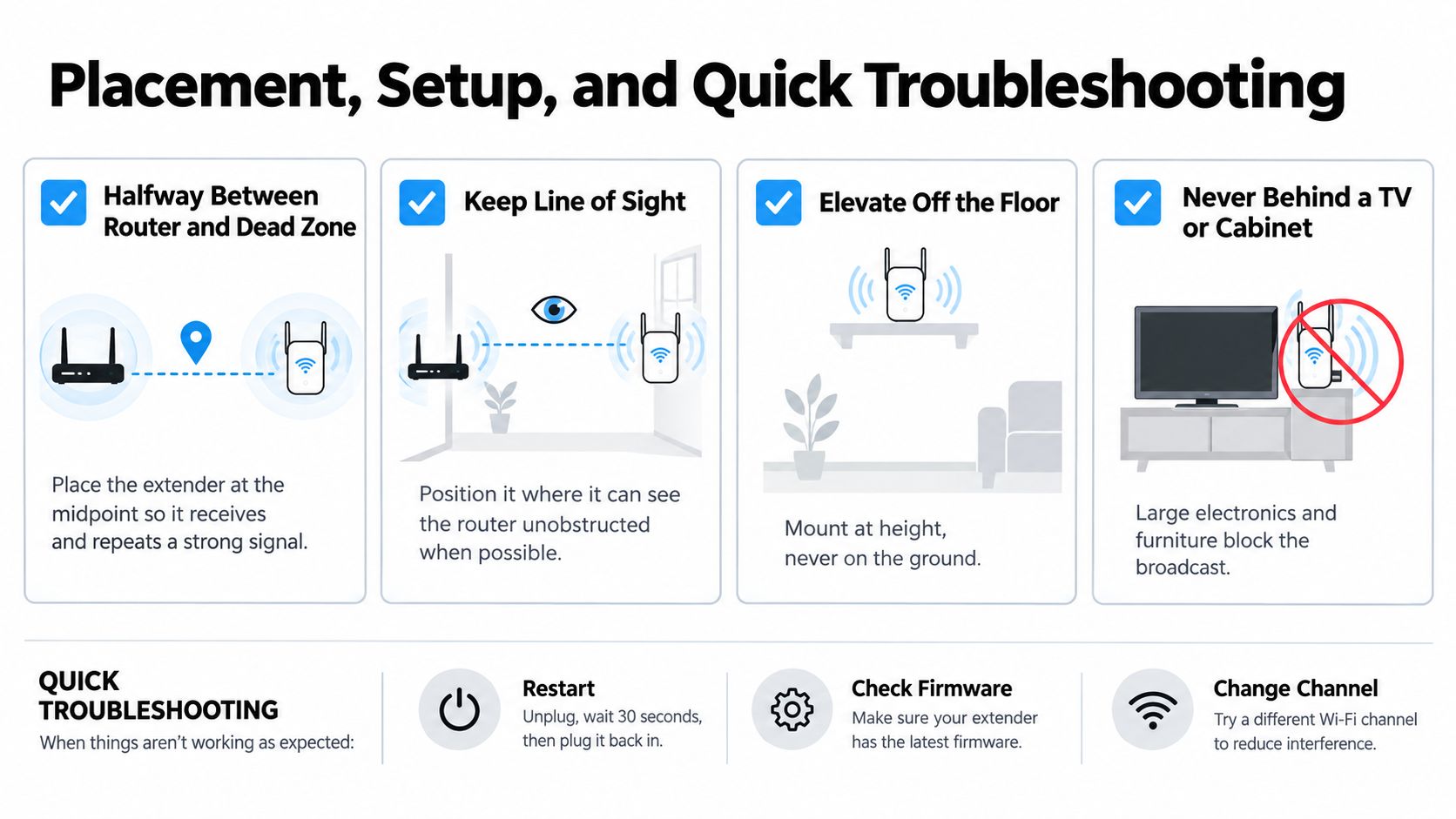
A capable extender can fail when it's placed in the wrong socket. Start with the principle that the unit must sit where the router's signal is still healthy, not deep inside the dead zone. The extender can then relay that usable signal into the room beyond it.
Place it roughly halfway between the router and the problem area. Keep it placed off the ground, open, and away from large electronics. A shelf in clear view is usually more helpful than a socket behind a television, inside a cabinet, or on the floor.
Research on extender positioning found that the optimal location in the tested environment was roughly 10 to 20 metres from the access point, at around -64 dB RSSI, a measure of received signal strength (extender positioning guidance). Treat those values as a starting reference rather than a universal rule, because walls, floors, interference, channel width, and client count change the result. Readers dealing with unusual layouts can also review this practical guide to extender placement for Melbourne homes.
Pair it before you move it
Most current models offer one of two setup routes:
- WPS pairing: Plug the extender near the router, press its WPS button, then press WPS on the router when prompted. Wait for the connection light, then relocate the extender to its working position.
- App setup: Open the manufacturer's app, choose the option to set up a new range extender, select your router's network, enter the Wi-Fi password, and follow the placement or signal prompts.
After setup, connect a phone or laptop to the extended network and test the actual room you care about. Full bars with slow video usually mean the extender is too far from the router, the backhaul band is struggling, or the channel is crowded.
A quick troubleshooting pass
- Check placement first: Move the unit closer to the router if its link indicator is weak.
- Check the network name: Some extenders create a separate SSID, so confirm that your device is connected to the intended network.
- Update firmware: Use the app or administration page to install available firmware updates.
- Change bands: Try 2.4 GHz for difficult walls and longer reach, or 5 GHz where the extender and client are close enough to benefit from greater capacity.
- Restart both devices: Reboot the router and extender after changing their positions or wireless settings.
For a same-day check, stand in the dead zone, confirm the device is connected to the extender, run the same test near the router, and compare how the connection feels during a stream or call. If the far-room result barely improves, move the extender toward the router rather than deeper into the weak area. More practical ideas appear in this guide to improving Wi-Fi signal strength.
When to Skip the Extender and Buy Mesh Instead
An extender isn't automatically the cheapest complete solution. It may cost less as a single device, but buying one, finding it inadequate, and then adding another can leave you with a more complicated network and an inconsistent experience.
Mesh is usually the stronger category when several rooms need coverage. Recent testing of mesh systems found that extenders commonly reduce performance because they repeat the router signal on the same band, with speeds sometimes falling to 50% of the main router's speed and latency generally rising. The same testing says mesh systems provide more consistent speeds at longer distances and are better suited to whole-home coverage (Wired mesh Wi-Fi router testing).
Match the architecture to the home
A single extender can make sense when one bedroom, corner, or small office sits just beyond a working router signal. Mesh becomes more sensible when the problem spans multiple rooms, different floors, or a large open area. It also offers a unified network experience, which matters when you walk around during a video call and don't want to reconnect manually.
A wired access point remains the performance-first choice when Ethernet already reaches the far room. It avoids the wireless relay bottleneck and gives that space a direct route to the router.
| Scenario | Best Pick | Why | Typical Cost |
|---|---|---|---|
| One weak corner | Dual-band extender | Simple coverage fix with limited equipment | Lower |
| Several rooms across a home | Mesh system | Coordinated nodes and easier roaming | Higher |
| Large or multi-level layout | Mesh with suitable backhaul | More consistent coverage across distances | Higher |
| Ethernet already available | Wired access point | Avoids wireless backhaul loss | Varies by hardware and installation |
| Stationary low-bandwidth device | Basic extender | Range matters more than peak throughput | Lower |
A newer Wi-Fi standard doesn't change this category decision by itself. A Wi-Fi 7 extender can offer strong close-range performance, but it still depends on where it sits and how it connects back to the router. Paying for a faster radio won't solve a weak upstream signal or an unsuitable floor plan.
Buying rule: Choose the network architecture first, then compare models within that category.
Matching the Right Pick to Your Home
The best choice depends on the shape of the dead zone, the number of active devices, and whether you can run a cable. The same box that works neatly in a compact apartment may feel inadequate in a multi-level house.
The compact apartment
A small apartment with one dead corner near the bedroom usually needs a focused repair, not a complete network replacement. A mid-range dual-band Wi-Fi 6 extender is a sensible starting point when the router performs well in the main living area and only one room struggles.
Place it between the router and bedroom, preferably in an open position rather than behind furniture. Use the 5 GHz connection when the path is clear and the 2.4 GHz band when walls make the shorter-range band unreliable. If the extender needs to cover several separate rooms, reconsider the purchase instead of adding units one by one.
The larger two-story house
A two-story home with thick interior walls and an outdoor patio creates a tougher wireless path. A tri-band extender with dedicated backhaul may help if there's one clearly defined weak side of the house and the router's signal remains usable at the proposed placement point.
If family members stream, work, game, and use smart-home devices in different areas at the same time, an entry-level mesh system is the more honest recommendation. Its nodes are designed to coordinate coverage, and the network can handle movement between areas more naturally than a basic extender arrangement.
The converted garage office
A garage office with an Ethernet run already available shouldn't rely on a wireless relay unless there's a specific reason. Use a wired access point at the far end of the cable, configure it with the desired network settings, and let the Ethernet connection carry traffic back to the router.
That arrangement removes the wireless backhaul limitation and gives the office a stable local signal. It's particularly suitable for a desktop, work laptop, video calls, and other devices that benefit from predictable performance.
Use this two-question decision rule:
- Does the dead spot affect one room or many? One room points toward an extender. Several rooms or floors point toward mesh.
- Can you run Ethernet to the problem area? If yes, choose a wired access point before considering a wireless relay.
Start by testing the router from the dead zone, then identify the nearest location where its signal remains reliable. That simple check will tell you more than a headline Mbps number.
Tech Today offers clear explanations of everyday technology, including Wi-Fi equipment, connectivity options, and practical setup guidance. Visit Simply Tech Today to compare solutions and find straightforward advice before you buy.
Member discussion