
Safe Mode Off: Turn It Off on Windows, Android and Mac
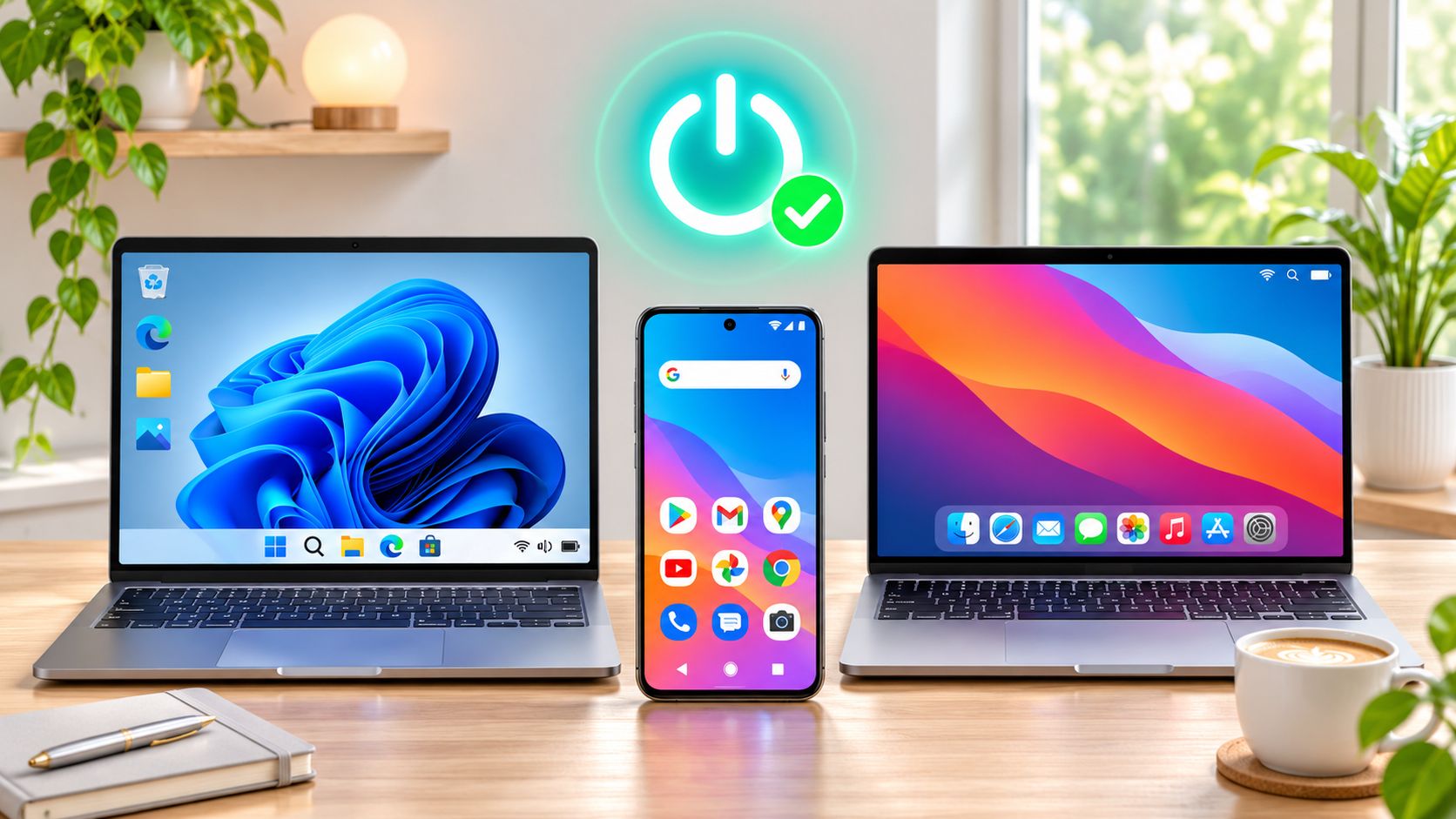
On Windows, Android and Mac, a normal restart turns Safe Mode off. The table below lists the exit method for each device and the fallback to use when a device comes back up in Safe Mode anyway.
Your phone finished rebooting, you opened it, and the words Safe Mode are still stamped in the corner of the screen with half your apps greyed out. Or your laptop came back with a stripped desktop, no startup programs, and a nagging sense that something is still wrong. The diagnosis part is over. What you want now is your device back, and you want to know whether the problem that sent you into Safe Mode in the first place is gone.
Exit Safe Mode on Each Device at a Glance
Safe Mode is a diagnostic state, not a repair. It exists so you can run a machine with a reduced set of drivers, services and apps and watch whether the fault disappears. Getting out of it is usually the easy part. Staying out of it is where people get stuck.
| Device | Exit method | If it stays in Safe Mode |
|---|---|---|
| Windows 10 or 11 | Restart normally from the Start menu | Clear the Safe boot option in System Configuration, then restart |
| Android phone | Restart the device | Check for a stuck volume button or case pressure, then restart again |
| Mac | Restart without holding Shift | Restart again and check the startup disk and login items |
On Windows 10 and 11, the plain restart from the Start menu is the default exit. On Android, a restart is the exit, and the test is whether your downloaded apps, widgets and home screen customisations come back. On a Mac, Safe Mode is entered by holding Shift during startup, so the exit is a restart with that key released.
The two-minute confirmation
You're out of Safe Mode when the device boots the way you normally see it. That means your usual wallpaper, the full set of apps, working network access and the normal sign-in options at the lock screen. On an iPhone there's nothing to check here, because iOS doesn't have a traditional Safe Mode at all.
If the screen still looks limited, a plain restart didn't do it. The third column above points you to the section that handles that case, and each row gets a full walkthrough below, starting with Windows because it has the most moving parts.
One thing to settle now, before you get frustrated: a full reset is not the next step. If you're already wondering whether wiping the device would be faster, read what a factory reset actually erases first. It removes the evidence you need to find the cause.
Turn Off Safe Mode on Windows Step by Step
Persistent Safe Mode is a boot-configuration problem, not an operating system failure. Windows isn't broken; something is telling it to boot this way every single time. That distinction tells you where to look, and it means the way out sits in the boot settings rather than behind a reset. Work the sequence below from the quickest fix to the deeper one.
- Save your work and restart from the Start menu. Click Start, then Power, then Restart. This clears the temporary boot state, and on most machines that's the entire fix. If Windows loads with all your usual programs and the desktop looks normal, stop here.
- If Windows returns straight to Safe Mode, open System Configuration. Press Win + R, type
msconfig, and press Enter. The restart didn't hold because the persistent instruction lives in the boot settings, below anything a normal restart touches. - On the Boot tab, clear the Safe boot checkbox. Click Apply, then OK, then Restart when prompted. This removes the flag itself. Microsoft's support guidance on Safe Mode and startup settings covers this route along with the recovery alternative below.
- If Windows won't cooperate at all, use the recovery route. Open Settings, then System, then Recovery, and select Restart now under Advanced startup. From the Windows Recovery Environment, choose Troubleshoot, then Advanced options, then Startup Settings, and pick the normal startup option. That usually exits Safe Mode, and it's the fallback when
msconfigis unreachable. - Note what changed just before this started. A driver update, a new antivirus, a fresh game launcher. Removing the Safe boot flag re-exposes whatever was breaking normal startup, so know what you're walking back into.
Leave bcdedit alone unless you administer machines
Windows also lets you inspect and edit the boot configuration with bcdedit from the Recovery Environment. It works, and it's the right tool for an IT admin managing a fleet of machines. It's the wrong tool for one laptop with a single boot entry, because an incorrect identifier can alter a different boot entry than the one you meant to touch. Most readers should stop at msconfig.
Practical rule: change boot settings last, not first. Fix the driver or the startup app, then remove the flag.
If your machine crawls even outside Safe Mode, the culprit is usually ordinary overhead rather than damage. These fixes for a slow laptop cover the startup and background items worth trimming once you're back in a normal session. Clear those before you decide Safe Mode was hiding a hardware fault.
Restart Android and Mac Back to Normal
Both platforms share the same rule: the exit is a normal boot, not a toggle you switch off. What differs is how you got in. On Android, entry happens through a manufacturer-specific power-menu action or a button combination during startup. On a Mac, it happens because you held a key. Either way, the exit is a clean start with nothing held down.
Android exits with a reboot, not a setting
Restarting the phone is the standard way out of Safe Mode, and there is no permanent setting to switch it off. A normal reboot loads the full launcher, third-party apps, widgets and notifications again. The Google's Android support thread on removing Safe Mode keeps pointing users back to that same answer: reboot, not a hidden toggle.
- Hold the Power button and tap Restart. On some phones, a "Safe mode is on" banner sits in the notification shade, and tapping it leads to a Turn Off option that restarts for you.
- Confirm you're out. Downloaded apps reappear on the home screen and in the app drawer, widgets return, and third-party notifications start arriving again. That is the clear confirmation, not the absence of the watermark alone.
- If the phone reboots straight back in, check the hardware. A volume-down button that is stuck or squeezed by a tight case will trigger Safe Mode on every startup. Pop the case off, work the button free, and restart.
If you suspect an app rather than a button, install the latest system update before you start uninstalling things. A known-bad build sometimes causes exactly the instability that pushed the phone into Safe Mode. See these steps for updating your phone's software.
Mac Safe Mode is a held key, not a setting
- Restart or shut down and power on normally. Don't touch Shift during startup. Safe Mode on a Mac only engages when that key is held at boot, so a restart with hands off is the exit.
- Confirm normal startup. Your login items load, the menu bar extras return, and the system stops feeling limited. Safe Mode also restricts some graphics and audio behaviour, so a normal session feels different immediately.
- If it keeps booting into Safe Mode, check the keyboard. A Shift key stuck down, or a case pressing on it, reproduces the entry condition every time. Test with an external keyboard if you have one.
Do not factory reset on the first repeat. One clean restart is the first test. If Safe Mode returns, check the physical triggers next: a stuck button, a tight case, a Shift key under pressure. Once the device boots normally, confirm it by app, widget and notification behaviour on Android, or by login items and menu bar extras on Mac. That is how you know the device is clean, not just that a banner disappeared.
Fix a Device That Keeps Returning to Safe Mode
Your phone reboots into Safe Mode for the third time, or your desktop lands on a reduced wallpaper after every restart. A repeating Safe Mode is information. It never means "erase the device." Safe Mode loads only a limited set of files, basic drivers and core services while blocking startup programs, so the fault vanishes inside it because whatever was excluded is your suspect list. Microsoft's documentation traces that logic back to Windows 95, released on August 24, 1995, when the mode was built to load essential components only and let users narrow a fault to a driver, startup program or service, as described in Microsoft's history of the Safe Mode feature). The three variants you'll meet today are standard Safe Mode, Safe Mode with Networking, which adds network drivers and services, and Safe Mode with Command Prompt, which is aimed at IT professionals and administrators.
When Windows keeps returning to Safe Mode, clear the Safe boot option in System Configuration. That is the documented path covered by Microsoft's startup settings guidance. Do that after you've identified the suspect, not instead of identifying it. Clearing the flag forces a normal boot, but it does not fix the driver, startup item or service that sent you into the reduced environment. Repeated Safe Mode boots are a signal to diagnose. They are not a reason to wipe data.
| Symptom | Likely cause | Fix |
|---|---|---|
| Windows boots into Safe Mode every time | Safe boot flag set in System Configuration | Clear Safe boot in msconfig, click Apply, then restart |
| Windows returns to Safe Mode after a driver update | Faulty driver now loads in normal startup | Roll back the driver in Device Manager, then restart |
| Android restarts into Safe Mode | Volume-down button stuck or pressed by a case | Remove the case, free the button, then restart |
| Mac boots into Safe Mode | Shift key held or stuck at startup | Release Shift, then restart normally |
| Problem disappears only in Safe Mode | Third-party app or startup program | Remove the recent app or startup item, then test in normal mode |
Rule out boot inputs before you edit anything
On Windows, unplug USB drives, docking stations and game controllers before you touch settings. A peripheral that enumerates badly at boot can produce the kind of startup failure that lands you back in the reduced environment, and you'll chase a software cause for an hour over a faulty hub. On Android, squeeze the volume rocker and watch whether it springs back. On a Mac, check whether Shift is stuck or a case is pressing on it.
Then write down the last thing that changed: a graphics driver, a browser update, a new sync client. The cause is almost always in the window between "working fine" and "started doing this."
The fault that Safe Mode hides is the fault you have to fix. Removing the flag without identifying it just hands you the same broken boot in a louder form.
A factory reset looks decisive and is usually wasteful. It erases the crash logs, the recent install history and the configuration that would have told you what broke, and if the cause is a stuck volume button on a phone, it fixes nothing. If an app is blocking normal operation, remove it inside Safe Mode. Here's how to delete apps on Android when the uninstall button won't cooperate.
If none of the rows above match what you're seeing, stop restarting and check the closing checklist before you pay a repair shop.
Confirm Safe Mode Is Off and Your Device Is Clean
Exiting Safe Mode proves the boot works. It doesn't prove the device is clean. Security guidance from Norton explains that Android Safe Mode disables third-party apps, which lets you identify or uninstall an app that blocks removal during normal operation, but the mode is an isolation and diagnosis environment, not evidence that a phone is free of malware, as the Norton guidance on Safe Mode and malicious apps sets out. A malicious app can also reduce symptoms in Safe Mode without the underlying threat being gone, particularly when the problem involves a compromised account, a hijacked browser session or unsafe permissions.
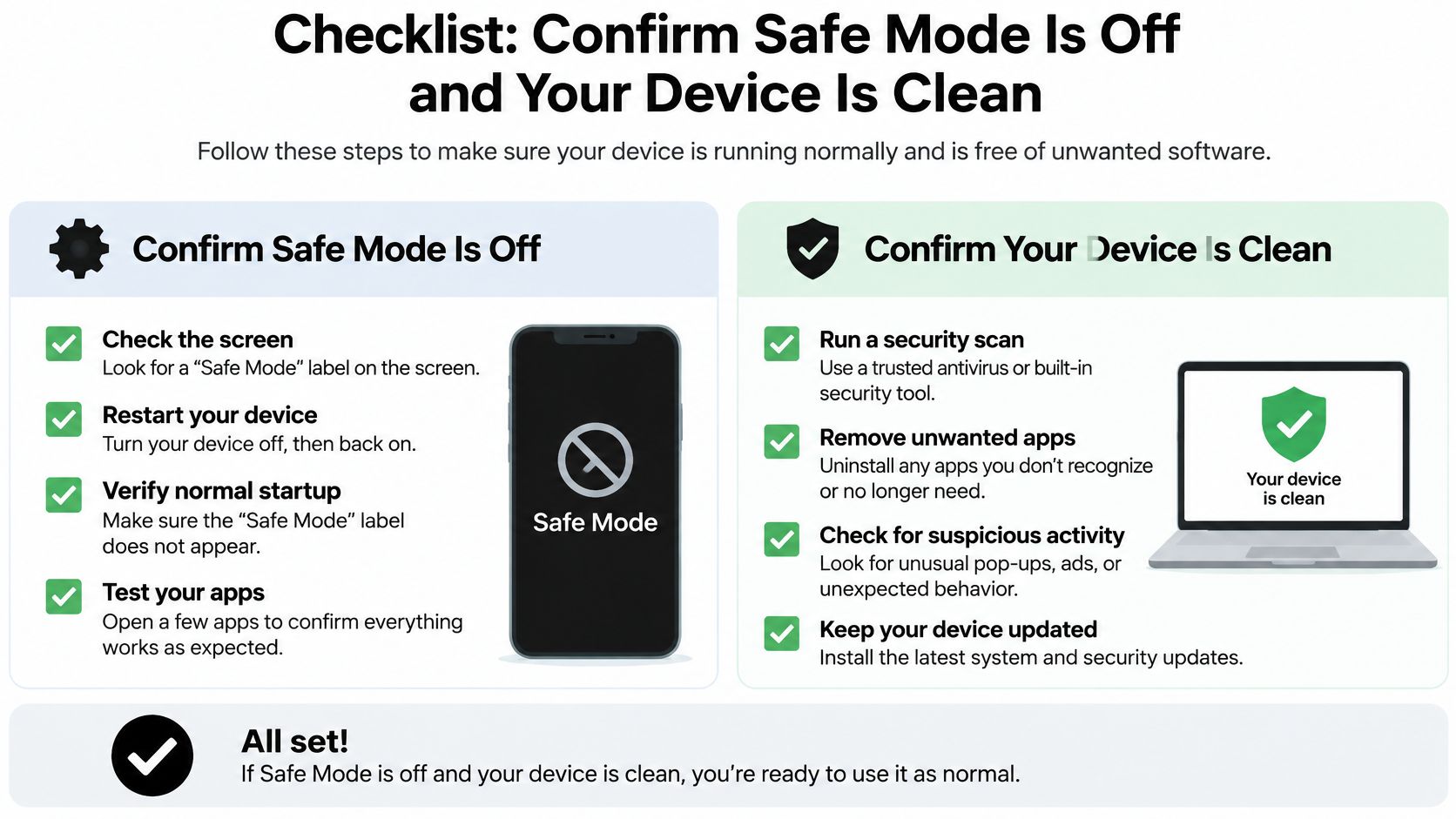
Run this checklist once you're back in a normal session:
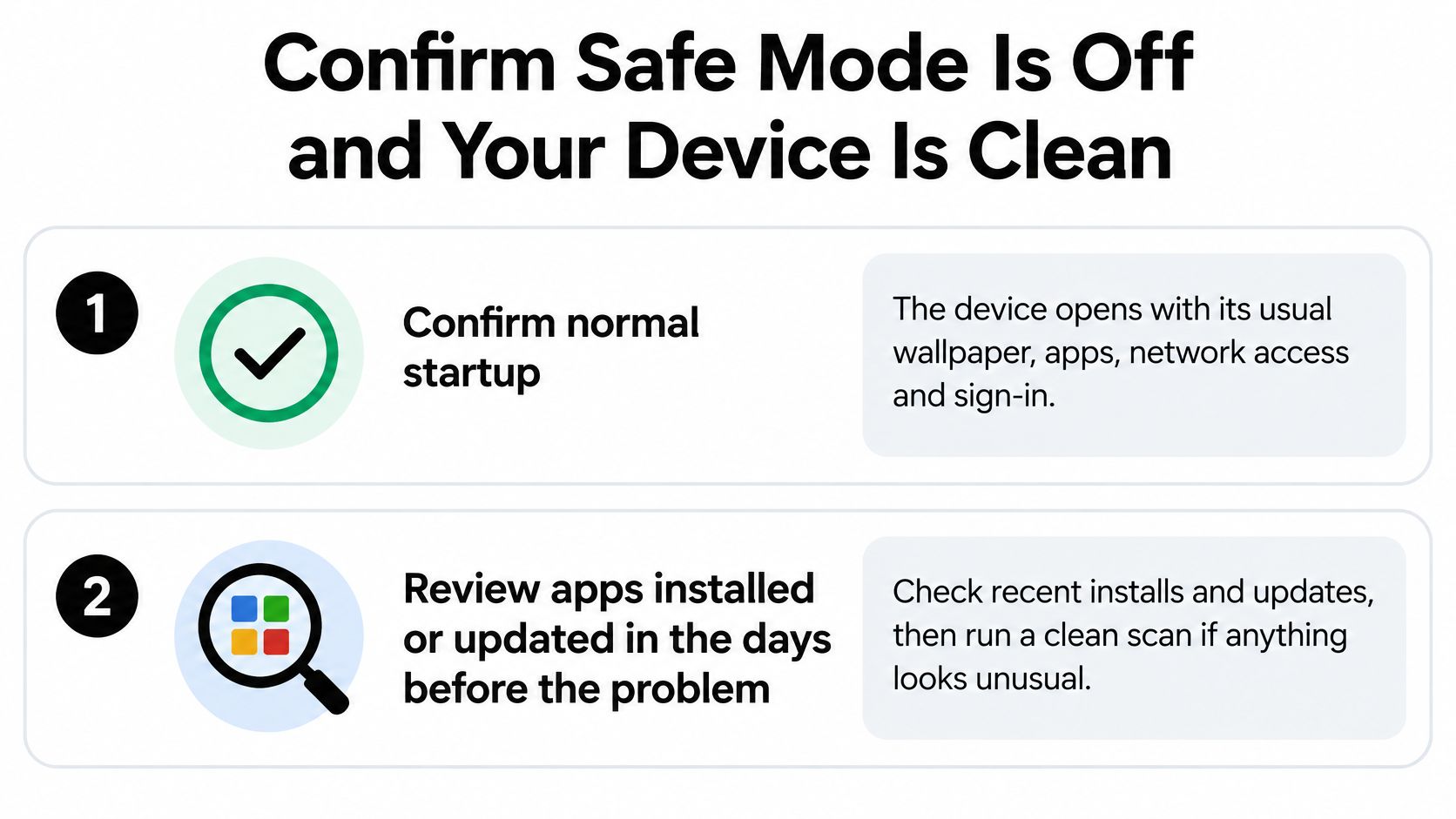
- Confirm normal startup. Usual wallpaper, full app drawer, working network, normal sign-in options. If any of that is missing, you're still in a restricted mode.
- Review apps installed or updated in the days before the problem started. Safe Mode disabled them, so the timeline is short and the suspects are few. Uninstall one, use the device normally for a while, then move to the next if the problem returns.
- On Android, revoke high-level permissions before uninstalling. Open Settings, check Device admin apps and Accessibility, and turn off the privileges for anything suspicious. Some disruptive apps block their own uninstall until those rights are withdrawn.
- Run the built-in security scan in normal mode. The scan needs third-party app behaviour to inspect, so it belongs after the reboot, not before it. If it finds something, these steps on removing malware from your phone cover the cleanup.
- Change important passwords from a separate trusted device. If account compromise is possible, don't type new credentials into the machine you're still diagnosing.
Safe Mode doesn't delete your apps or files, and it doesn't wipe your photos or settings, so none of this work risks your data. That's also why the reset-first reflex is backwards: it's the most destructive option and the least informative one.
Stop self-troubleshooting when the device behaves oddly after a clean scan, or when it keeps dropping back into Safe Mode after every fix above. That's a hardware or firmware fault, and a repair service or the manufacturer's support channel is the right next step, not a third round of reinstalls.
The honest summary: a restart handles the overwhelming majority of cases, msconfig handles the Windows machines that ignore the restart, and a stuck button handles most stubborn Android phones. Everything past that is diagnosis, and diagnosis is worth doing properly before anything gets erased.
If you'd rather not guess your way through the next device problem, the team publishes plain-language walkthroughs for exactly this kind of situation, from stuck boot modes to app cleanups and account security. Every guide is written for people who want the fix explained once, without jargon or a five-step detour through settings you'll never touch again. Visit Simply Tech Today to find the guide for your model and get your device back to normal.
Member discussion